4. Features
Once the user select the environment, it will be redirected to homepage as shown below
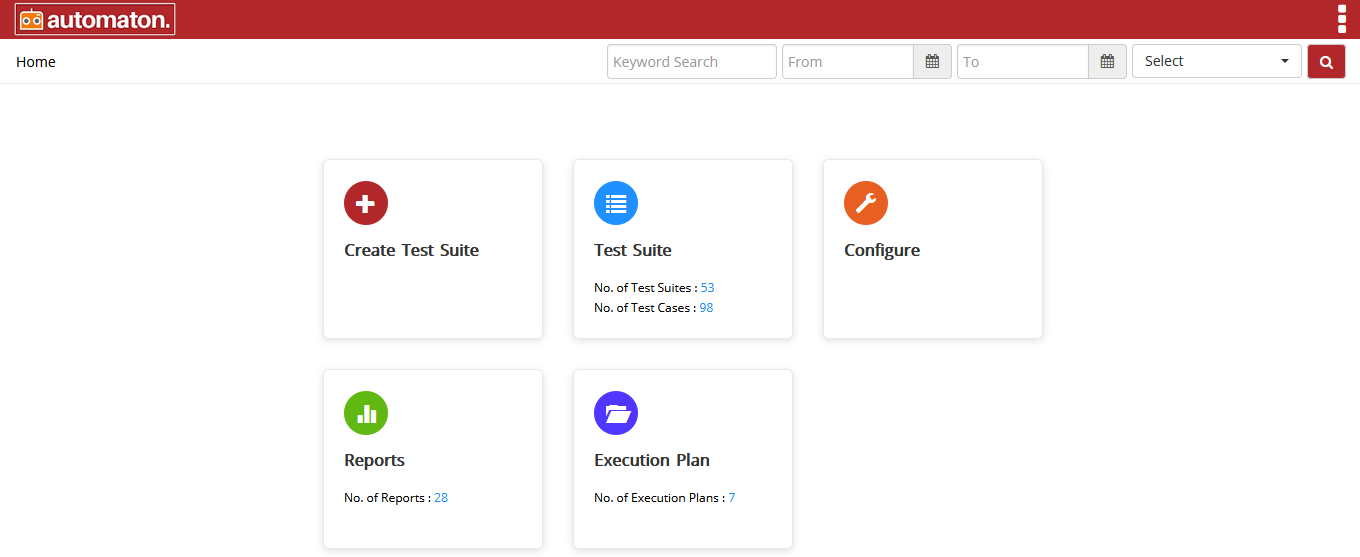
Fig. 4.1 Homepage
The search feature helps the user to find previously created Test cases, Test suites, Report. Here users can refine search by entering a keyword in the keyword Search textbox. It is recommended to populate this field with relevant information so that locating through search will be quicker and easier to locate the test case/test suite for future reference. It is also important to use relevant naming for your test suites and test cases to make keyword search better. Users can also filter the search by setting the time range by giving From and To date. Users can also select type from the Select drop-down field and click the search icon
to display the result as shown below:
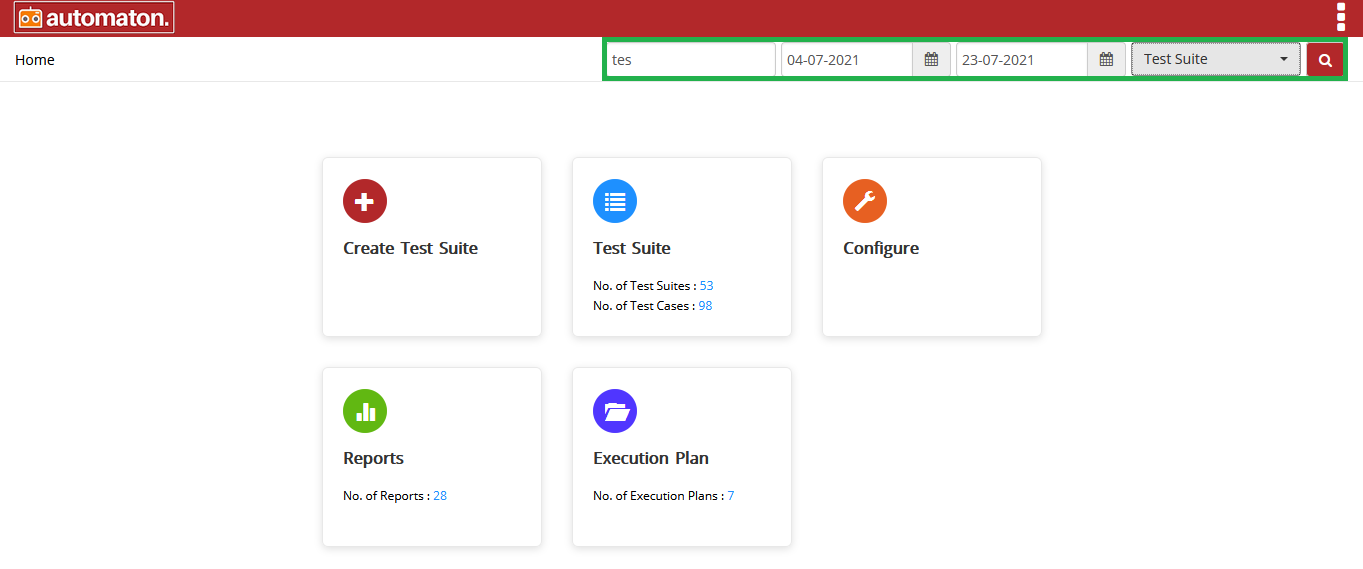
Fig. 4.2 Search
The homepage has the following sessions:
4.1. Create Test Suite
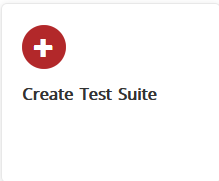
Fig. 4.3 Create Test Suite Icon
The above shown icon is to create test suites by providing name and selecting anyone among API, Database, Log, Mobile test suites.
4.2. Test Suite
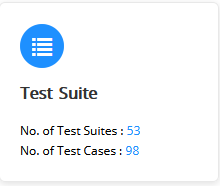
Fig. 4.4 Test Suite
Click the Test Suite icon to view the test cases or create a new test suite or access the already created test suite. It will also display the total number of test suites and test cases. Click the plus icon|image4a| in the menu to create the test suite as shown below:
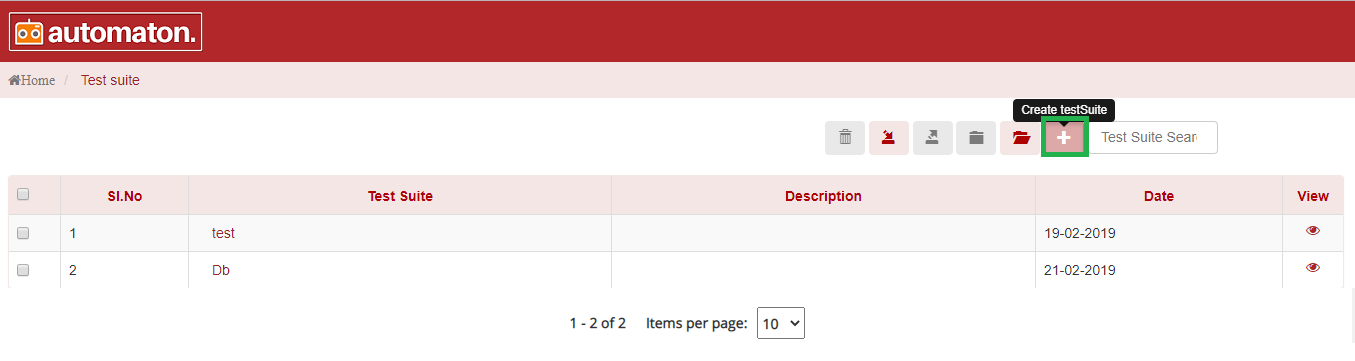
Fig. 4.5 Create Test Suite
It is important to give a descriptive name for your test suite. A descriptive name ensures easy access to your test suite through a keyword search or random browsing. Any user can locate your Test Suite with related phrases through search if the name is self-explanatory and contains common keywords. If the Test Suite name is not enriched with relevant keywords, locating the test suite becomes harder.
4.3. Configure
Fig. 4.6 Configure
This section contains:
- Configure Action
This is to build a new Action for corresponding elements like Start, Web, API, Process, Decision, Stop.
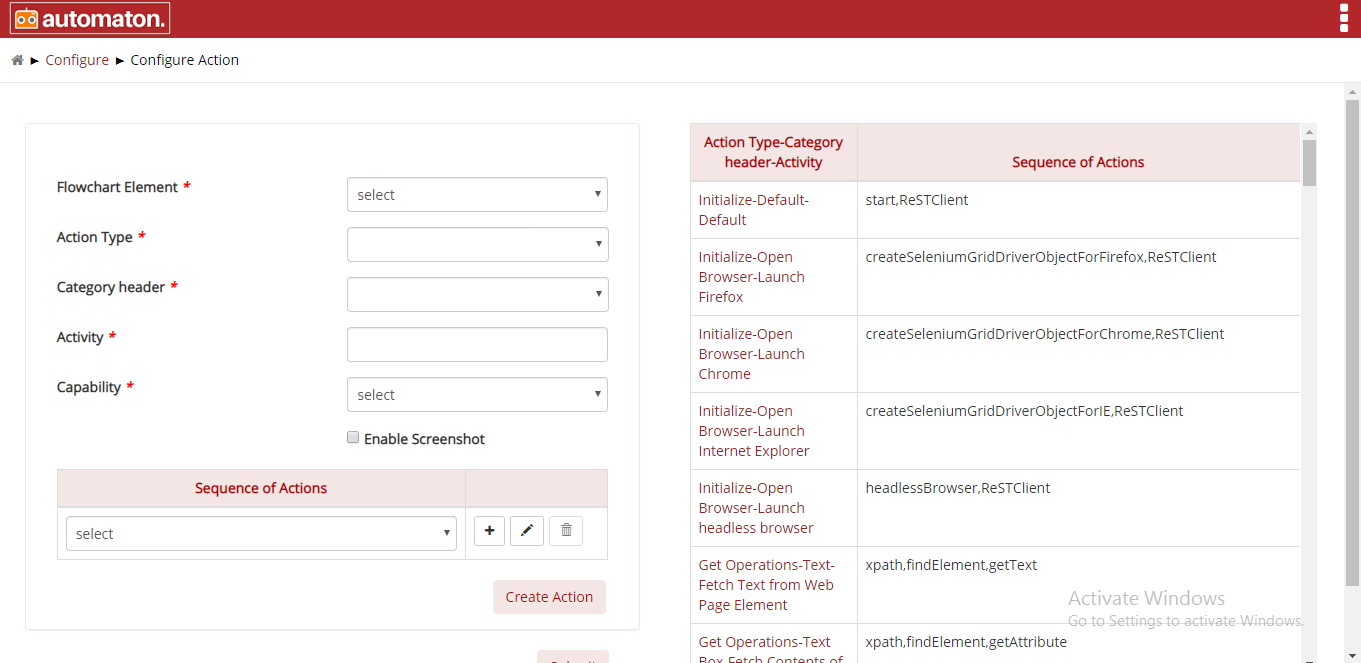
Fig. 4.7 Configure Action
- Custom Action
Custom Action are built to reuse the test cases when required. Here user can customise Automaton with custom actions that suit their needs. Thus, saves the time.
Steps to Create and use Custom Action
- Create a Custom Action
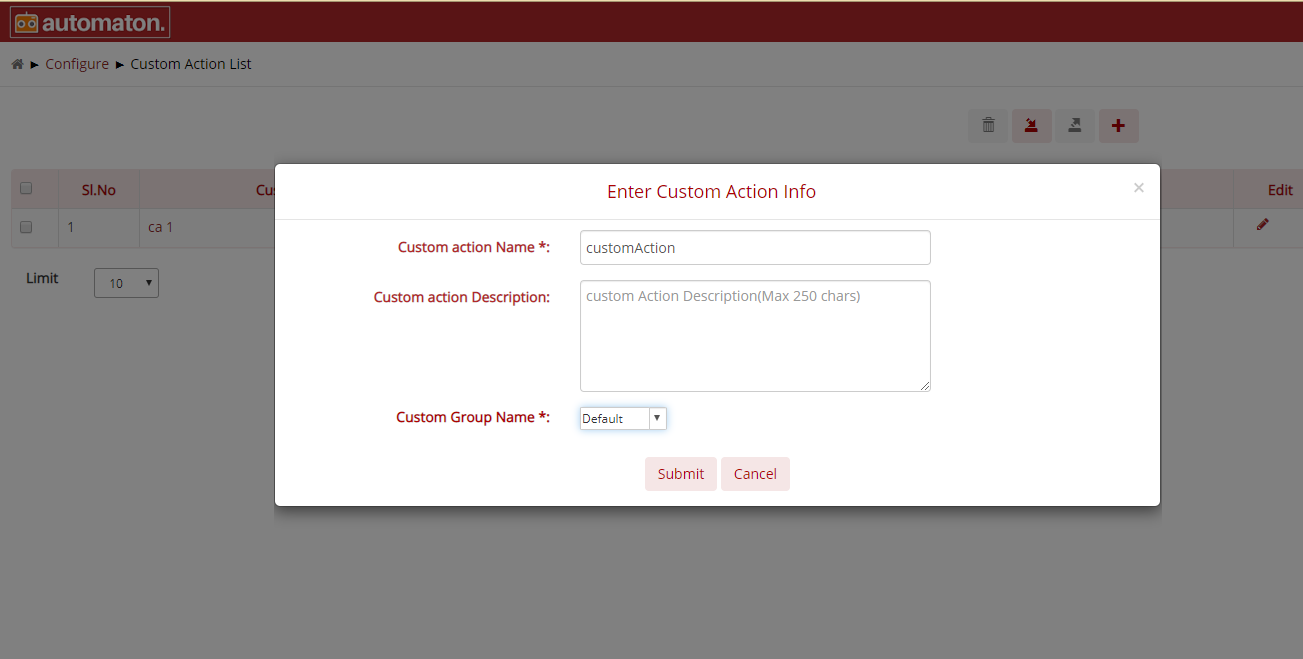
Fig. 4.8 Create Custom Action Page
Custom action Name: Specifies the name of Custom Action. Ensure that you are using relevant keywords.
Note
Custom Action Name is a mandatory field and should not exceed 50 characters.
Custom action Description: It is an optional field, but it is recommended to populate this field with relevant information and supporting keywords so that locating your test suite through a search will be quicker.
Custom Group Name: Specify which group Custom Action relay on.
Click the Submit button, the page will be redirected to the Custom Action page as shown below:
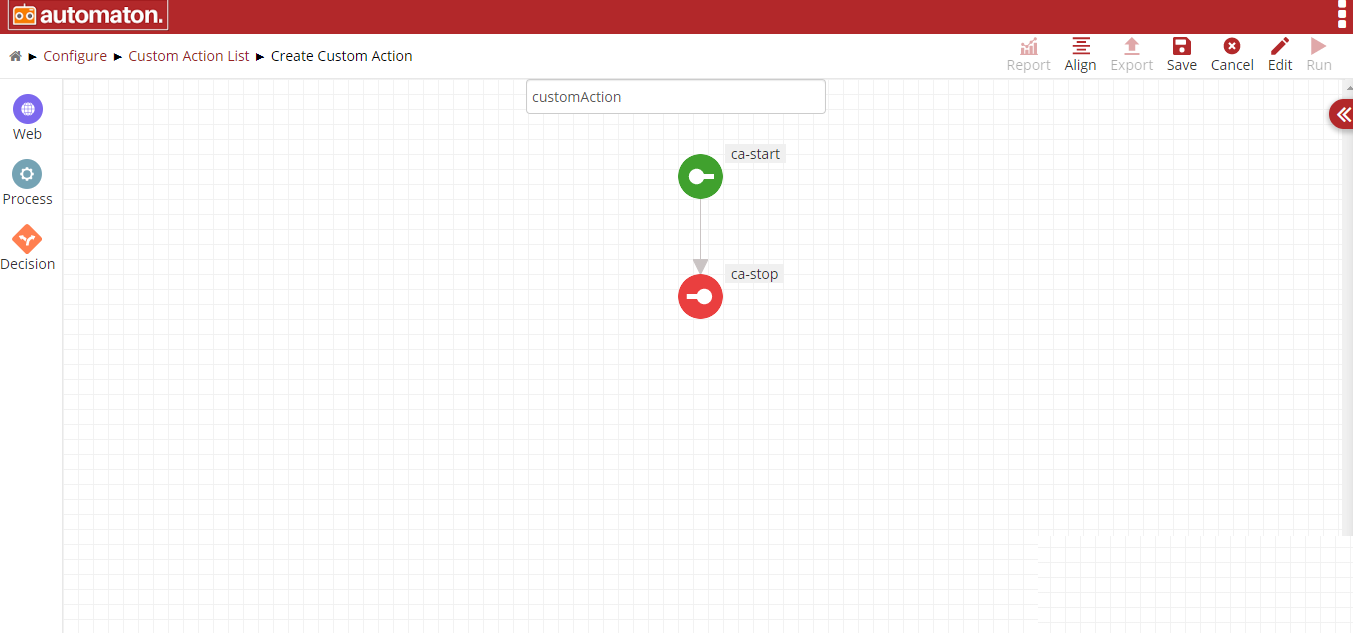
Fig. 4.9 Custom Action Page
Both elements in the above figure are called custom action nodes which helps to connect Web, Process, Decision elements. User can insert elements by hovering over custom Action node, ca-start.
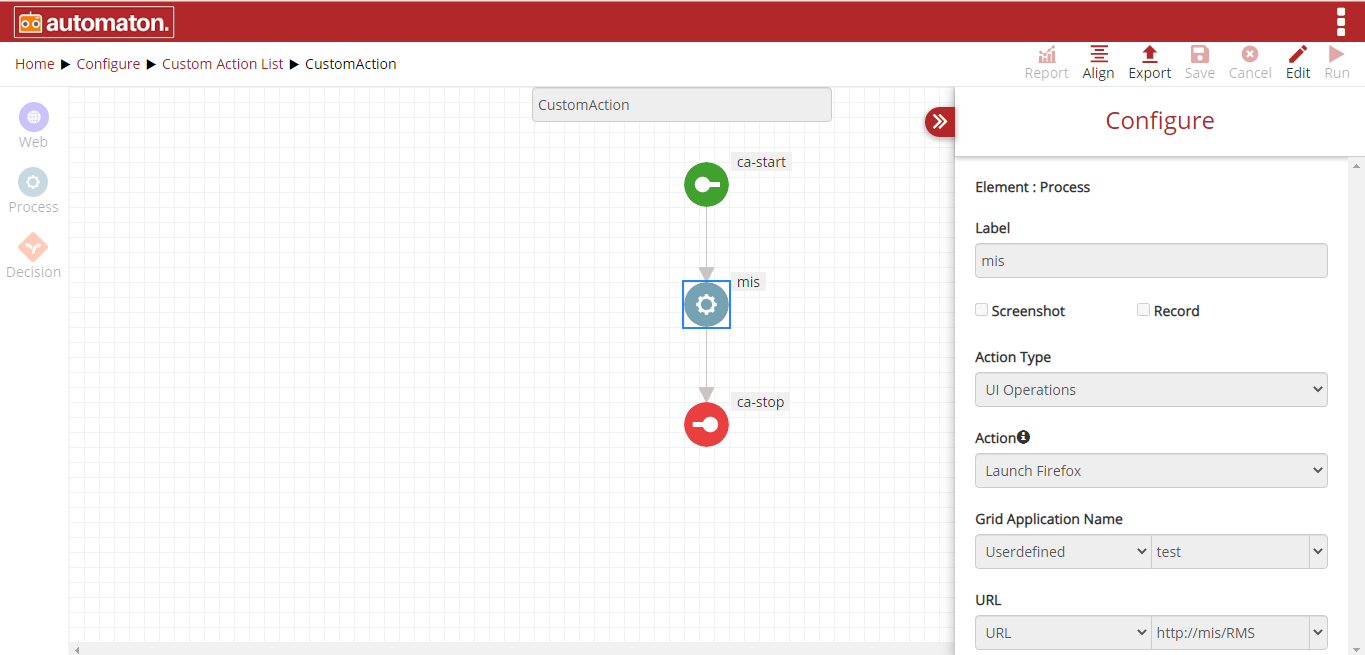
Fig. 4.10 Custom Action Page
The above figure shows creating Custom Action. To save Custom Action, click on Save button and Cancel to cancel the Custom Action created.
- Use Custom Action in Test Case
If a user needs a custom action in a test case, select the process element and add ‘Custom’ as Action Type and select the corresponding custom action created in Custom Group Name as shown below:
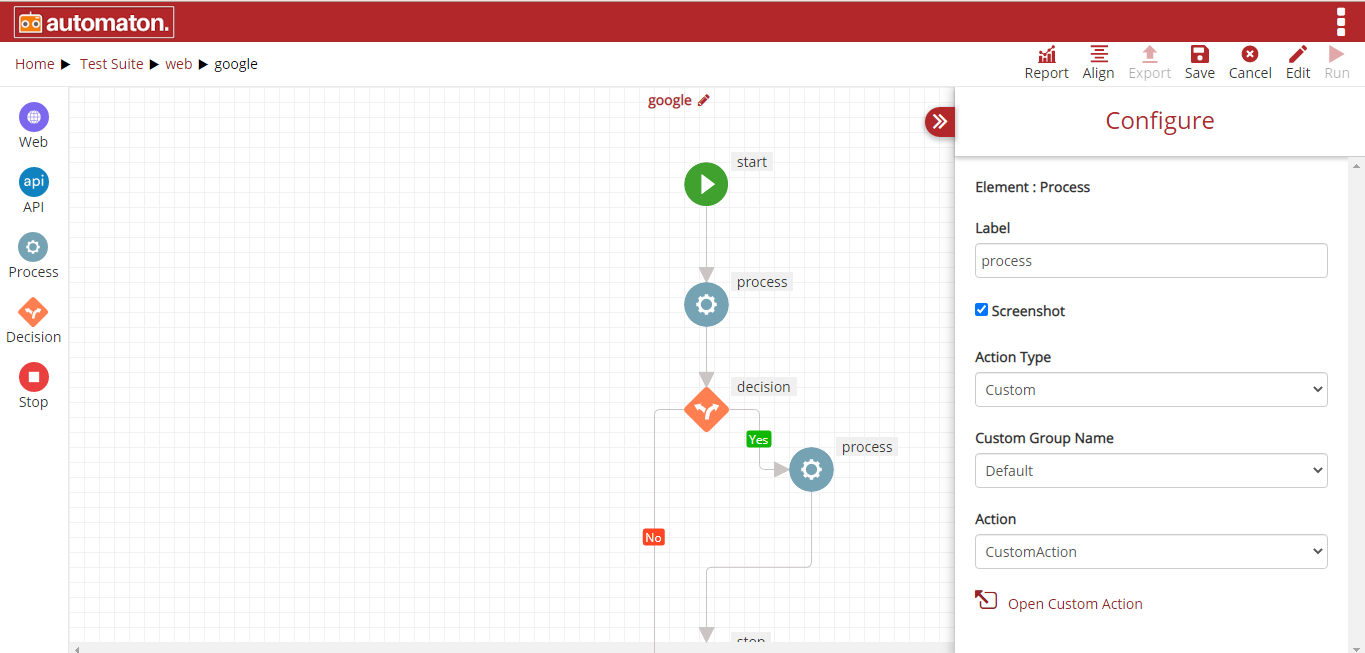
Fig. 4.11 Configure Custom Action
Once the Action Type and Custom Group Name are selected, then all the created custom actions will display in the Action field. Users can select the required custom action. Click on the Open Custom Action to view the custom action flow as shown below:
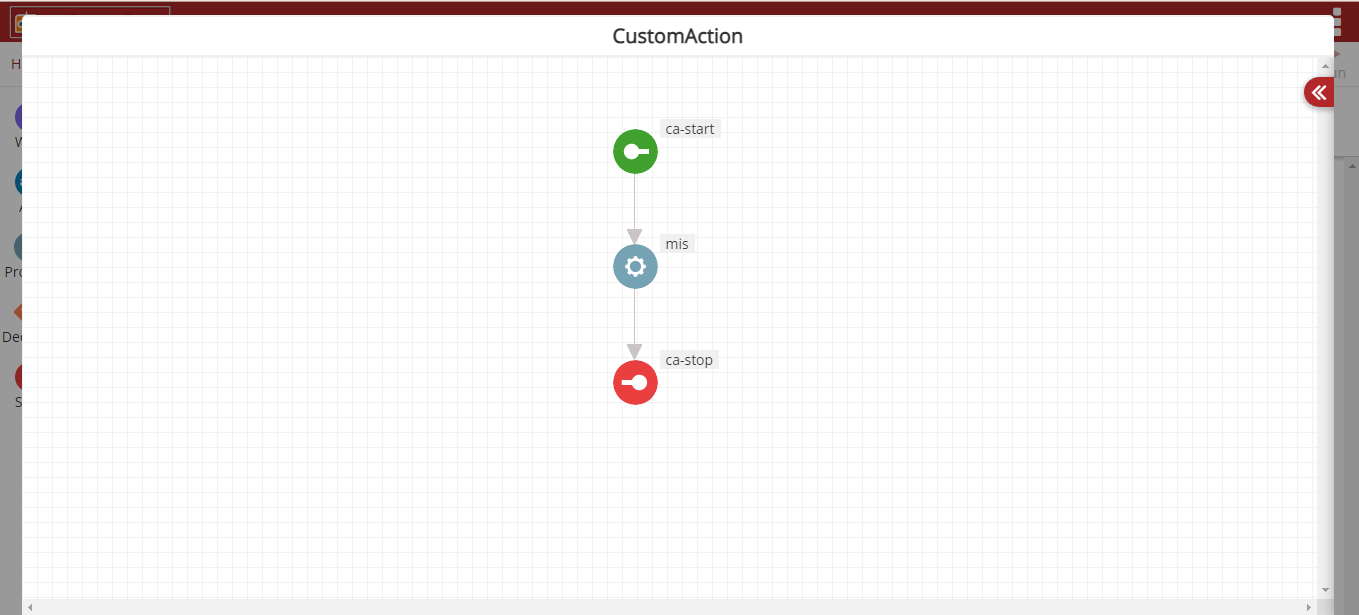
Fig. 4.12 Custom Action Flow
- Here users need to update the custom action like Step ID accordingly.
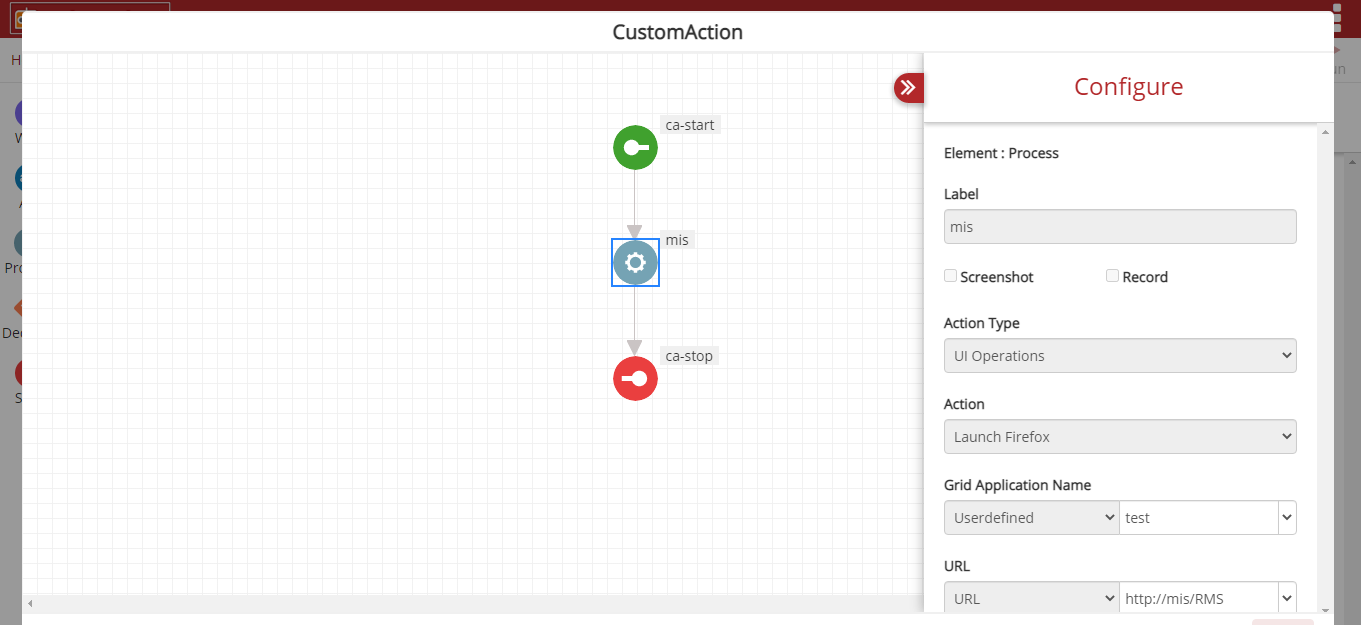
Fig. 4.13 Updating Custom Action
- Once the user is completed with test case creation click Save > Run and a report will be generated.
Similarly, users can also use database custom action in the test case steps are as follows:
- Create a database Custom Action.
For instance, here we using a Custom Action named db custom action. This custom action is intended to query a table and fetch the last_name from the record and map it.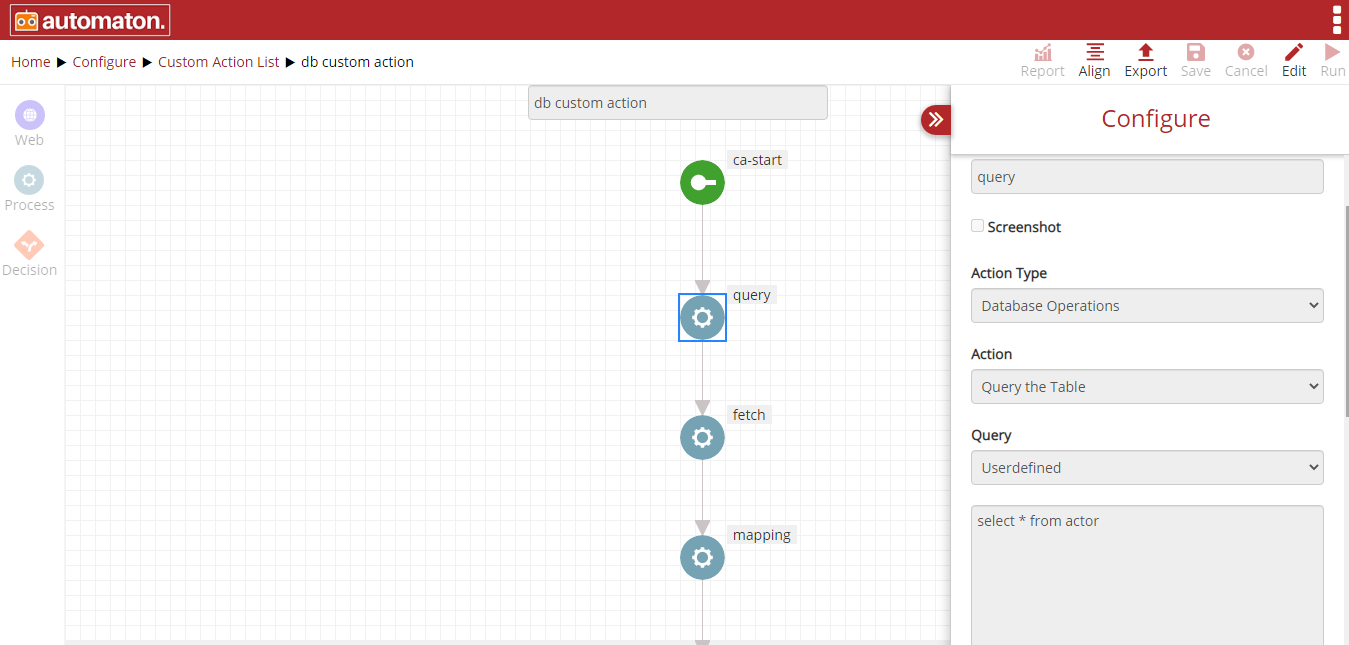
Fig. 4.14 Databse_Custom_Action
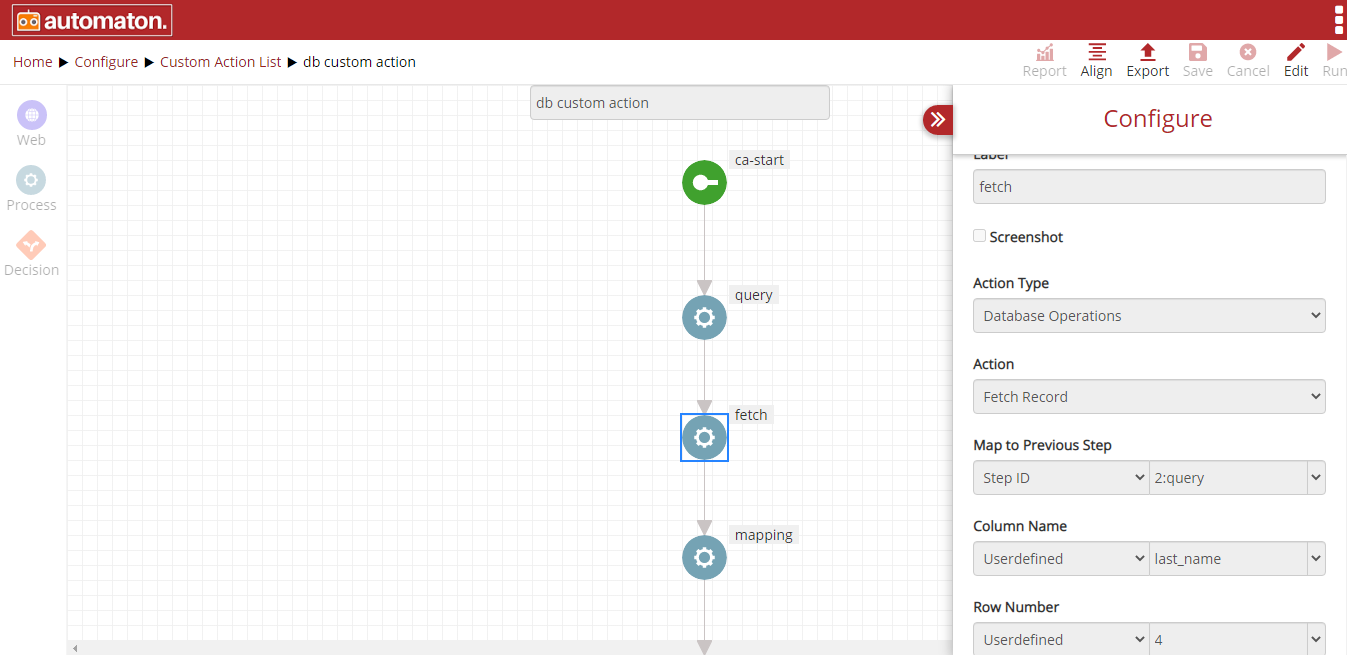
Fig. 4.15 Database Custom Action to Fetch Record
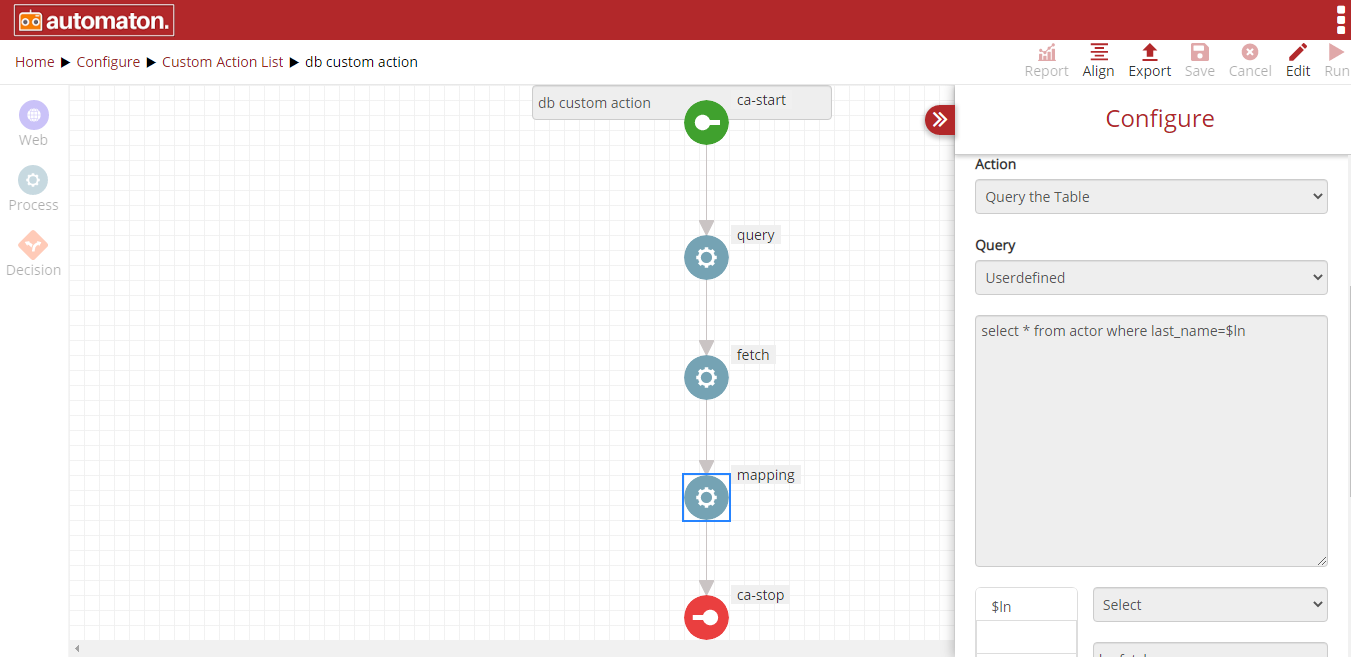
Fig. 4.16 Database Custom Action to Map
- Using database Custom Action in Test Case
- Create a database test case, db new from Test suite.
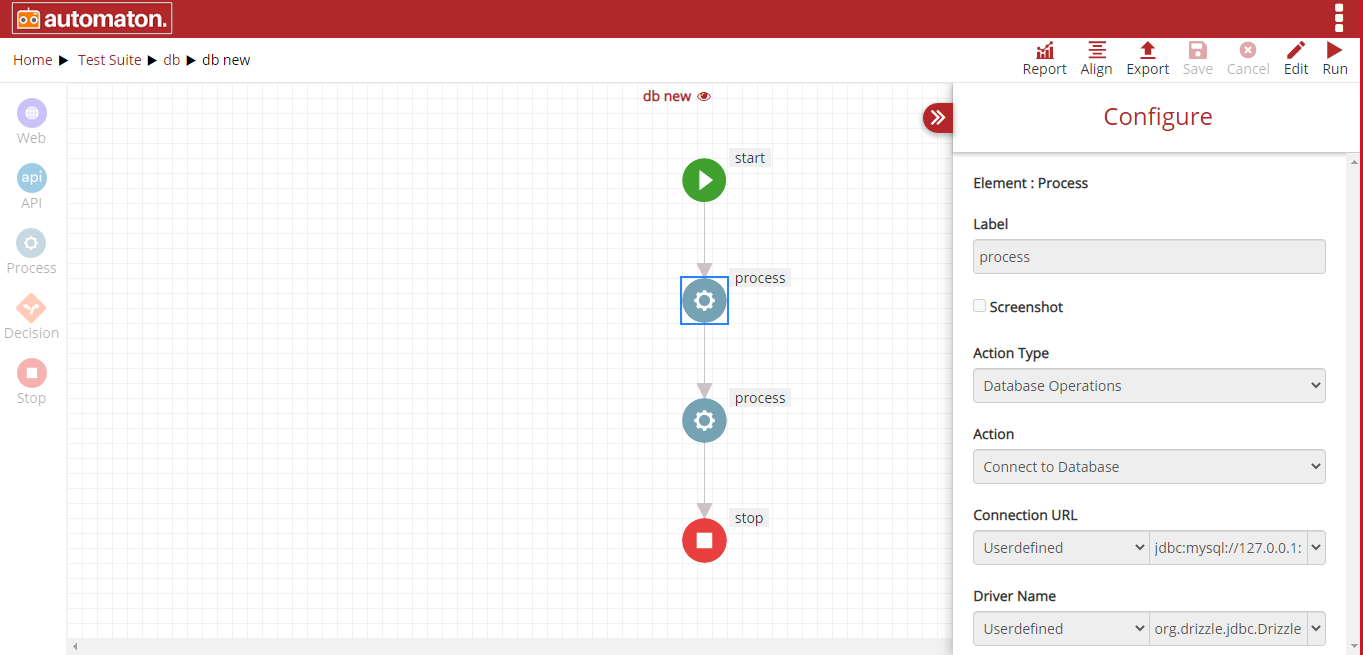
Fig. 4.17 Db Test Case
- On the process element add ‘Custom’ as Action Type and select the corresponding Custom Group Name as shown below:
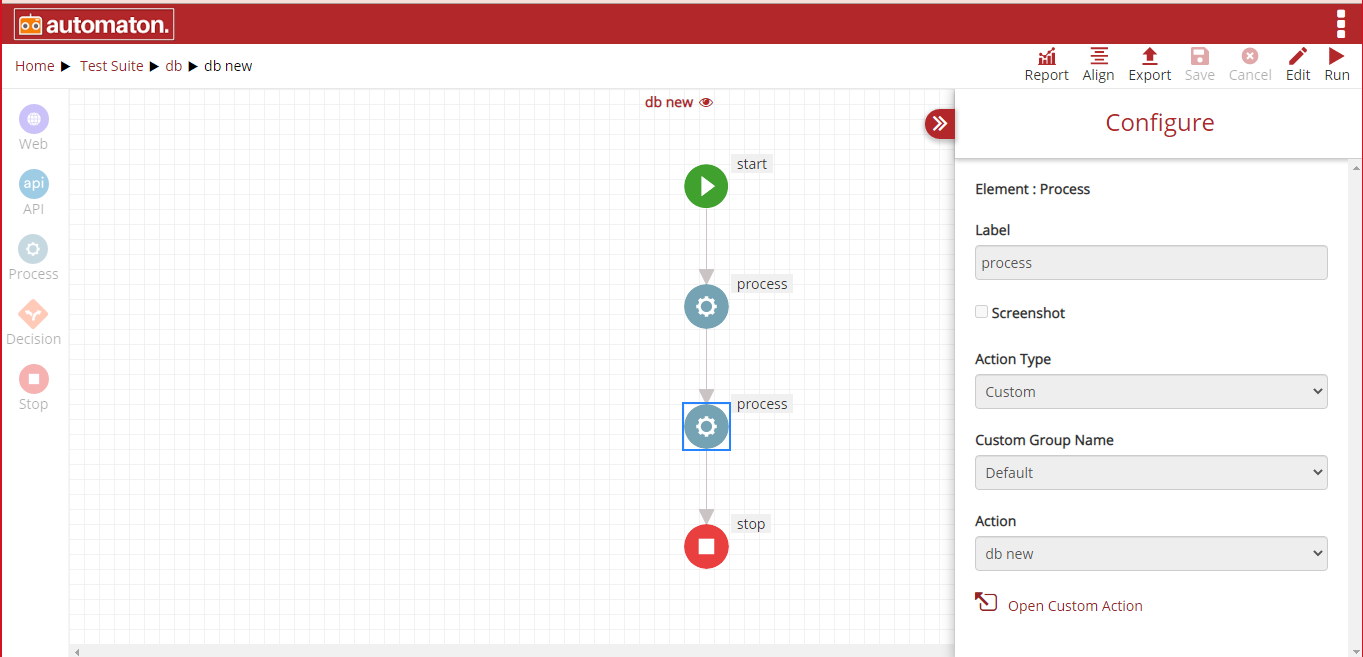
Fig. 4.18 Configure Custom Action in DB
- Once the Action Type and Custom Group Name are selected, then corresponding custom actions will display in the Action field. Users can select the required database custom action. Click on the Open Custom Action to view the custom action flow as shown below:
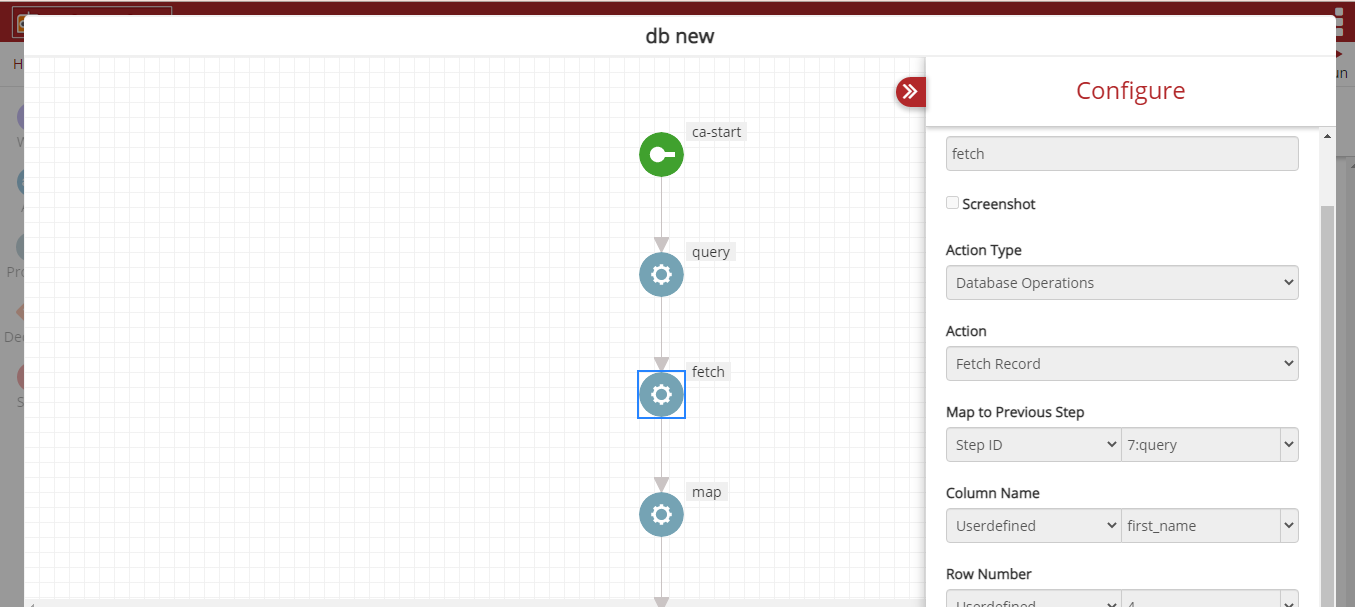
Fig. 4.19 Updating_Custom_Action.png
- Here users need to update the custom action like Step ID accordingly.
- Once the user is completed with test case creation click Save > Run and a report will be generated.
- Mail Configuration
Mail Configuration is used to send emails from the mail client to a mail server (outgoing mails) and to send mails from the sending mail server to a receiving mail server.
On configuring this, it would send an email after running an execution plan.
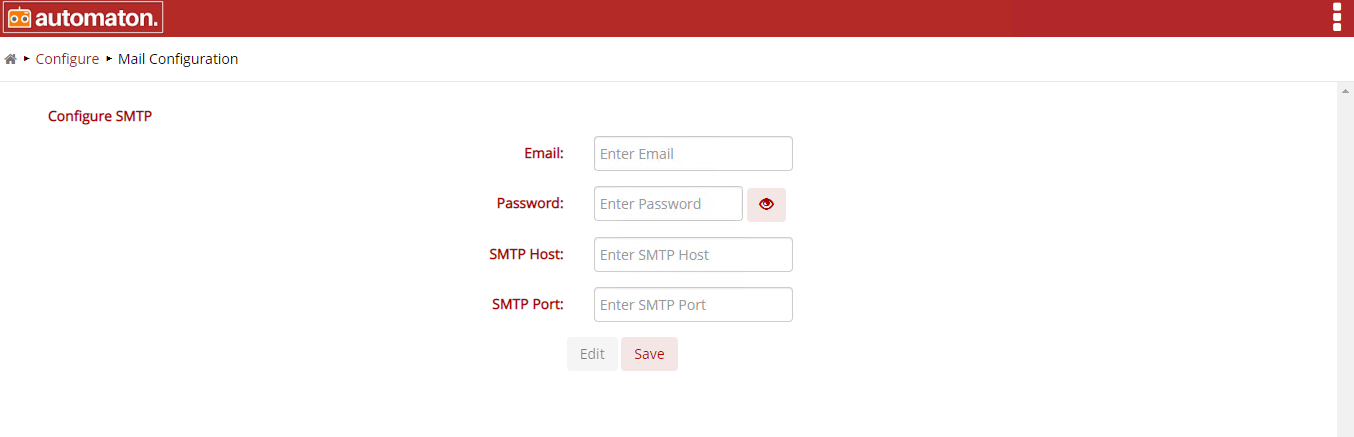
Fig. 4.20 Mail Configuration
The above shown icon is to create test suites by providing name and selecting anyone among API, Database, Log, Mobile test suites.
4.4. Report
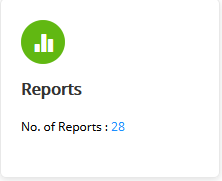
Fig. 4.21 Report
The Report icon allows to the users to access the all the reports. It will also display the total number of reports. On clicking the above icon the Report page will be displayed as shown below:
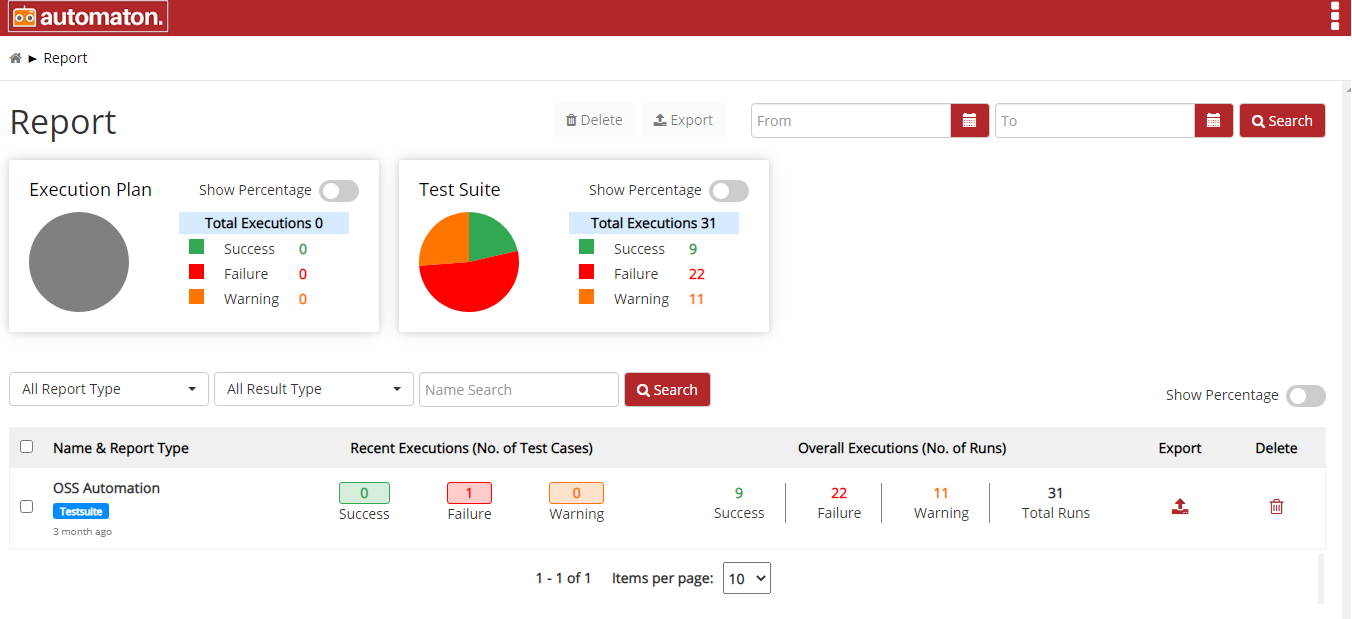
Fig. 4.22 Report Page
On the above page, users can view the overall statistics of the executed Execution Plan and Test Suite as a pie chart. Statistics include Total Executions, Success, Failure, Warning as a number or percentage. Users can switch between numbers or percentages using the toggle button.
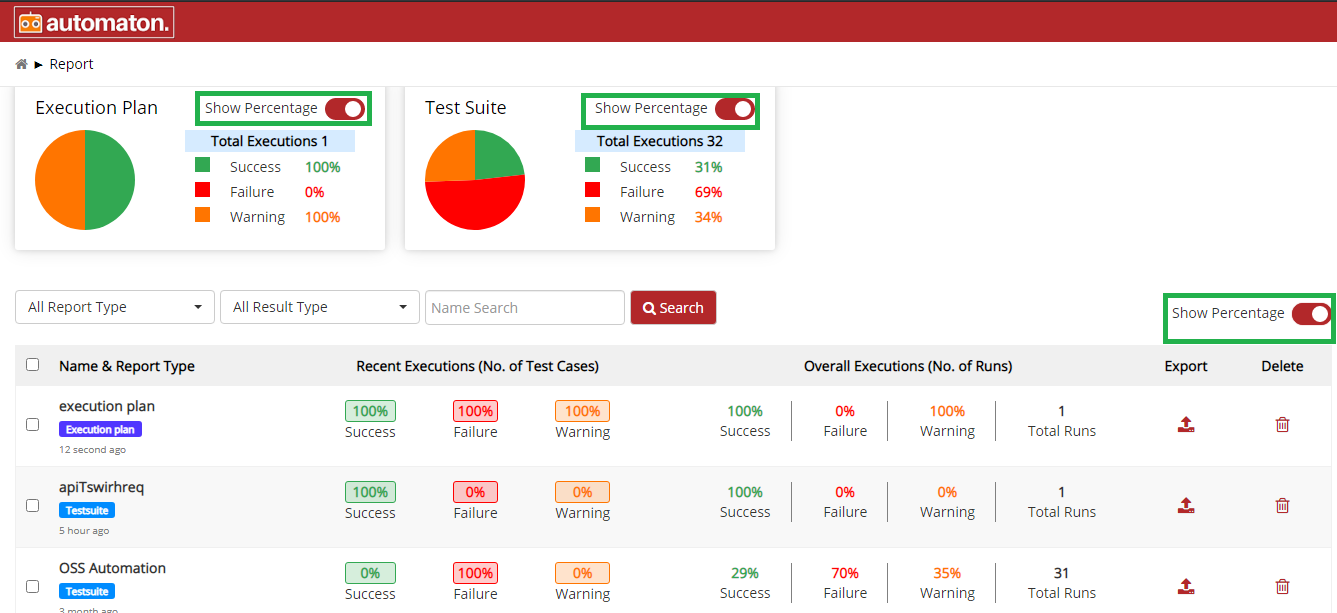
Fig. 4.23 Show Percentage
- To delete multiple Execution plan/Test Suite check the checkbox prefixed to the corresponding Execution plan/Test Suite, the Delete button will be enabled and click to Delete.
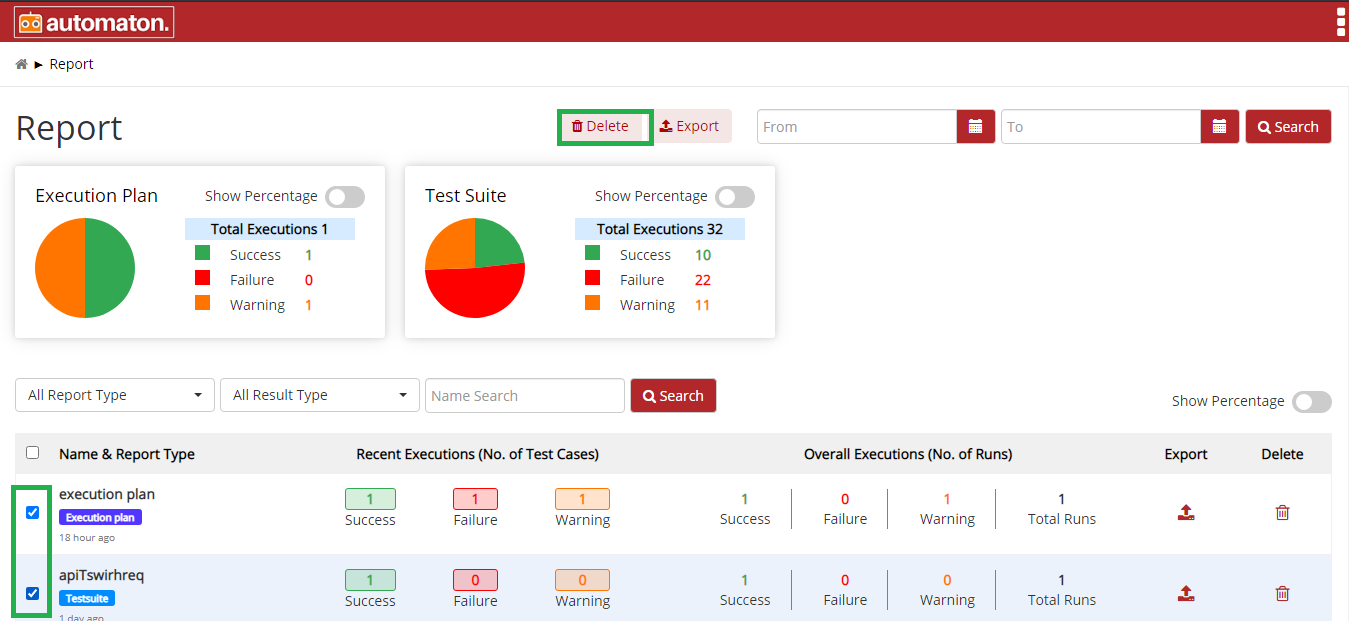
Fig. 4.24 Delete
- To export multiple Execution plan/Test Suite check the checkbox prefixed to the corresponding Execution plan/Test Suite, the Export button will be enabled and click to Export.
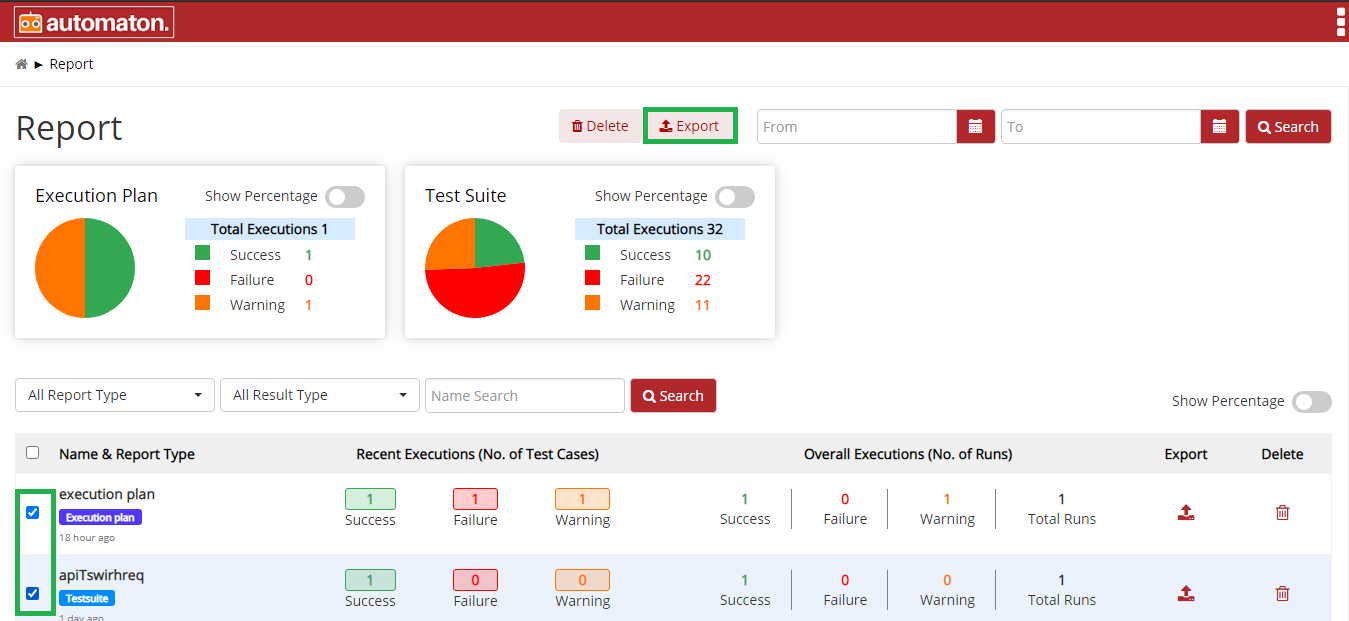
Fig. 4.25 Export
Users can access the Report List to check the status of all executed Execution Plan or Test suites. User has an option to view all the results or apply filters to refine the search results.
- Search results can be filtered based on From and To date and click Search.
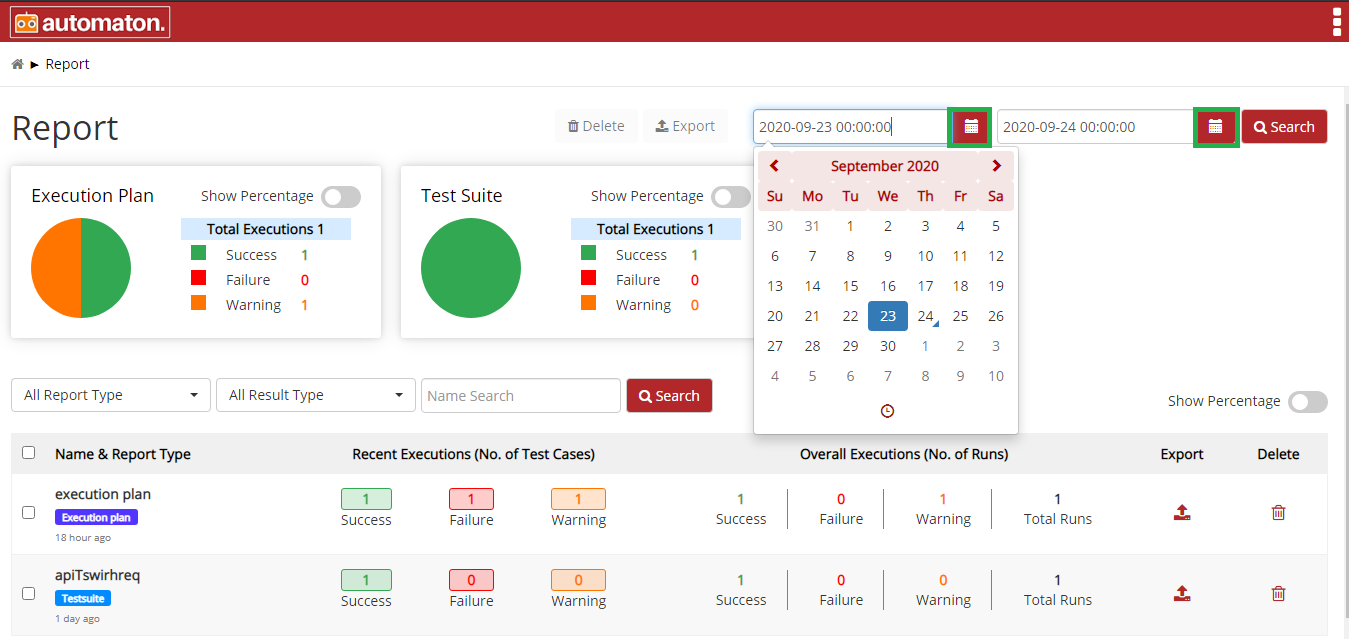
Fig. 4.26 Search with From and To Date
- All Report Type: Click the dropdown list to select any one of the options: All Report Type/Execution Plan/Test Suite. Select any and click Search the corresponding results will be displayed as shown below:
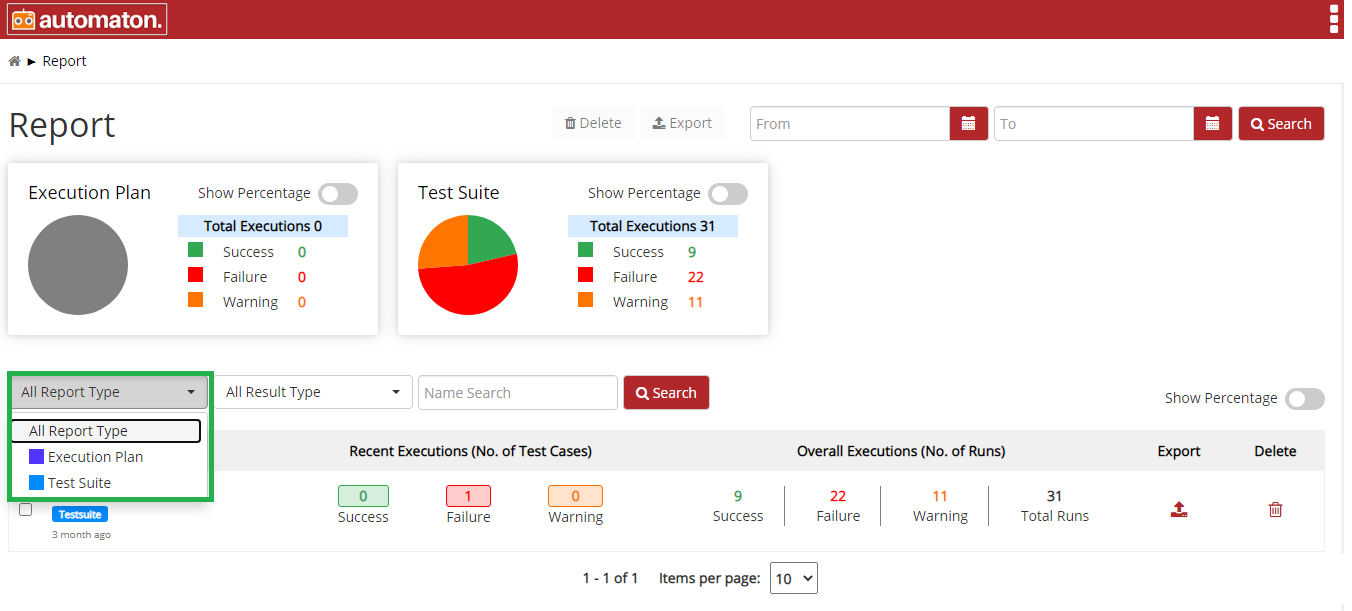
Fig. 4.27 Search Options
- All result Type: Click the dropdown list to select any one of the options: Success/Failure/Warning. Select any and click Search the corresponding results will displayed as shown below:
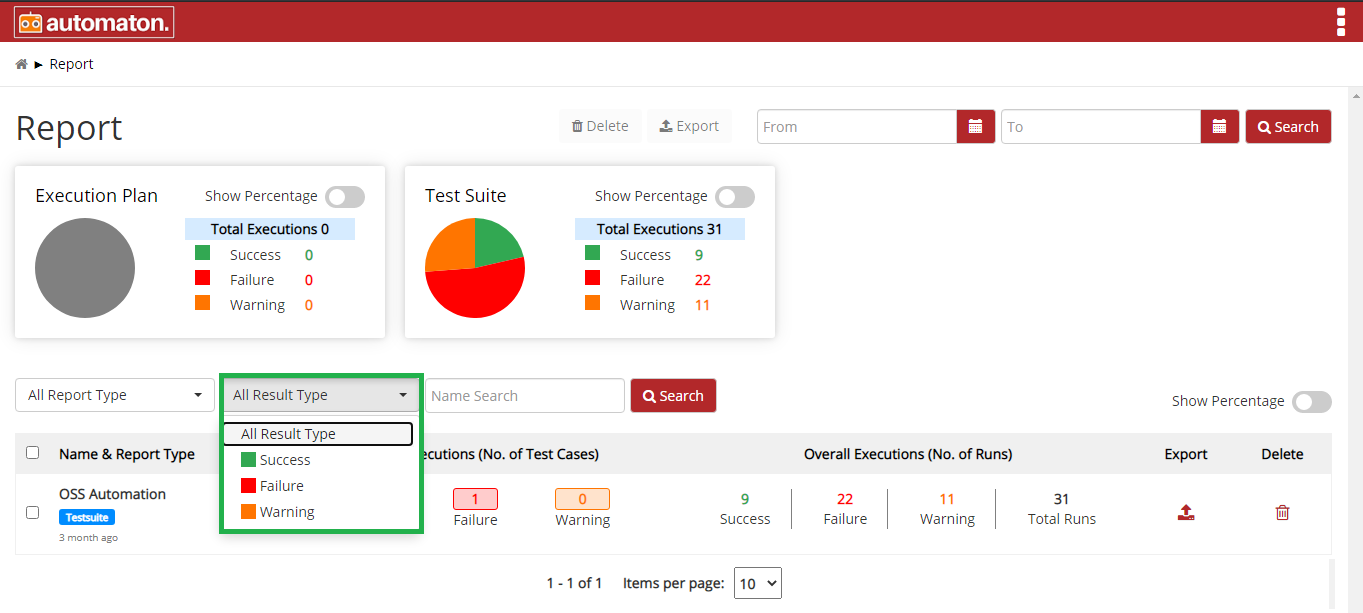
Fig. 4.28 All Result Type
- Name Search: Allows users to search by giving a phrase or a key value. It is recommended to populate this field with relevant information so that locating through search will be quicker.
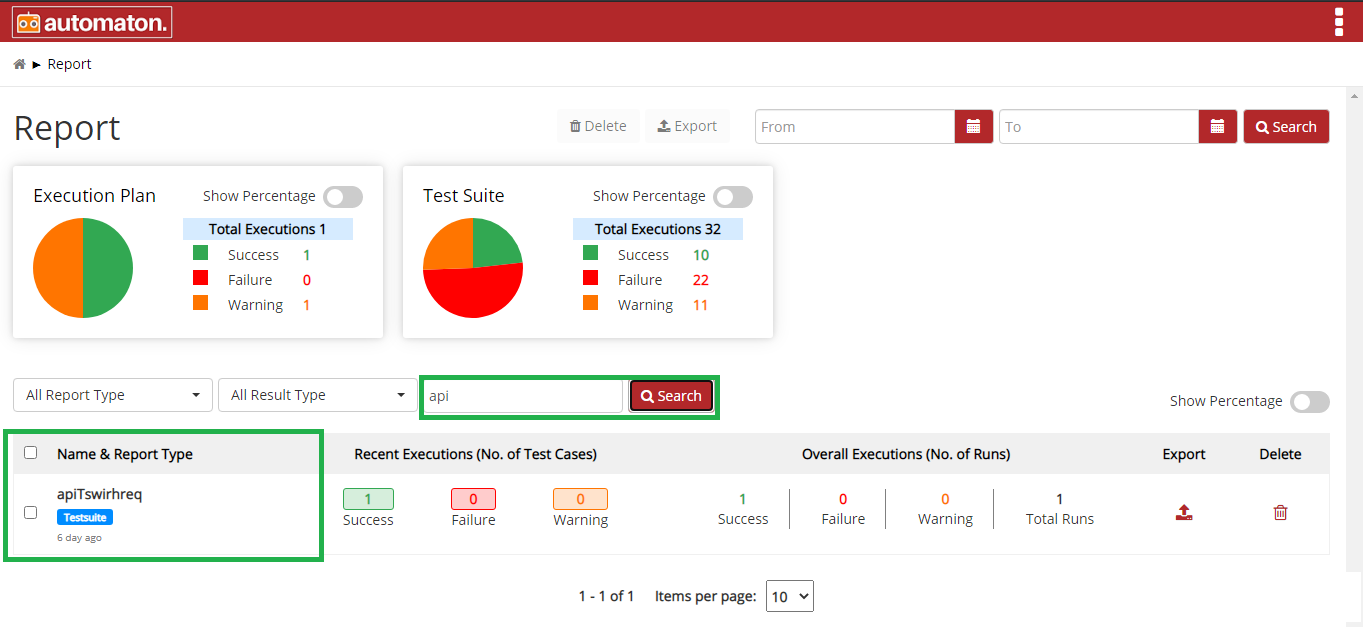
Fig. 4.29 Name Search
Name & Report Type: It displays the name of the Execution plan/Test Suite. Below the name, it will display the type(Execution plan
 /Test Suite
 ) with respective
color codes.
) with respective
color codes.Users can click on the name to view the detailed report as shown below:
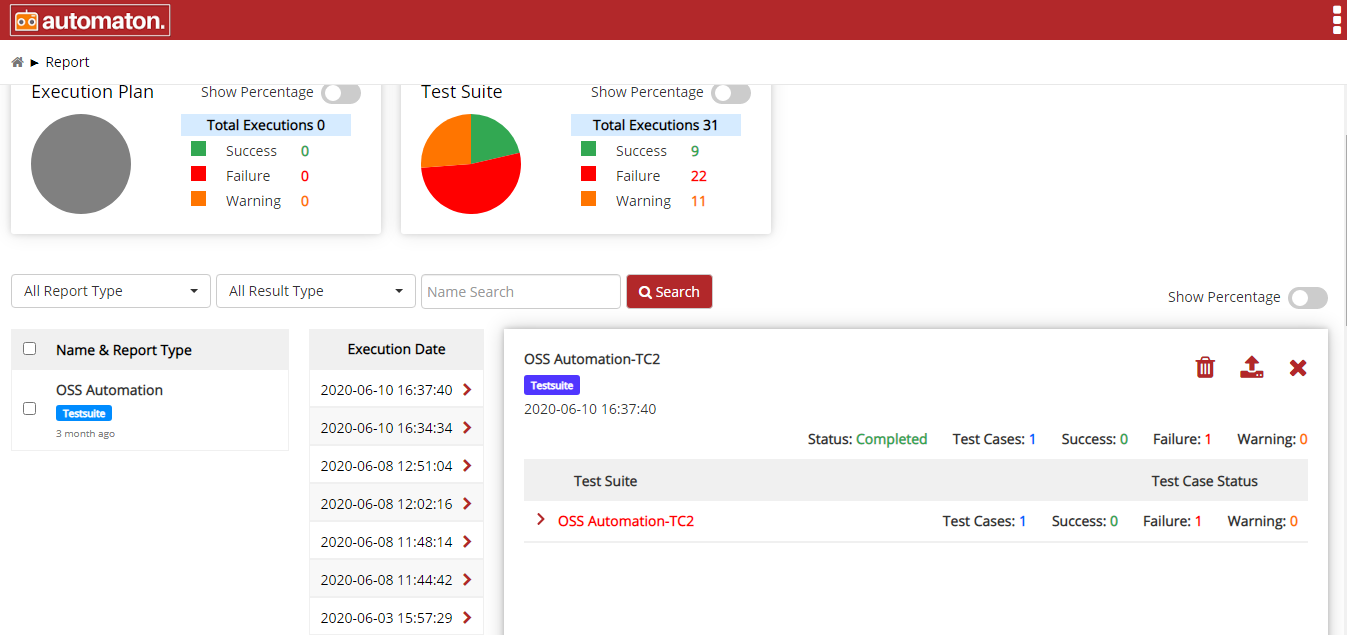
Fig. 4.30 Detailed Report
Here users can see:
- Execution Date: It will list all the executions on the selected
Execution plan/Test Suite along with the date and time. Users can
click on any dates to see the detailed report on the right panel. It will
display Name & Type, Status, Number of Test cases executed, Success,
Failure, Warning. For more details, users can click on the particular
Execution plan/Test Suites. It will display all elements with status
(success, fail, or warning) with color code. The Red color
element shows a failed node and the green color denotes success
node and the Orange color node denotes warning.
- Click the
 icon to delete the report.
 - Click the
 icon to export the report.
 - Click the
 icon to close the page.
- Click the
- Execution Date: It will list all the executions on the selected
Execution plan/Test Suite along with the date and time. Users can
click on any dates to see the detailed report on the right panel. It will
display Name & Type, Status, Number of Test cases executed, Success,
Failure, Warning. For more details, users can click on the particular
Execution plan/Test Suites. It will display all elements with status
(success, fail, or warning) with color code. The Red color
element shows a failed node and the green color denotes success
node and the Orange color node denotes warning.
Recent Executions (No. of Test Cases): It displays the separate count of Success, Failure, Warning if an Execution plan/Test Suite had recently been executed.
Overall Executions (No. of Runs): It displays the total number of executions so far on particular Execution Plan/Test Suites.
Export: Click the
icon to export the corresponding
report in the Report List.Delete: Click the
icon to delete the corresponding
report in the Report list.
4.5. Execution Plan
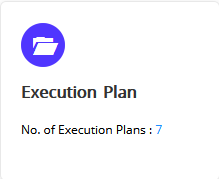
Fig. 4.31 Execution Plan
You can access execution plans by tapping above icon. It will also display the total number of execution plans. Execution plans can be viewed or modified as per your requirements.
The Execution plans can be created for already existing test suites and test cases. Here is how.
Step 1: Click on Test Suite tile on the home page. On clicking it you will navigate to Test Suite Page.
Step 2: Select the Test Suite for which you want to create an Execution plan.
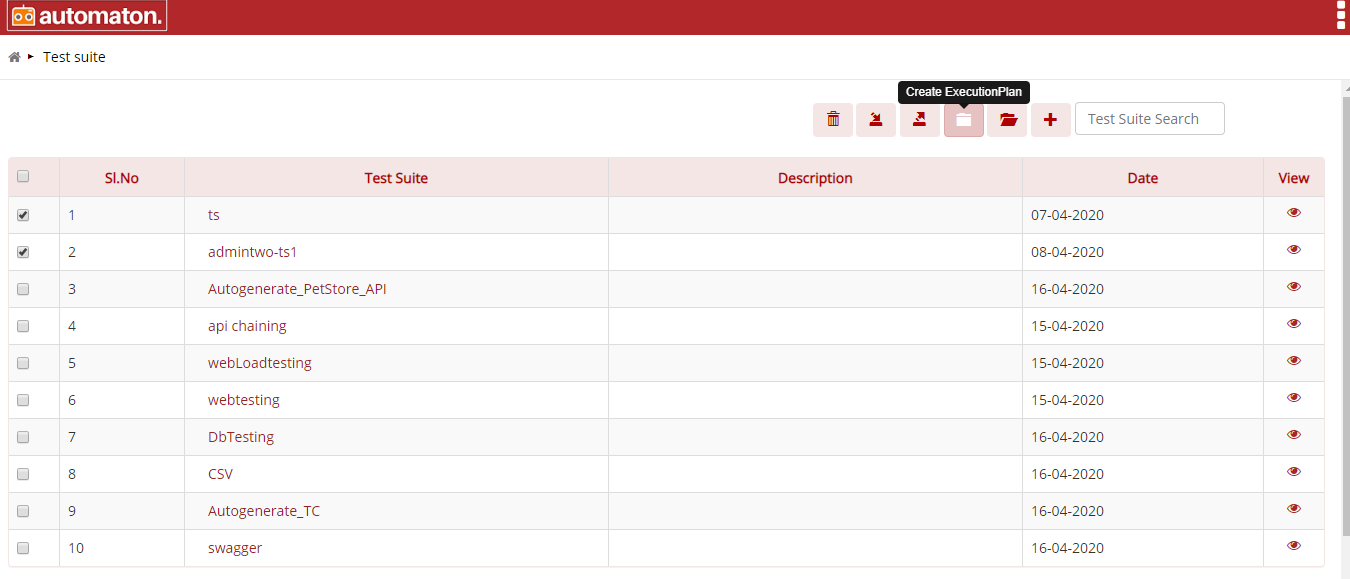
Fig. 4.32 Create Execution Plan
On clicking the Create Execution Plan user will navigate to Create Execution Plan page.
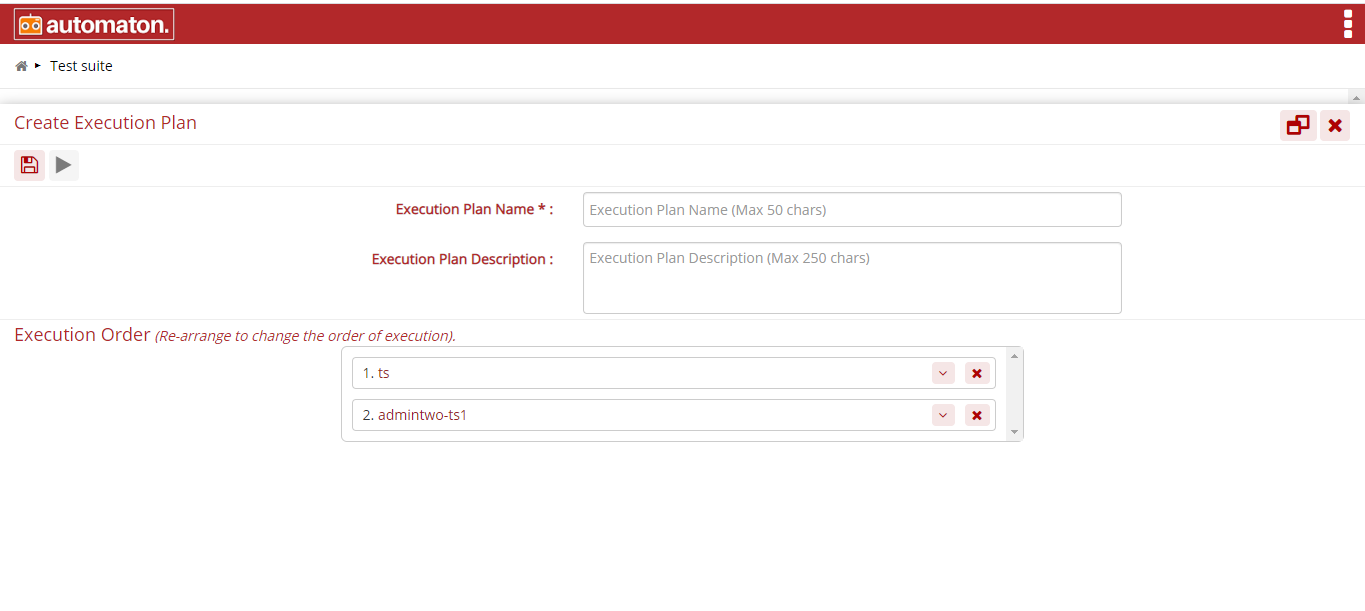
Fig. 4.33 Execution Plan
Execution Plan Name: A name for the execution plan. It is a mandatory field.
Execution Plan Description: A description about execution plan. It is an optional field.
Execution Order: Here it will display the selected test suite/test case for creating an execution plan. User can rearrange the order if required.
Run: To run the execution plan.
Save: To save the execution plan. Once the user saves the execution plan it will display in the Execution plan list page.
Scheduler:
The execution plan allows the user to schedule a task to run in a user-defined time or date. When it hits the time or date provided by user, the task will execute and report will be generated. The user must follow the below steps to schedule an execution plan:
- Click the scheduler icon
as shown below:
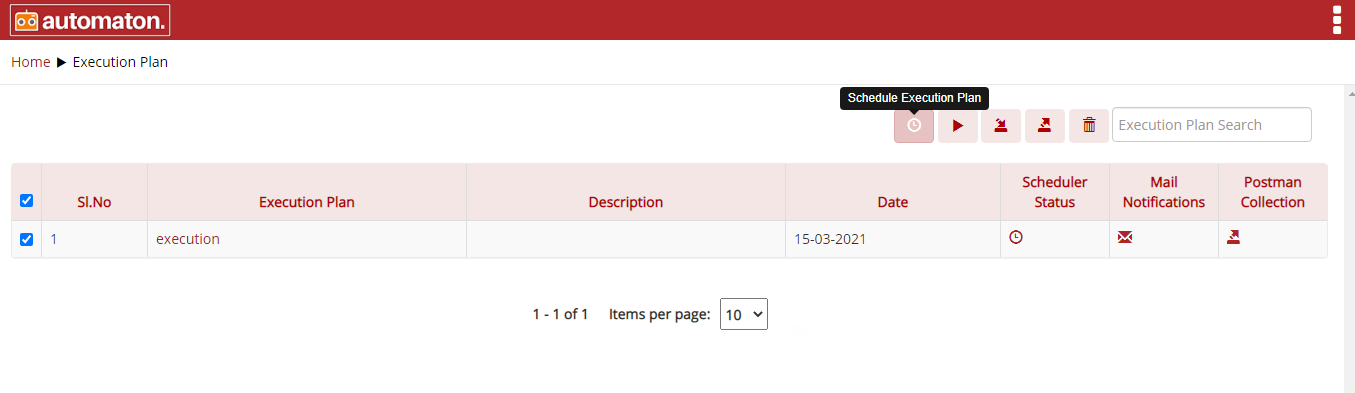
Fig. 4.34 Schedule Execution Plan
- Schedule the required date by clicking the calendar icon
the ExecutionPlan Scheduler dialog will be displayed where user can schedule date as shown below:
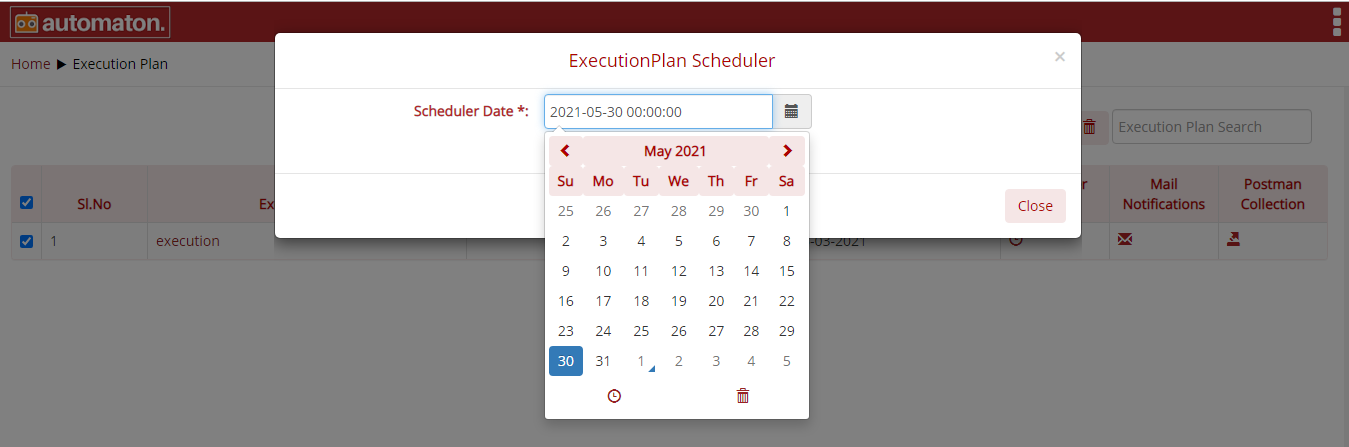
Fig. 4.35 Scheduler
- Click the scheduler icon
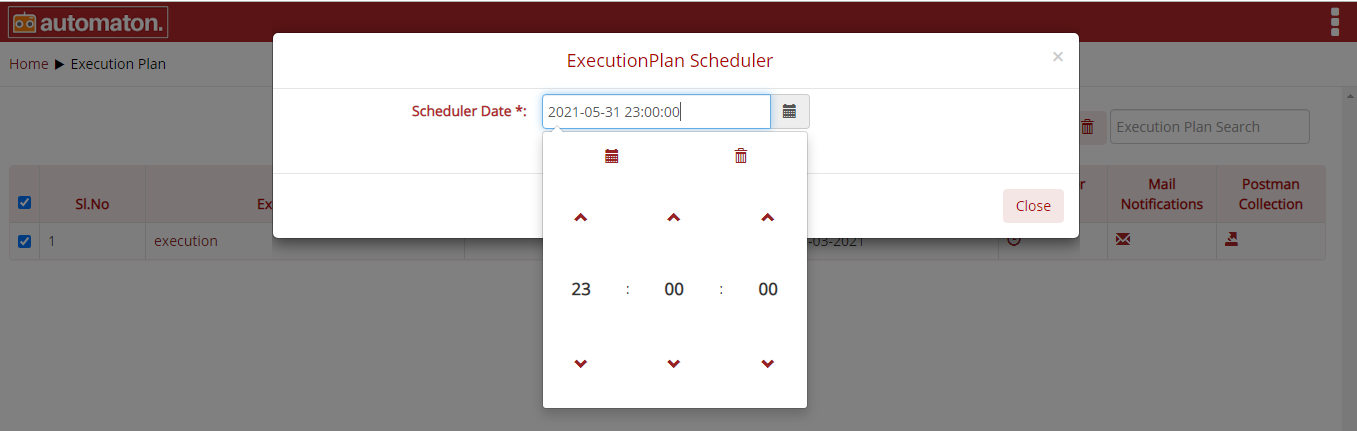
Fig. 4.36 Schedule Time
- Once the user provided the time and date a success message will be displayed as shown below:
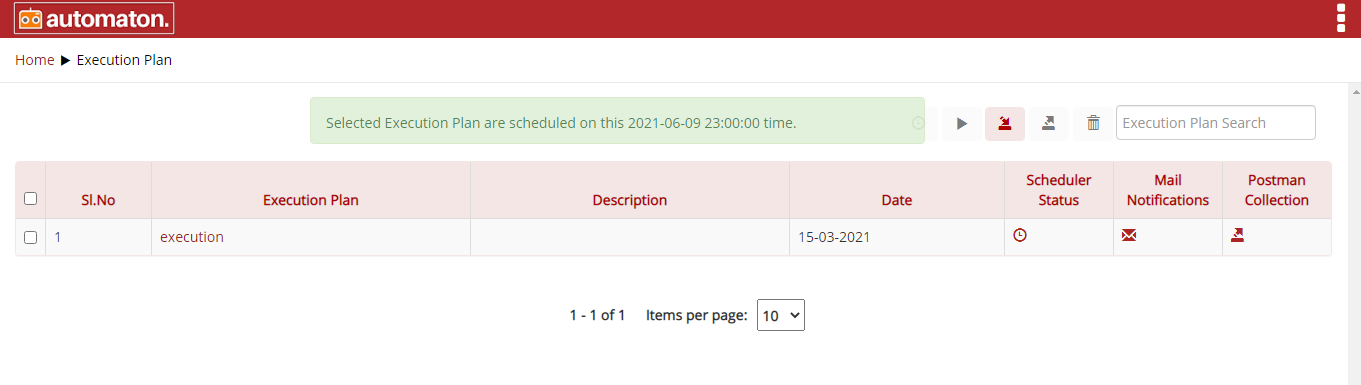
Fig. 4.37 Scheduler Success Message
To view the scheduled task, click on the corresponding scheduler icon
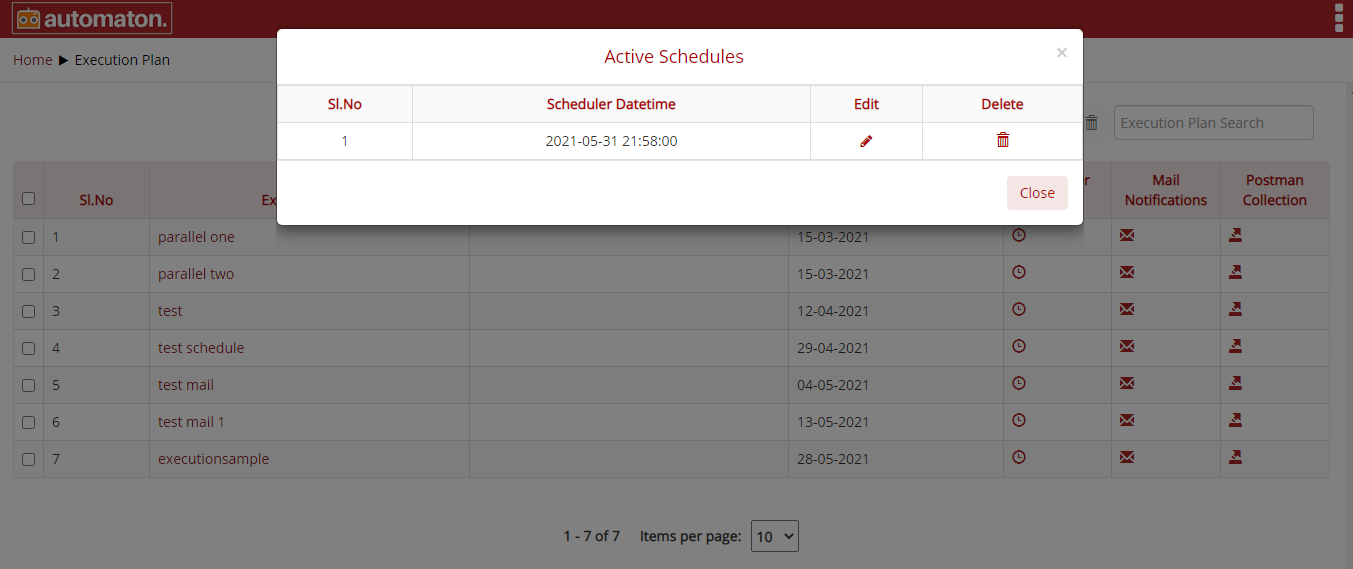
Fig. 4.38 Active Schedules
On the above dialog users can click on the edit icon
an Update Execution Plan Scheduler dialog will be displayed where user can reschedule the date and time and click the Update the Scheduler button to save the changes as shown below:
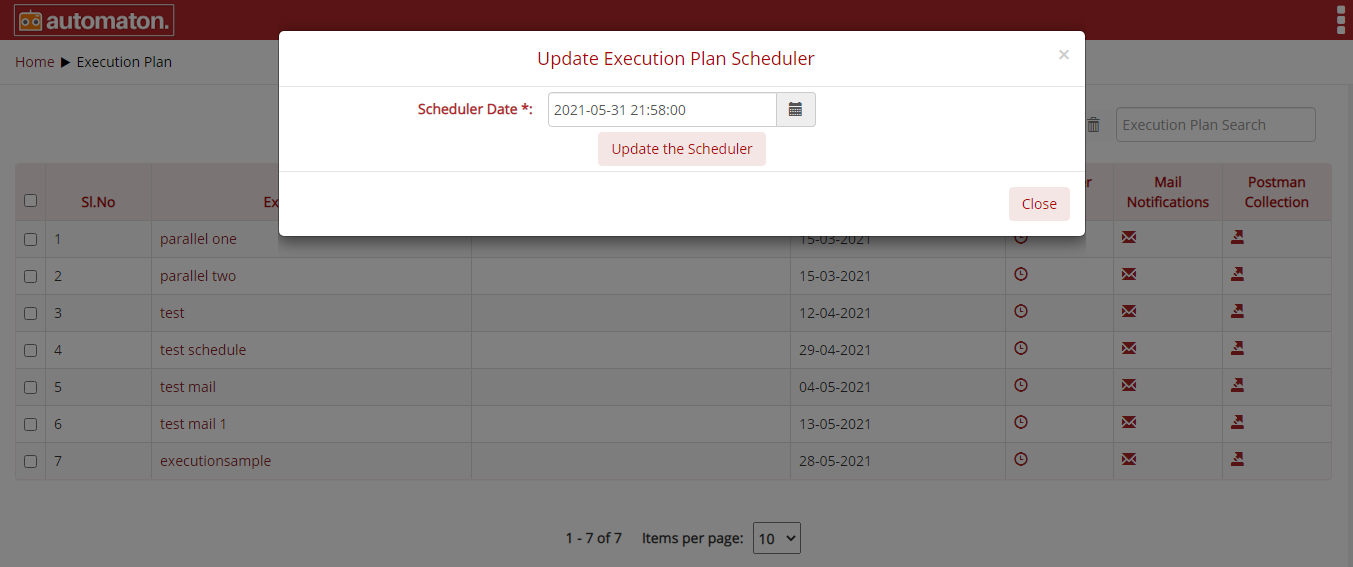
Fig. 4.39 Update Scheduler
Click the delete icon
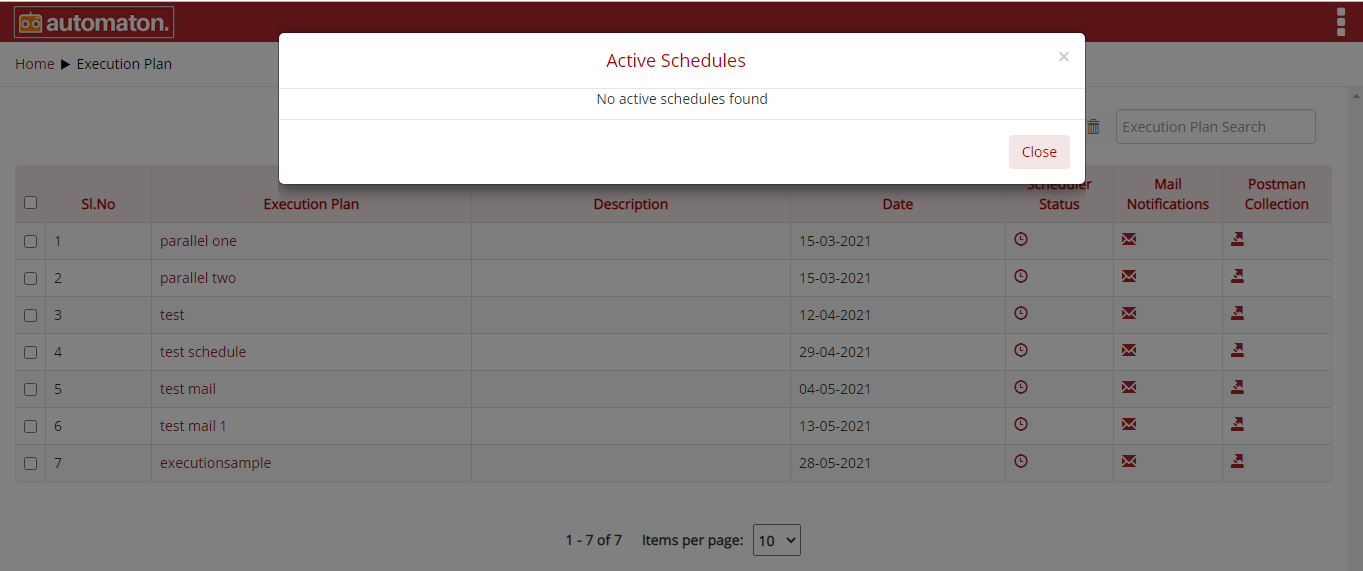
Fig. 4.40 Delete Scheduler
Automaton also supports the execution plan to run parallelly. The steps for parallel execution is as shown below:
- Select anyone of the required execution plan and set the time.
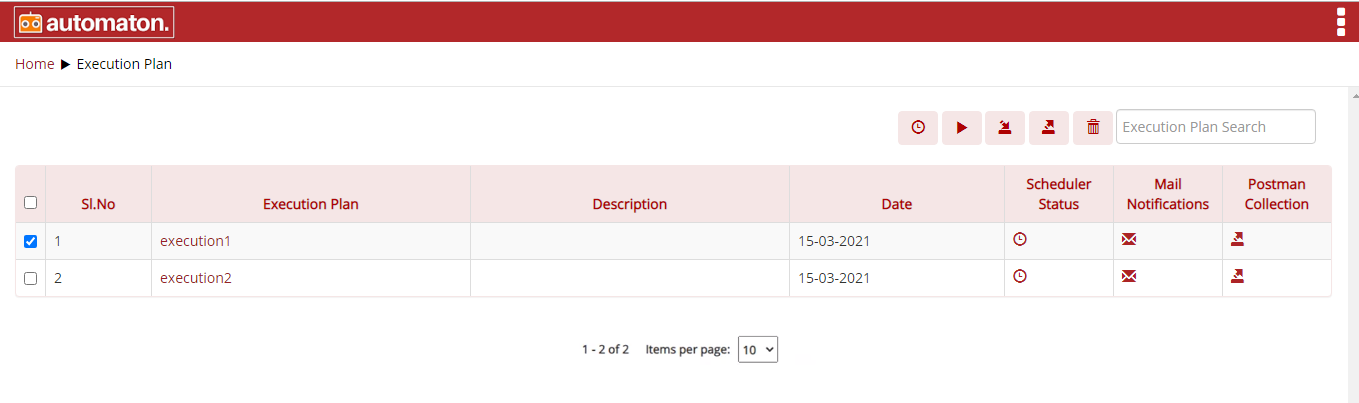
Fig. 4.41 Execution Plan
- Click the scheduler icon, the ExecutionPlan Scheduler dialog will be displayed as shown below:
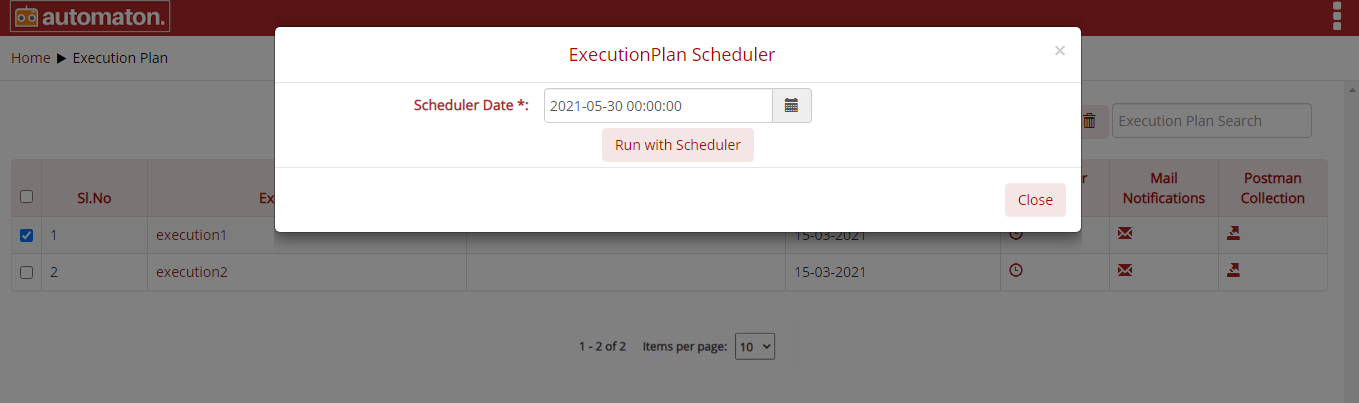
Fig. 4.42 Execution Plan Scheduler
The user must provide the date and time and click the Run with Scheduler button.
- Select the next execution plan and set the same time as the first one and click the Run with Scheduler button.
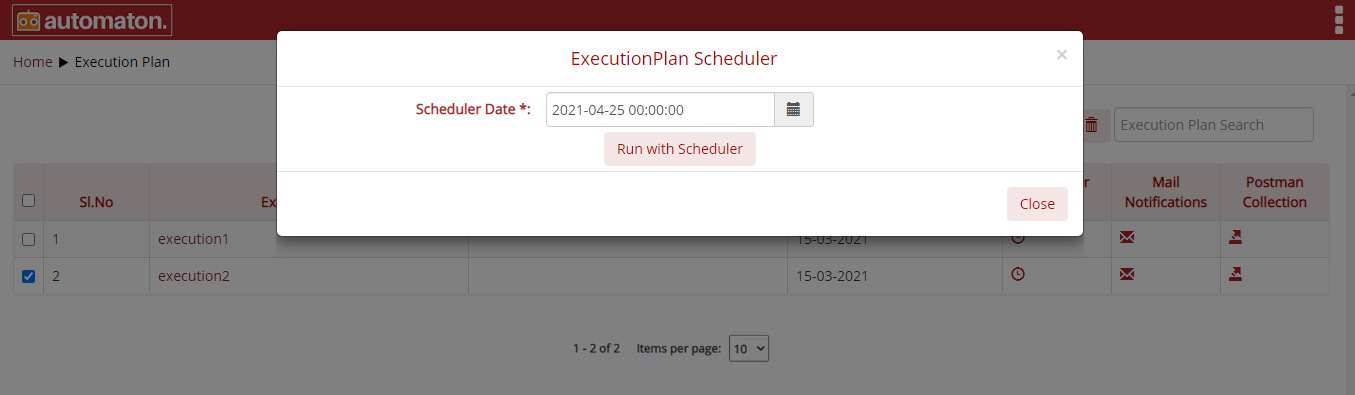
Fig. 4.43 Execution Plan Scheduler
- Click the report icon
on the test suite page for a quick view of the report also user can view the detailed report with execution details by clicking the report icon from the homepage as shown below:
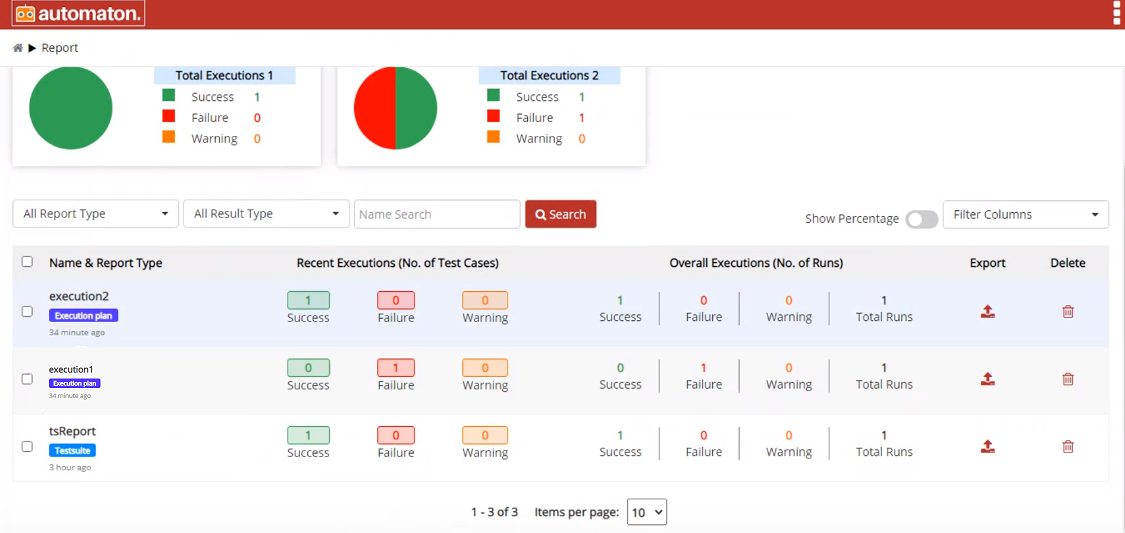
Fig. 4.44 Report Page
Run
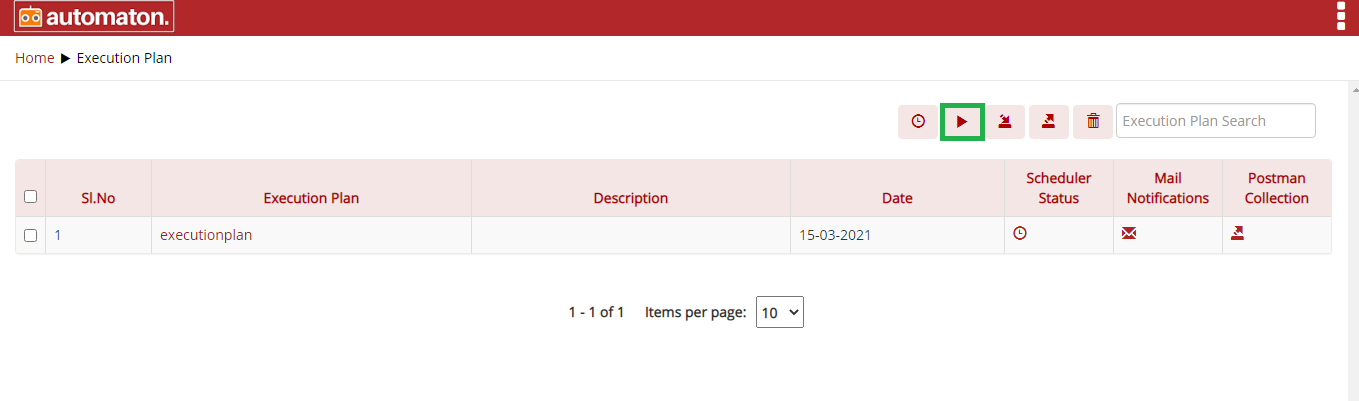
Fig. 4.45 Run
User can Import, Export and Run execution plan if required.
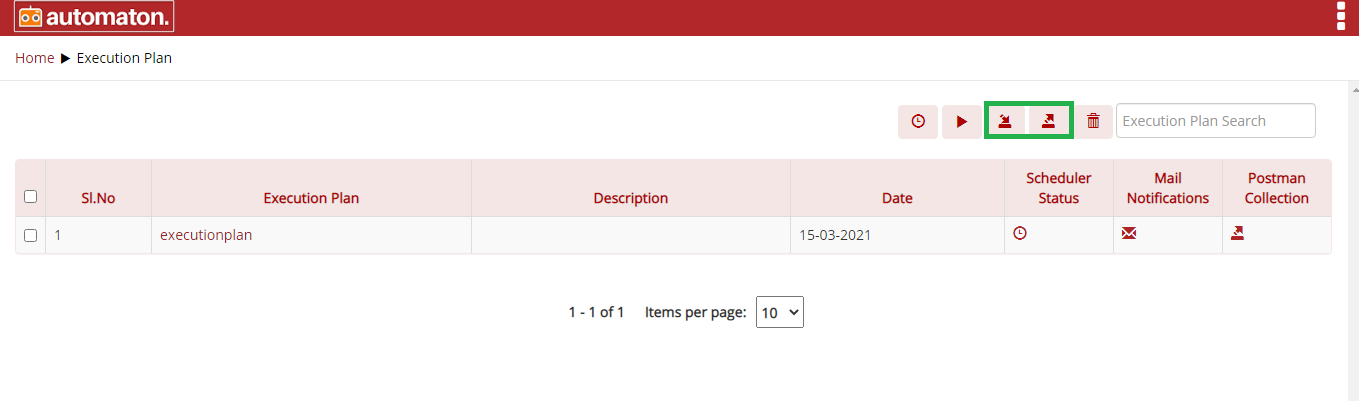
Fig. 4.46 Export/Import
The Execution plan helps to execute test suites or test cases in order. The Execution plan list page has two features like Mail Notifications and Postman Collection.
Mail Notification
This feature helps the user to get a mail notification with the execution plan and its report page. To perform the mail notification first user has to configure their mail on the Configure page. Click the Configure from the home page it will navigate to the configure page as shown below:

Fig. 4.47 Configure Page
Click the MailConfiguration button, Configure SMTP dialog will be displayed as shown below:
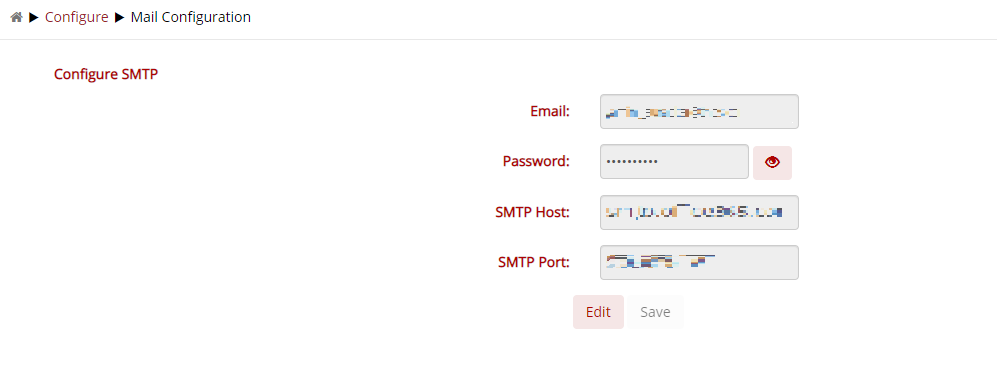
Fig. 4.48 Configure SMTP
Here the user has to provide all the details and click the Save button. This page also offers the flexibility to edit the details by clicking the Edit button.
Note
To perform this users must have access to perform the mail configuration.
Once the above configurations are done, click the Execution from the home page it will navigate to the Execution plan page. Click the mail icon
the Send mail notification dialog will be displayed as shown below:
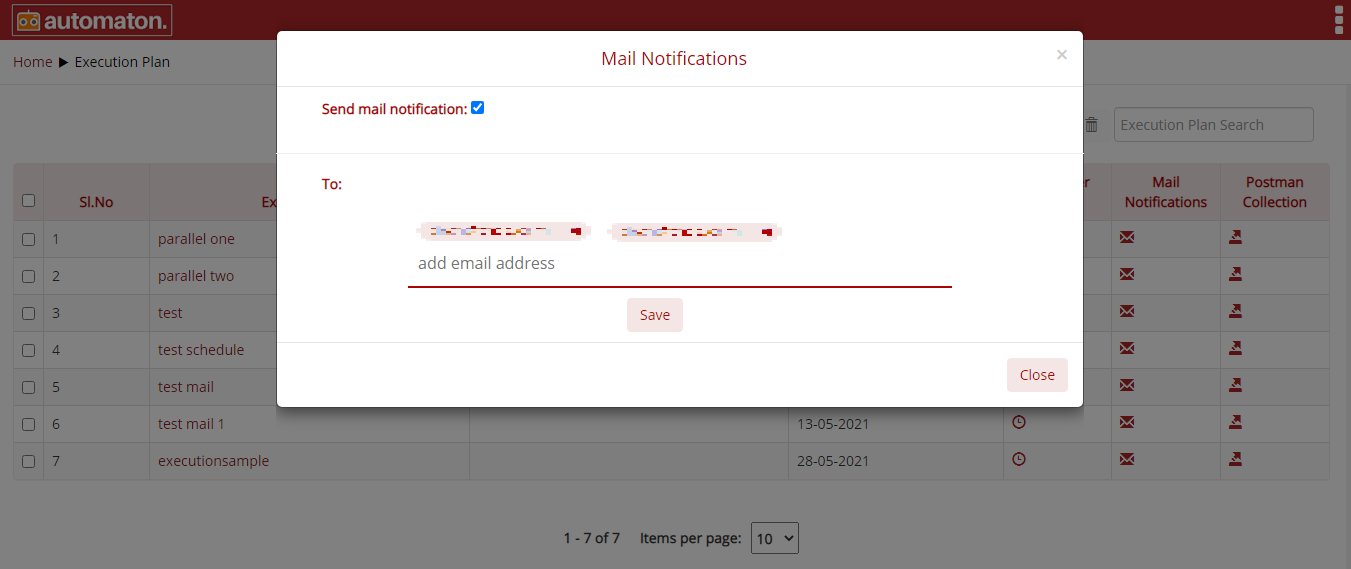
Fig. 4.49 Send Mail Notification
On the above dialog, users have to check the Send mail notification to receive the notifications and enter the mail address in the To to whom the execution report page has to be sent and click Save and Close. Once the above configuration is done, the address mentioned in the ‘To’ field will be receiving the mail notification of the report page in the execution plan.
Postman Collection
Automaton provides a feature of exporting the json file which contains execution plan details and can import it in postman. This will be saved as a collection so that users can execute this API for further details. Postman collections contain groups of saved requests along with the header and corresponding parameters.
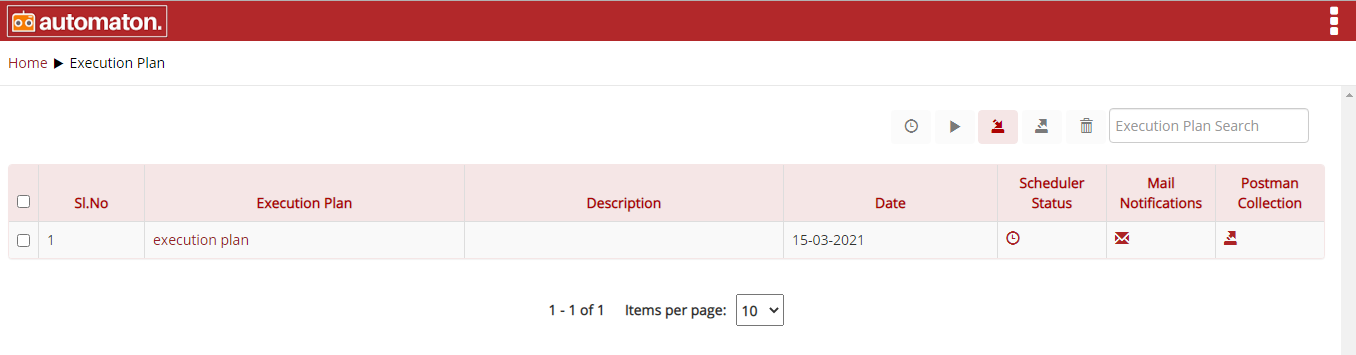
Fig. 4.50 PostMan Collection Execution Plan
Click the postman collection icon
, a json file will be created and downloaded automatically, which contains all execution plan details as shown below:
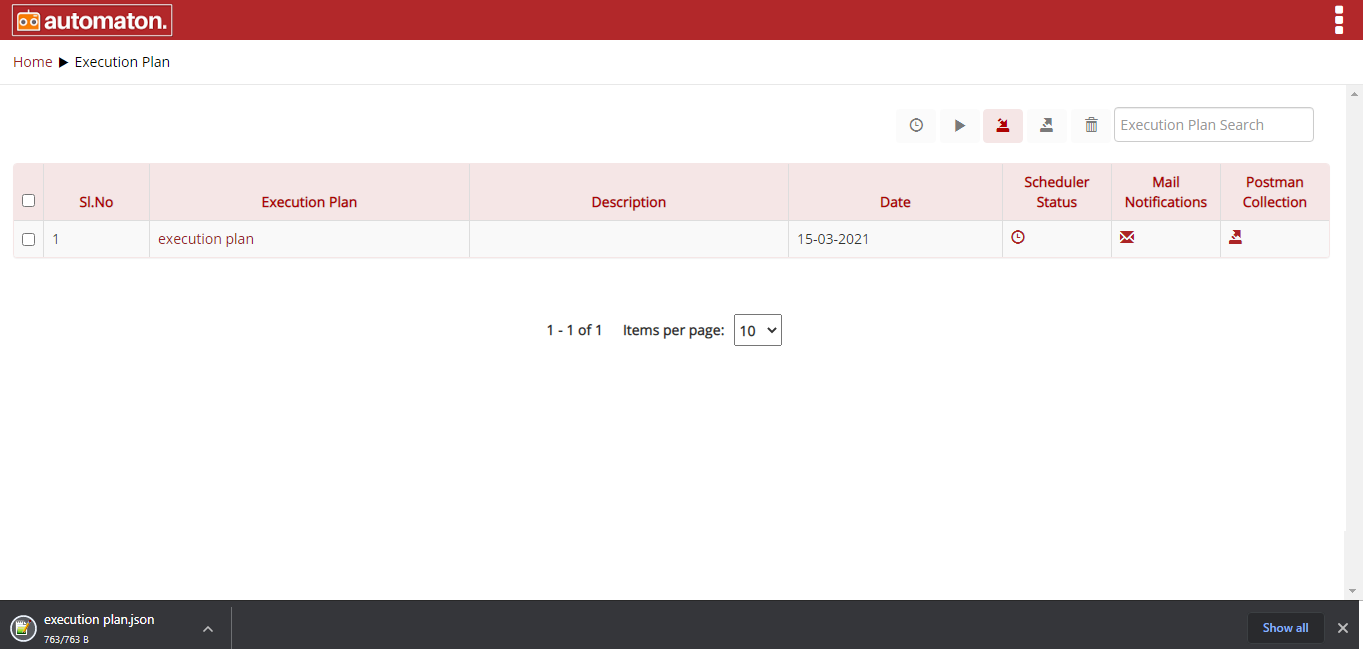
Fig. 4.51 Json Downloaded
The downloaded json file contains the method like, PUT, POST, DELETE. It also contains headers that have a key and its corresponding values, HTTP request, URL along with parameters. If the method is POST or PUT, the request body will also be present in the file.
This json can be imported in postman using File>Import. It will save as a collection in postman which contains the number of saved requests.
The success response after clicking the Send button is as shown below:
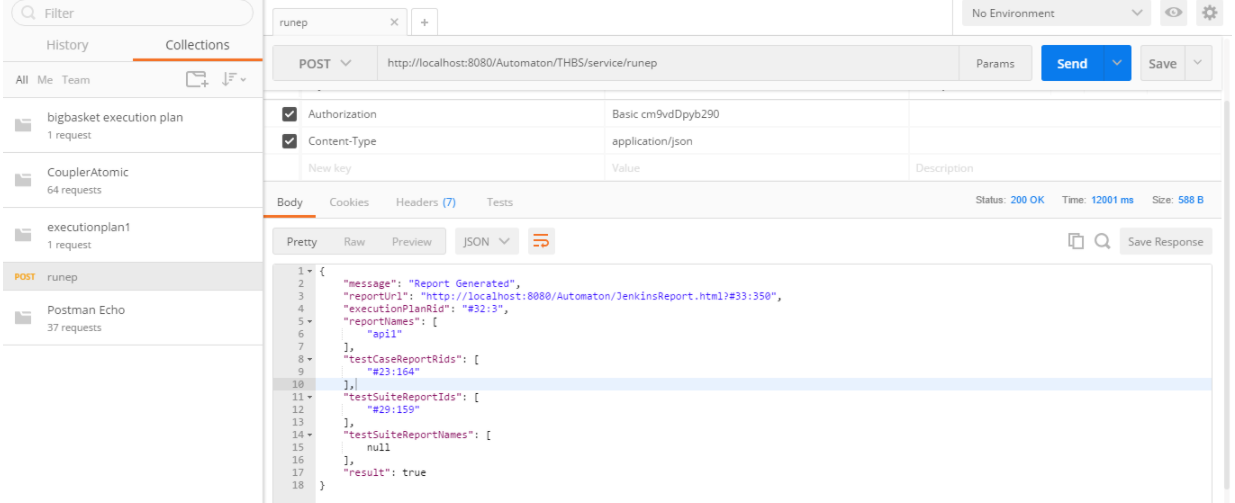
Fig. 4.52 Success Response
5. Creating the First Test Suite
This section details the creation of Test Suite.
Irrespective of the type of testing, User must create a Test Suite and Test case. Upon creating a test suite, the user must select by checking the checkbox corresponding API, Database, Log accordingly.
There are two ways to create Test Suite:
Method 1: You can create a new Test Suite by pressing the Create Test Suite icon as shown below from the homepage. You will be redirected to the Test Suite creation page.
Fig. 5.1 Create Test Suite
Method 2: Click the Test Suite icon.
Fig. 5.2 Test Suite
User will be navigated to the Test Suite page as shown below:
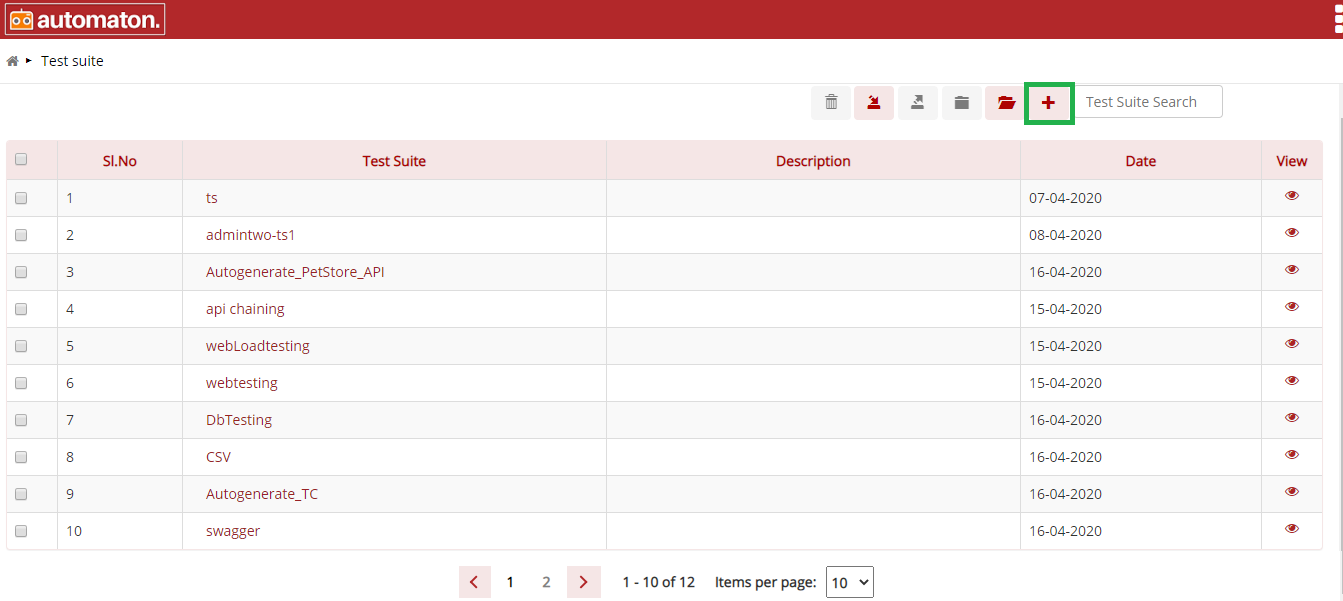
Fig. 5.3 Test Suite Page
Click the plus icon  on the
top right corner, allows the user to create a test suite as shown below:
on the
top right corner, allows the user to create a test suite as shown below:
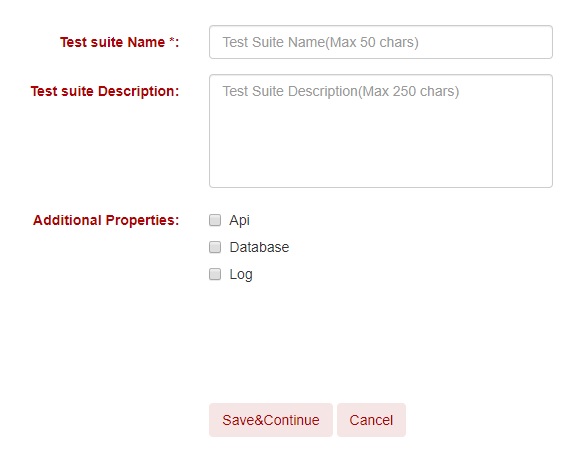
Fig. 5.4 Test Suite Creation Page
Here, user needs to enter the Test Suite name, Test Suite Description and you can select Additional Properties.
Test Suite Name is the name of your test case. Ensure that you are using relevant keywords.
Note
Test Suite Name is a mandatory field and should not exceed 50 characters.
Test Suite Description is an optional feature, but it is recommended populating this field with relevant information and supporting keywords so that locating your test suite through a search will be quicker.
Additional Properties allows you to select the type of testing you are performing. You can select API, Database and Log options here.
Once the relevant fields are filled in and the test type is selected, you can click on the Save&Continue button to save your test suite. If you want to cancel creating a Test Suite, press the Cancel button.
5.1. Elements and Actions
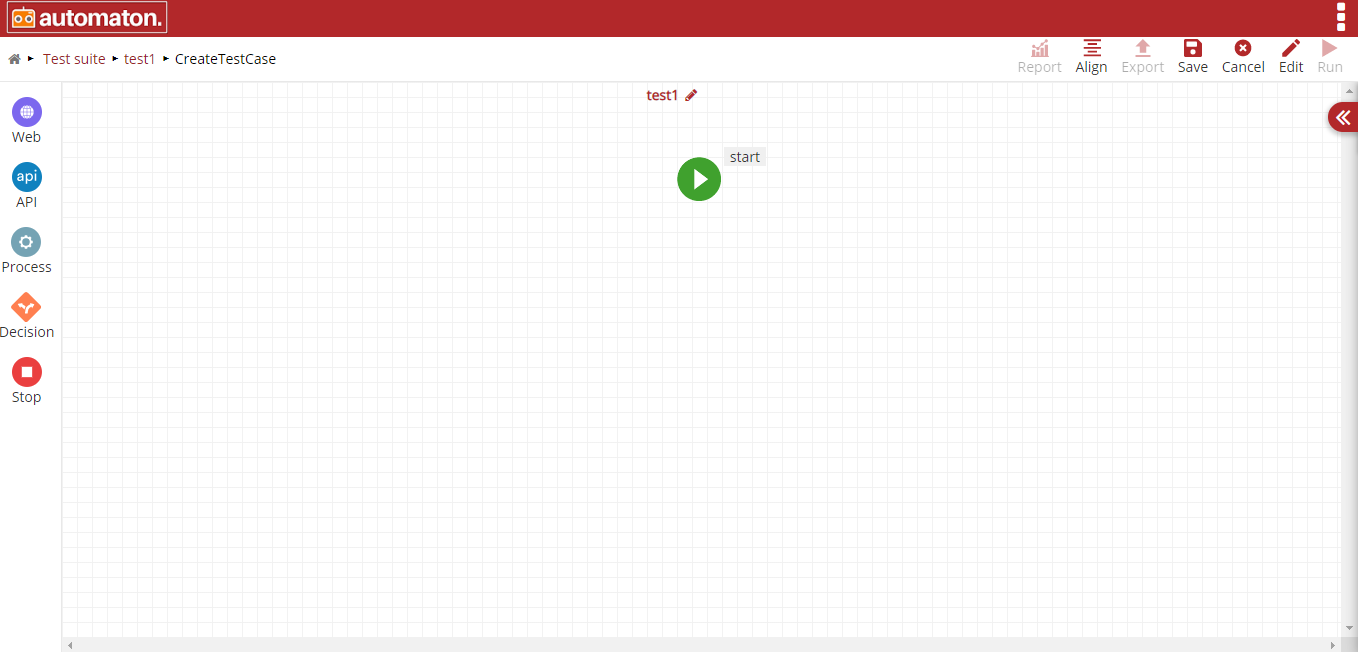
Fig. 5.5 Web Test Automaton Menu
Automaton has the following elements,
- Start
- Web
- API
- Process
- Decision
- Stop
In addition to these elements, Automaton has options such as:
- Align: Positioning the elements in the use case in an appealing way without disturbing the flow
- Export: To export the Test case
- Save: Retain for future use
- Cancel: Navigate to create test case page
- Edit: To modify already created test case
- Run: To execute the test case
- Report: To view the report page
- Start Element
This is a mandatory element to start a test case. This element will be displayed automatically on this page as in the above figure. On hover of this element,
icon will be displayed where the user can insert other elements if required. Once you click on the START button, a toggle drawer will pop up which gives options such as Label, Action Type and Action as shown below.
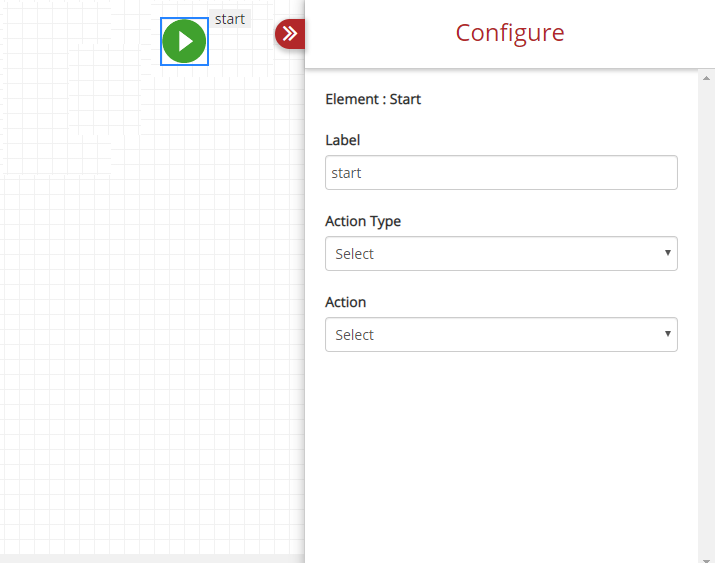
Fig. 5.6 Start Element
User can provide label name if needed. Once you label your test case, you need to choose an Action Type.
Action Type contains a set of Actions. Currently, the Action Type has only one option – Initialize.
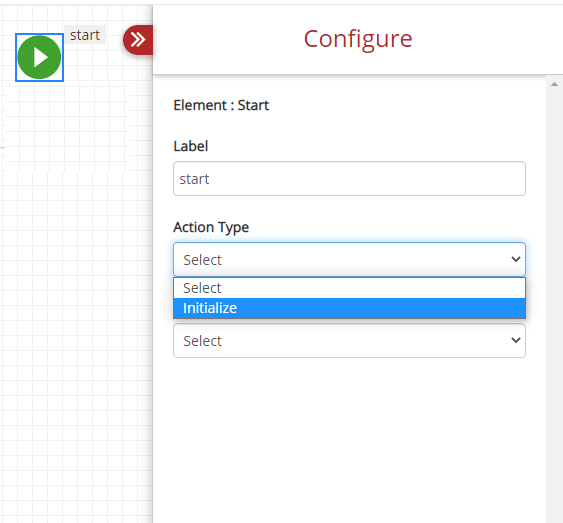
Fig. 5.7 Start Element Action Type
Once the Action Type is selected, you need to select Action from the drop-down. Action has multiple options as shown below:
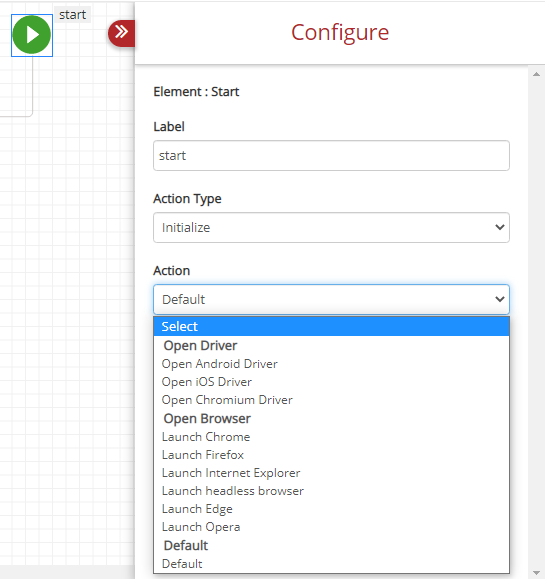
Fig. 5.8 Start Element With Action
- Initialize
Open Driver: Open Driver allows users to launch a mobile test case. Users have two options:
Open Driver: Open Android Driver: To run an Android test case.
Open Driver: Open iOS Driver: To run an iOS test case.
Open Browser: This allows the user to launch a browser of their choice. It has 4 options:
Open Browser: Launch Chrome.
Open Browser: Launch Firefox.
Open Browser: Launch Internet Explorer.
Open Browser: Launch Headless Brower.
Open Browser: Launch Edge.
Open Browser: Launch Opera.
Default: We use default action if it does not belongs to browser related.
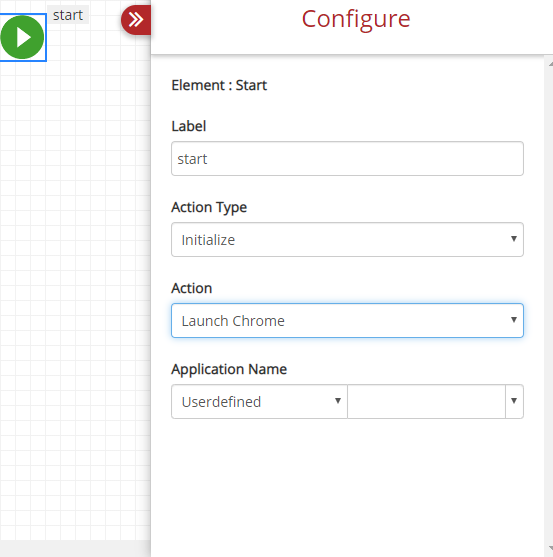
Fig. 5.9 Start Element
On the above figure, certain properties will appear on selecting Action field for better execution.
- Web Element
WEB Input is used to perform web-related Actions. It has many action-combinations that make testing very easy. WEB Input element has Label, Action Type and Action options as shown below. It also has a Screenshot checkbox that you can check if you wish to take screenshots of that selected Action. If you do not wish to take screenshots, this box can be left unchecked. The label field is user choice.
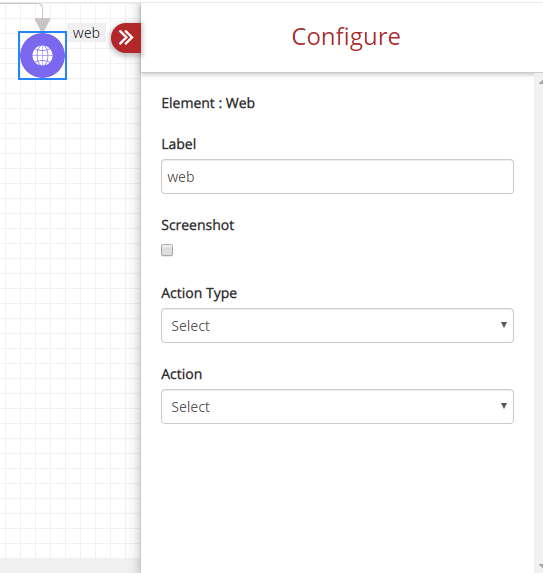
Fig. 5.10 Web Input
In Action Type, the following options are:
- Get Operations
- Set Operations
- Mouse Operations
- Keyboard Operations
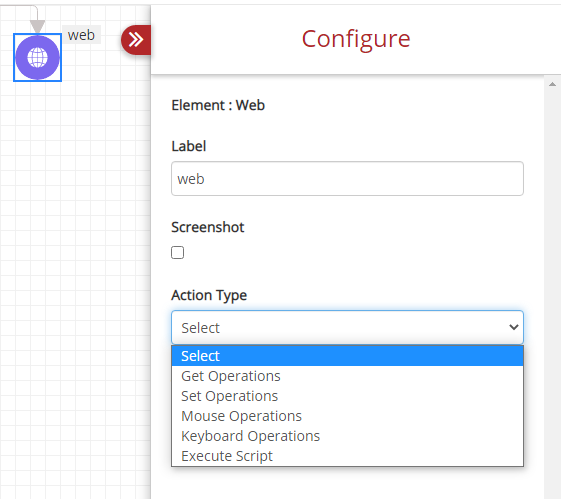
Fig. 5.11 Action Type
Each of these options are explained with its action-combinations below:
a. Get Operations: The below figure shows all the action-combinations available with Get Operations.
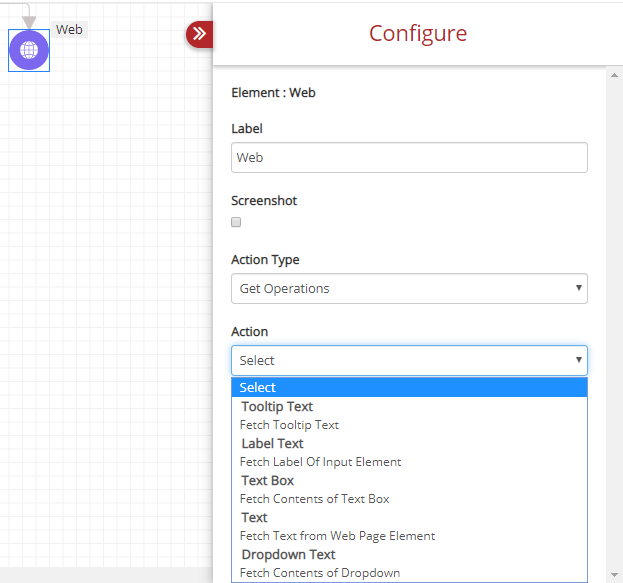
Fig. 5.12 Web Input Get Operations
Once you select Get Operations, you can select the following action-combinations from the Action drop-down.
- Tooltip Text: Fetch Tooltip Text: To fetch the Tooltip text from a web element.
- Radio Button Text: Fetch Radio Button Label: To fetch the details on the radio button label.
- Text Box: Fetch Contents of Text Box: To get contents from a text box.
- Text: Fetch Text from Web Page Element: To pull out text from a web page.
- Dropdown Text: Fetch contents of dropdown: To get contents from a drop-down menu.
- Set Operations: This action-combinations is used to set a value.
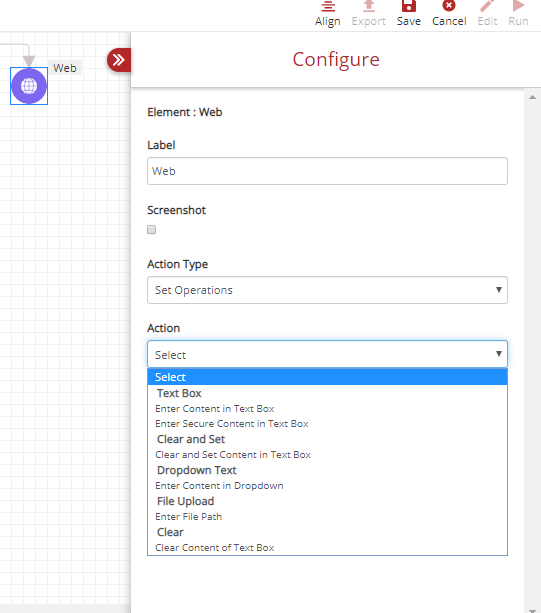
Fig. 5.13 Web Input Set Operations
Label and Screenshot option has the same functionality as before. Once you select Set Operations under Action Type, you have a list of action-combinations in the Action drop-down.
- Text Box
Text Box: Enter Content in Text Box: To enter custom text in a text box.
Text Box: Enter Secure Content in Text Box: To enter secure data like password.
- Clear and Set: Clear and Set Content in Text Box: To clear a text box and set the content.
- Dropdown Text: Enter Content in Dropdown: To enter content in the drop-down box.
- File Upload: Enter File Path: This option is to upload files.
- Clear: Clear Contents of Text Box: This is selected to clear the content of a text box.
- Mouse Operations: It has a range of action-combinations as shown below:
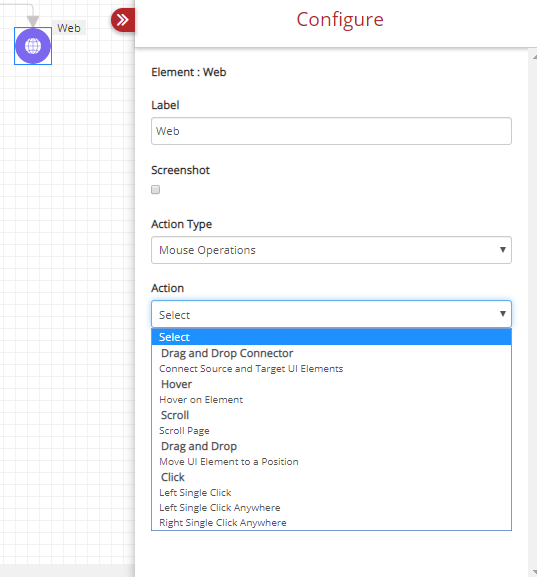
Fig. 5.14 Mouse Operations
- Drag and Drop Connector: Content Source and Target UI Element: This option allows users to Connect source and target UI elements.
- Hover: Hover on Element: To select or trigger an action when the cursor (mouse pointer) is over an element.
- Scroll: Scroll Page: To traverse up and down the pages.
- Drag and Drop: Move Ui Element to a Position: This option is used to move various UI elements to position, depending on your testing needs.
- Click: Click is a pressing action performed by a user. It has four options:
Click: Left Single Click
Click: Left Single Click Anywhere
Click: Right Single Click Anywhere
- Keyboard Operations: This has only one Action.
- Key: Press Key from Keyboard: This option selected to press any key from keyboard as shown below:
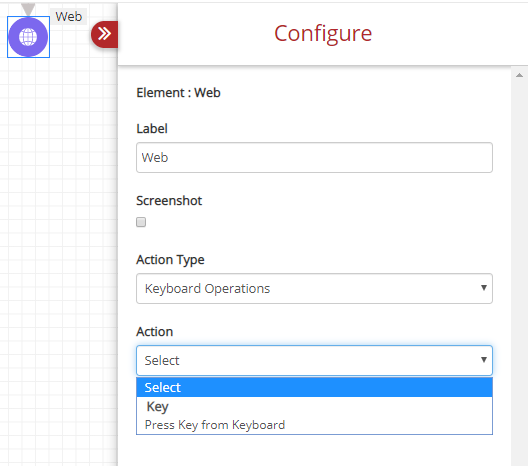
Fig. 5.15 Keyboard Operations
- Execute Script: It has only one Action.
- Execute: Execute Scripts: To execute the scripts as shown below:
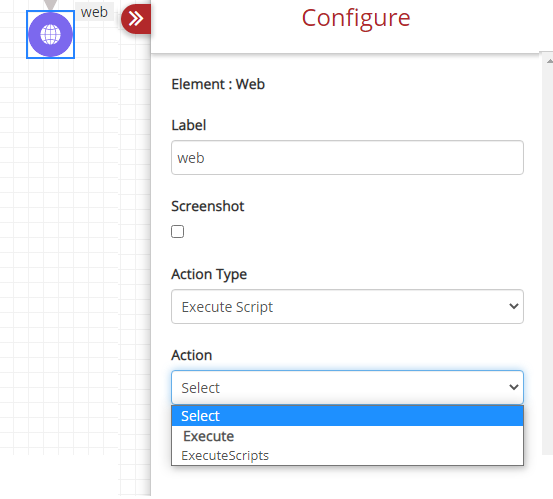
Fig. 5.16 Execute Script
This helps users to create an action to execute a selenium script. The steps to execute a selenium script is as shown below:
Step 1: Select the Start element.
- Label: A name for the element.
- Action Type: Initialize.
- Action: Users have to select either Launch Chrome, Launch Firefox, or Launch Internet Explorer.
- Application Name: Provide the application name.
Note
The Application Name and the name given for the application in the Selenium grid node has be same.
Step 2: Select the Web element and provide each field with the following values:
- Label: A name for the element.
- Action Type: Execute Script.
- Action: ExecuteScripts.
- Map to Previous Step: Select the required mapping element.
- Script: Provide the required selenium script.
Step 3: Select Stop element.
Click Save and Run button to execute the test case. Click the report icon  on the test suite page for a quick view of the report.
Users can also view the detailed report with execution details by clicking the report icon from the homepage as shown below:
on the test suite page for a quick view of the report.
Users can also view the detailed report with execution details by clicking the report icon from the homepage as shown below:
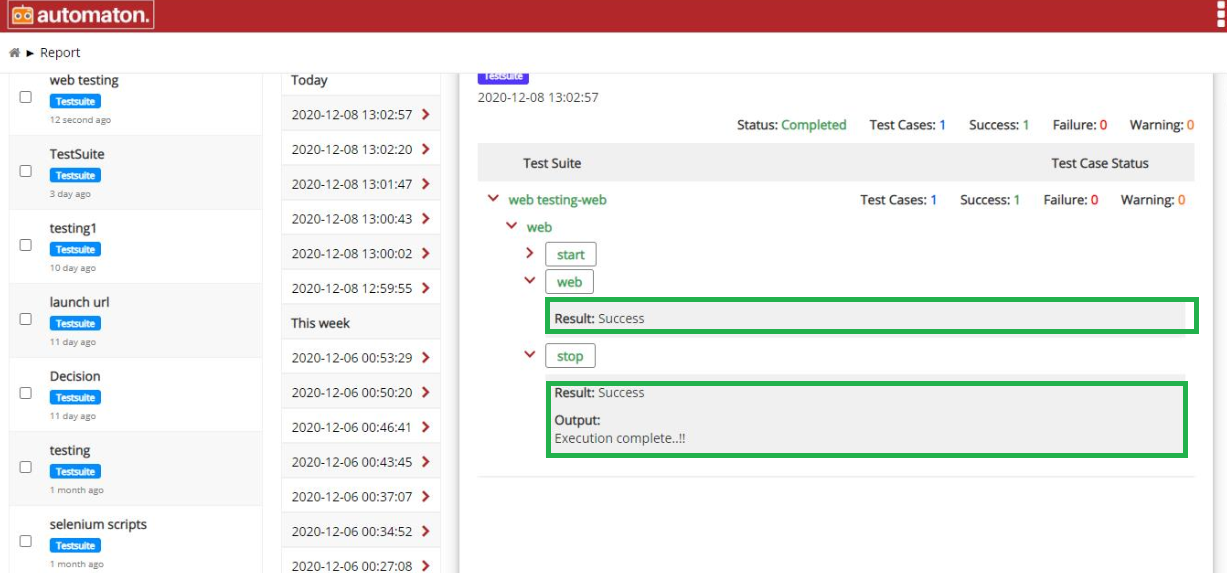
Fig. 5.17 Report Page of Execute Selenium Script
- Process Element: This element allows you to perform many action-combinations as shown below:
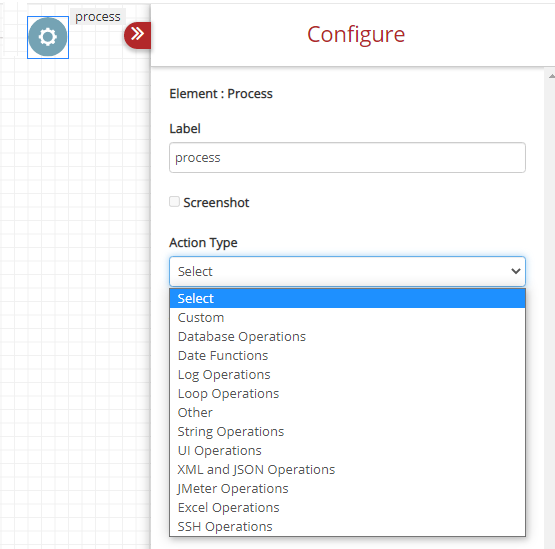
Fig. 5.18 Process Element
- Custom
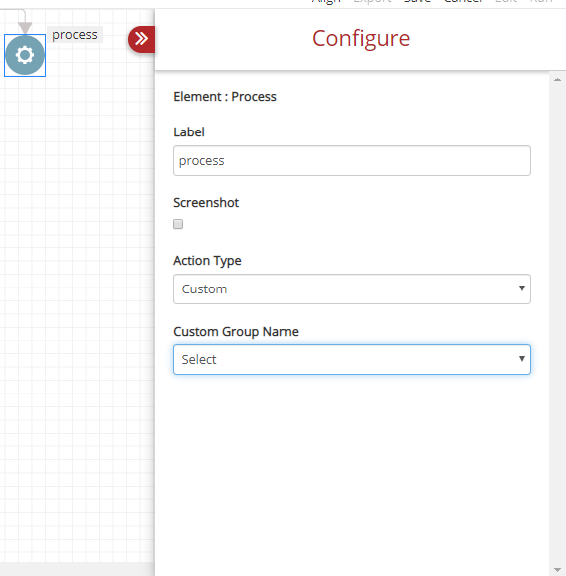
Fig. 5.19 Custom Action
You can use any name under Label for process element. If you want to take a screenshot, check the textbox on Screenshot. If the user chooses Custom under Action Type, the Custom Group Name, will list all the custom group names as shown below. The custom group names are created for each custom action on the Custom Action List page. Click on Custom Action to see how to create a custom action.
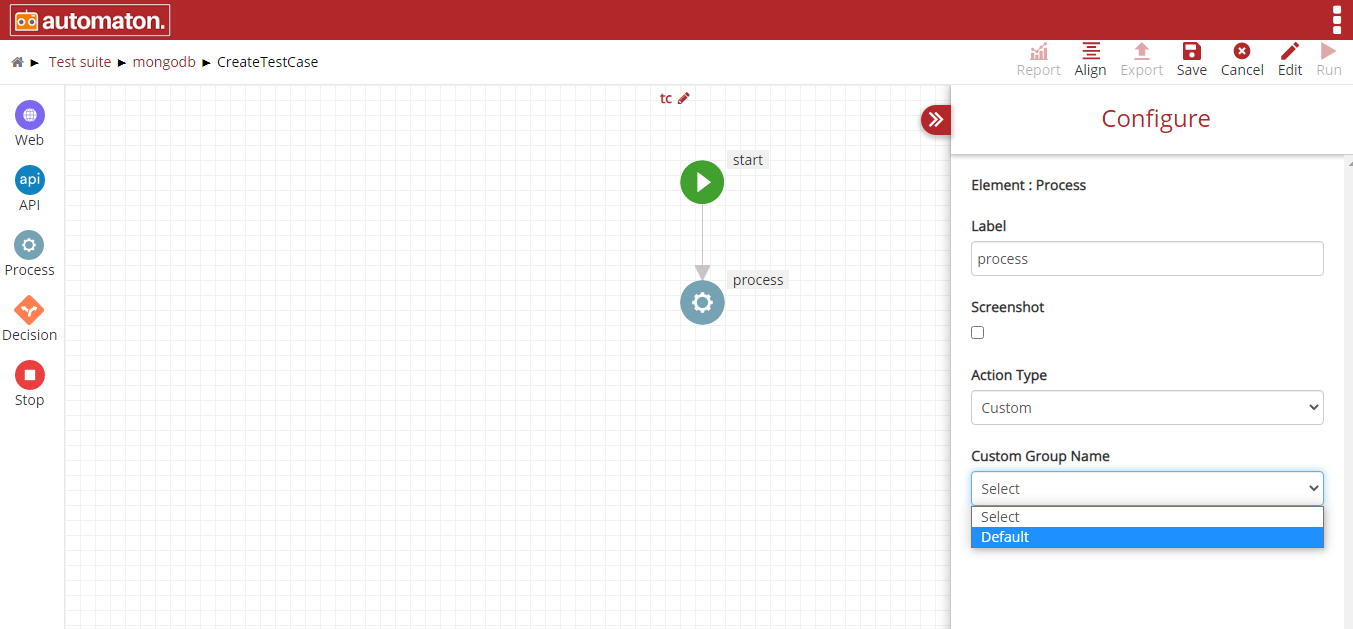
Fig. 5.20 Custom Group Name
On selecting a Custom Group Name the corresponding custom actions will be displayed under Action as shown below. Users can select any custom action.
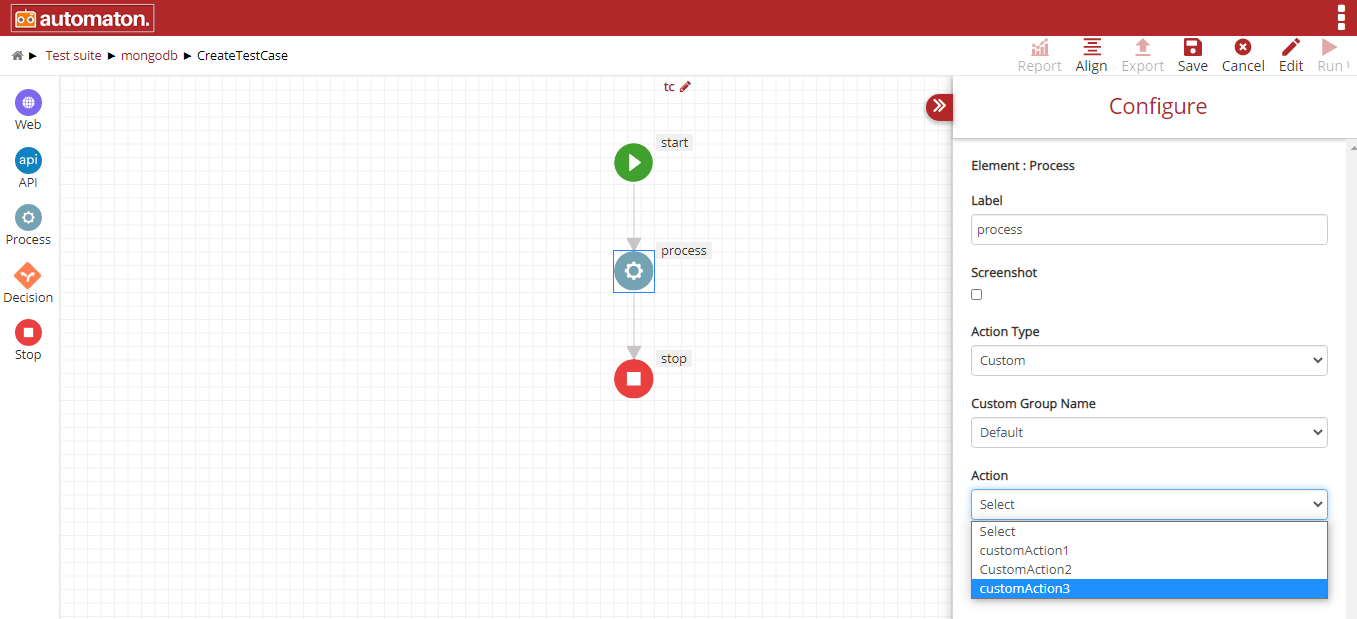
Fig. 5.21 Actions
Once the custom action is selected an Open Customaction link will be displayed as shown below:
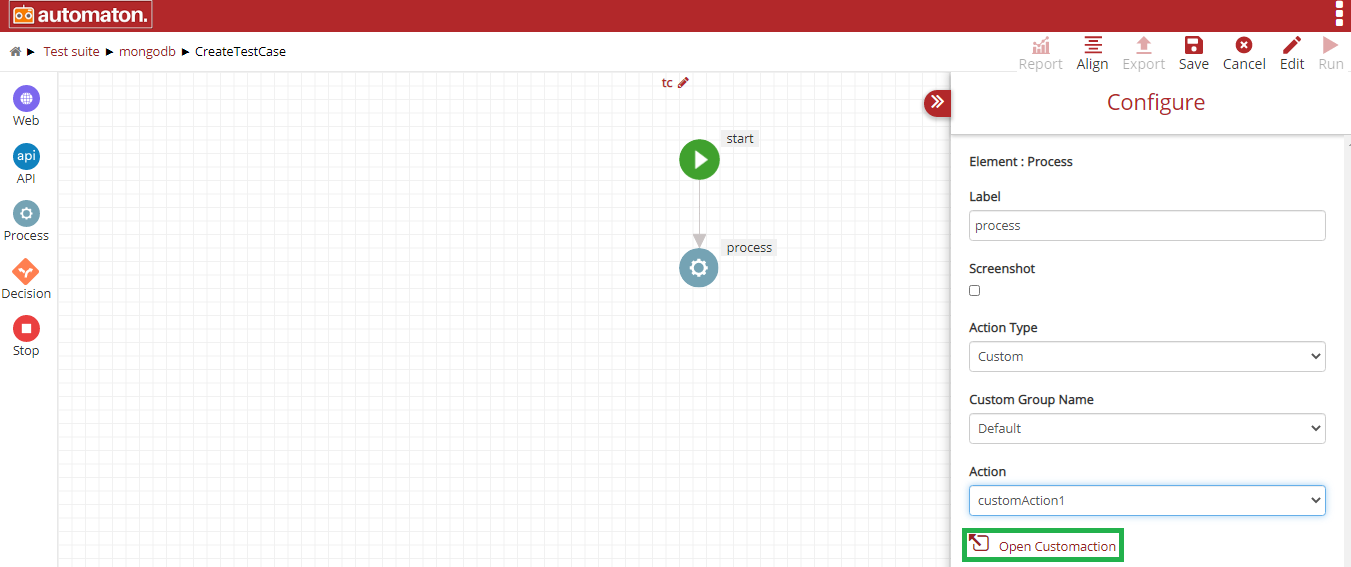
Fig. 5.22 Open Custom Action
Click the Open Customaction to display the Custom action flow as shown below:
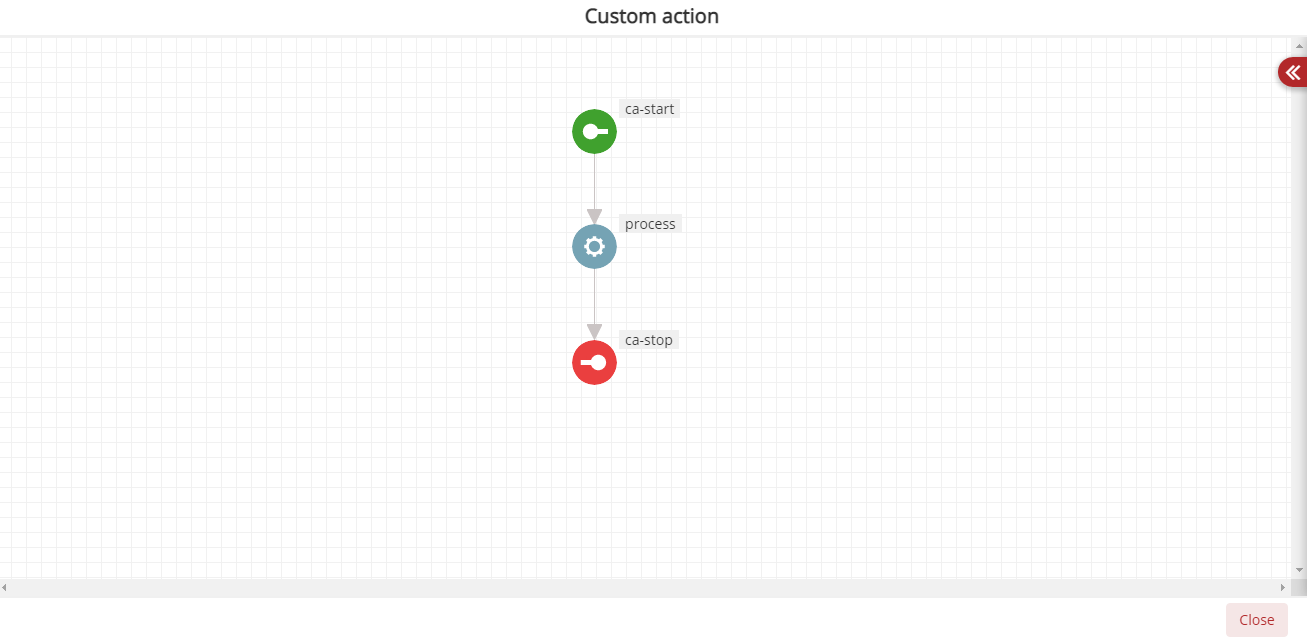
Fig. 5.23 Custom Action
Users can click any node except the Start and Stop. Here users can see the details in the non-editable mode except the drop-down fields (eg: Map to Previous Step). This helps users to cross the values provided in each field. If users wants to modify any field value they have to navigate to the Custom page and modify. Click the process element to display the Configure panel to see the details as shown below:
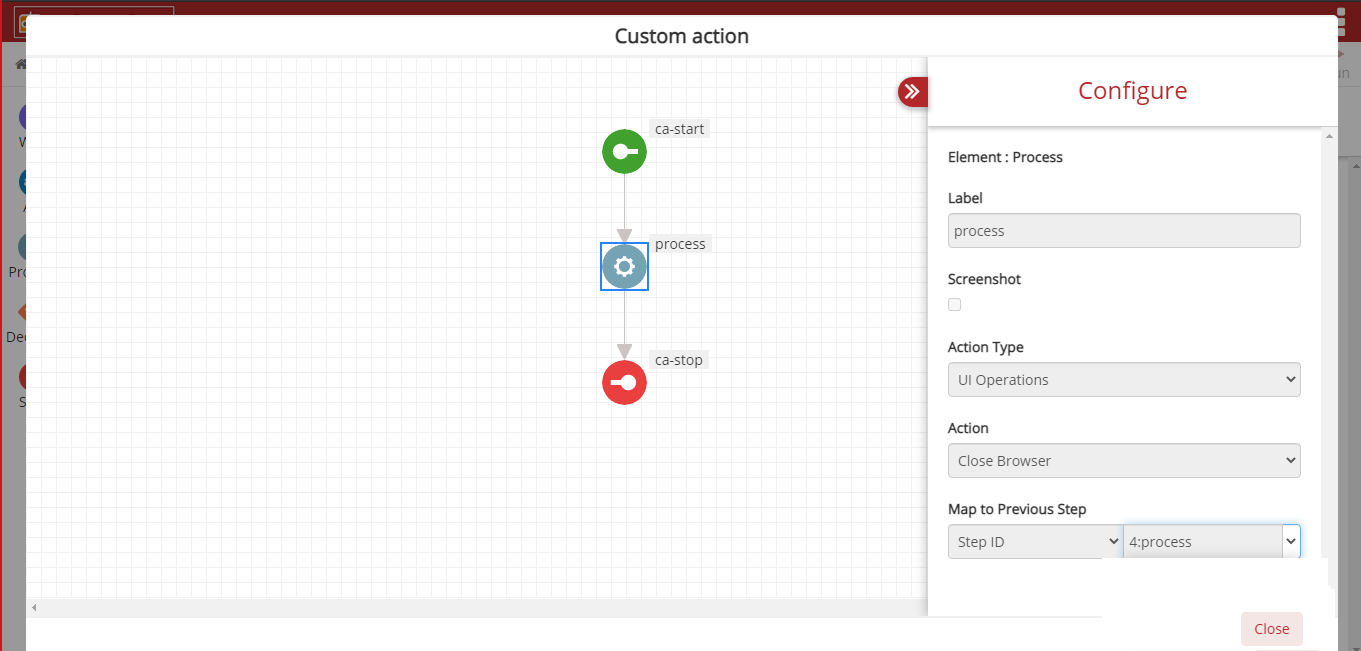
Fig. 5.24 Map to Previous
Map to Previous step will list all the elements id both from custom action as well as the test case. Here users can reassign to any other nodes.
- Database Operations
Next option you can select under Action Type is Database Operations as shown in the below figure. It gives you options such as Query, Connect and Column.
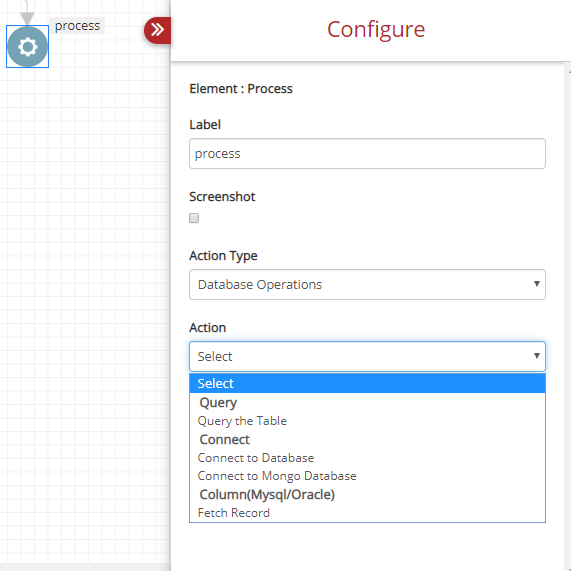
Fig. 5.25 Process Element DB Operations
- Query: Query the Table: It is used to make a query to the table.
- Connect: Connect option allows you to connect to the Database or Mongo Database.
Connect: Connect to Database: Enter the Connection URL and Driver Name as shown below: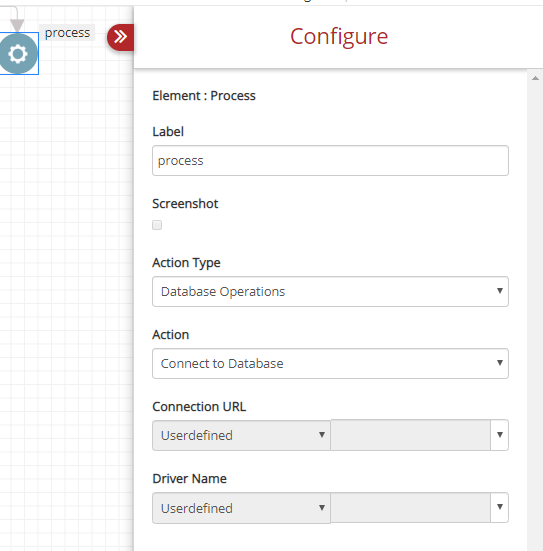
Fig. 5.26 Connect to Database
Connect: Connect to Mongo Database: Enter the Mongo database URL as shown below: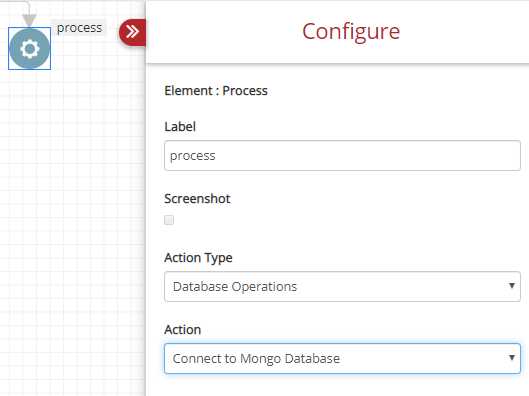
Fig. 5.27 Connect to Mongo database
- Column: Fetch Record: The column is selected to fetch records.
- Date Functions: This have many action combinations as shown below:
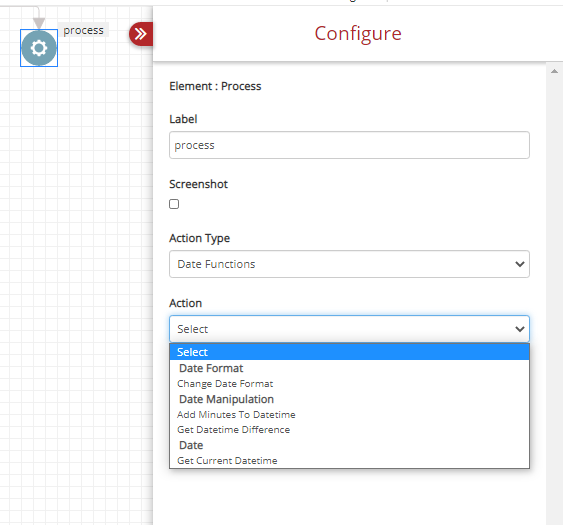
Fig. 5.28 Process Element Date Functions
- Date Format: Change Date Format: This action type allows user to change the date format as shown below:
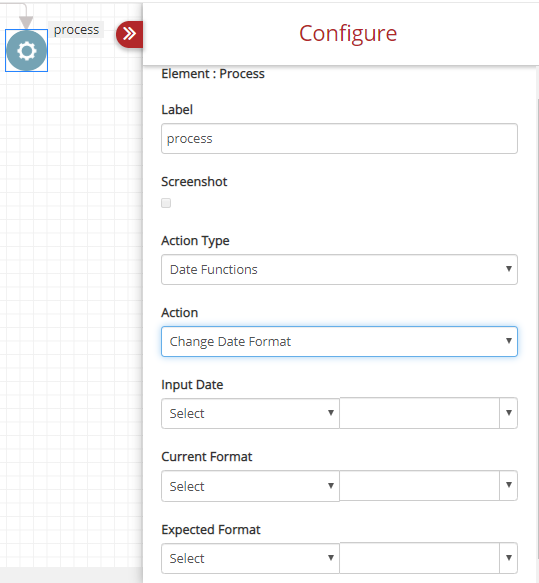
Fig. 5.29 Change Date Format
Enter the Input Date, and the current date format under Current Format. Enter the expected date format under Expected Format.
Data Manipulation: It has two options Add Minutes To DateTime and Get DateTime Difference.
Data Manipulation: Add Minutes To DateTime: Select Add Minutes To DateTime to fetch the date time after adding minutes to the current date time as shown below:
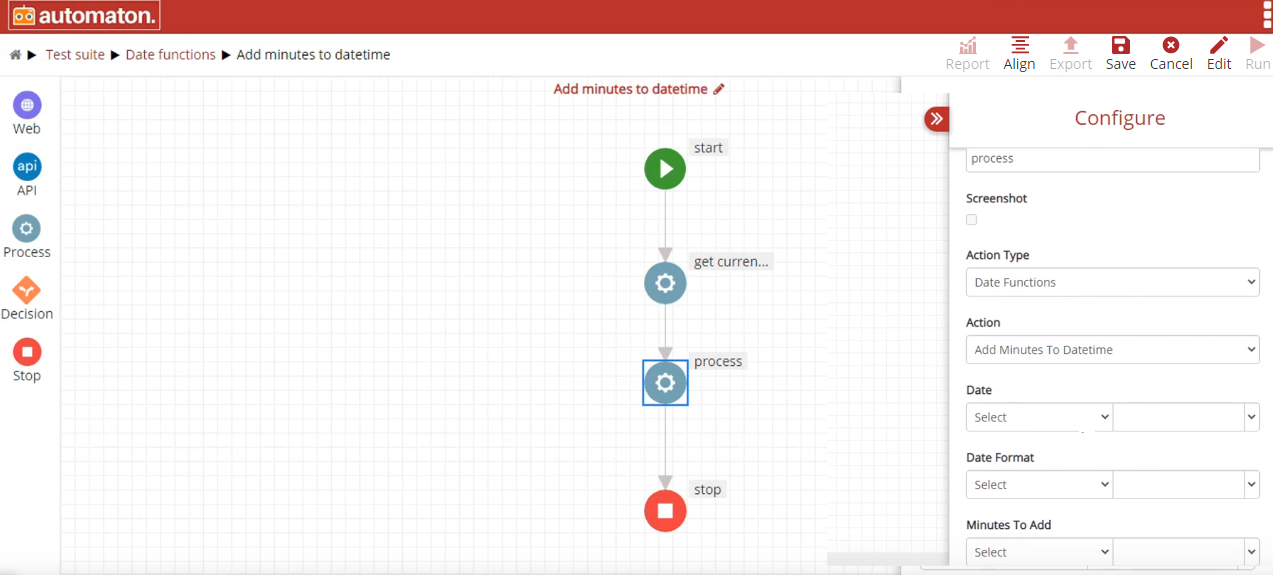
Fig. 5.30 Add Minutes to Date Time
For the fields Date, Date Format, Minutes To Add users can select any one of the options:
Step-ID: To fetch data from the previous step.
Userdefined: To define the format.
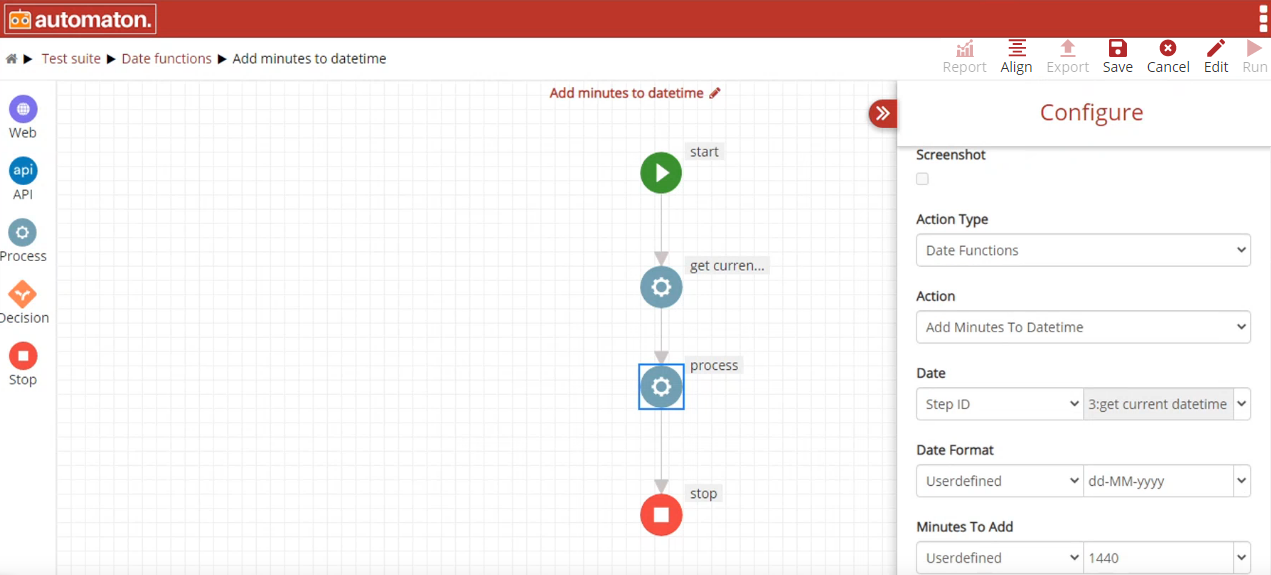
Fig. 5.31 Add Minutes to Date Time with Value
Note
Minute To Add value must be a positive integer and the value must be given in minutes.
Click Save and Run button to execute the test case. Add Minutes To DateTime function will add the values given in the Minutes To Add field with the value given in the Date field and the result will be displayed in the date format given in the Date Format field. Click the report icon
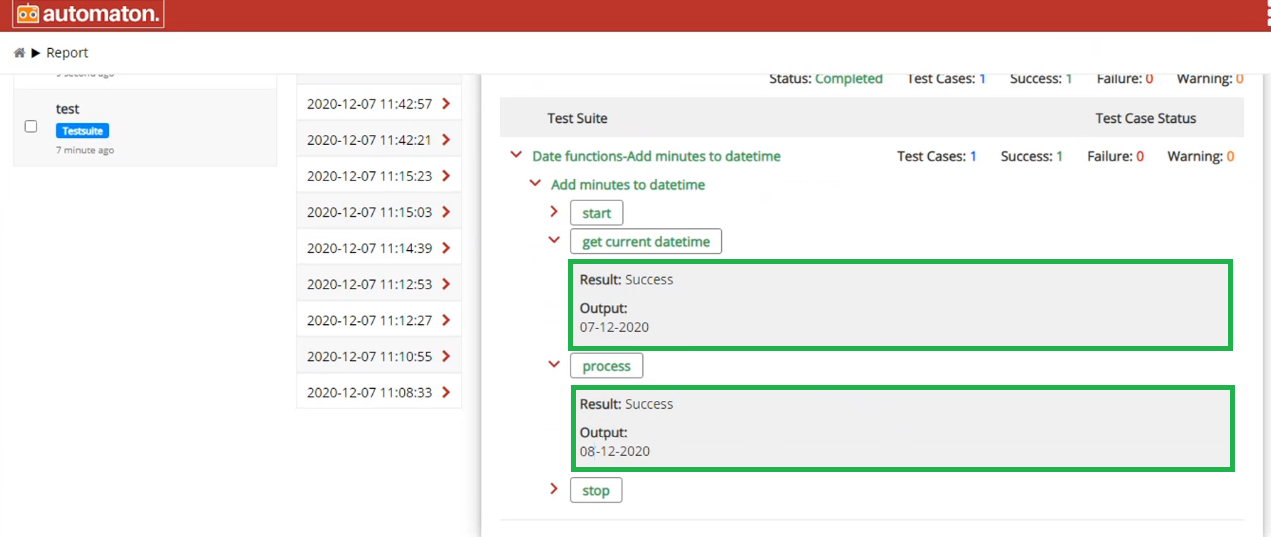
Fig. 5.32 Report Page of Add Minutes to Date Time
On the above example Date: Step-Id of 3(07-12-202)+ Minutes To Add: 1440(24 hours) is 08-12-2020 in the date format specified in the Date Format field.
Data Manipulation: Get DateTime Difference: Select Get DateTime Difference to calculate datetime difference as shown below: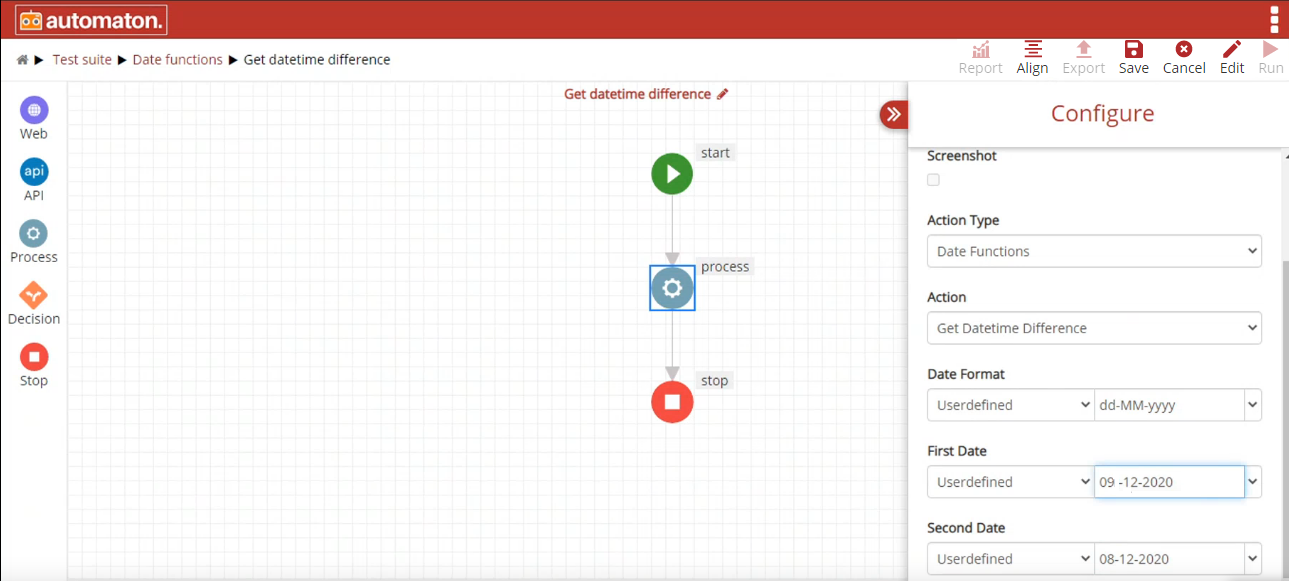
Fig. 5.33 Date Time Difference
For the fields Date Format, First Date, Second Date users can select any one of the options:
Step-ID: To fetch data from the previous step.
Userdefined: To define the format.
The Get Datetime Difference function will find the difference between the First Date and Second Date. Click the report icon
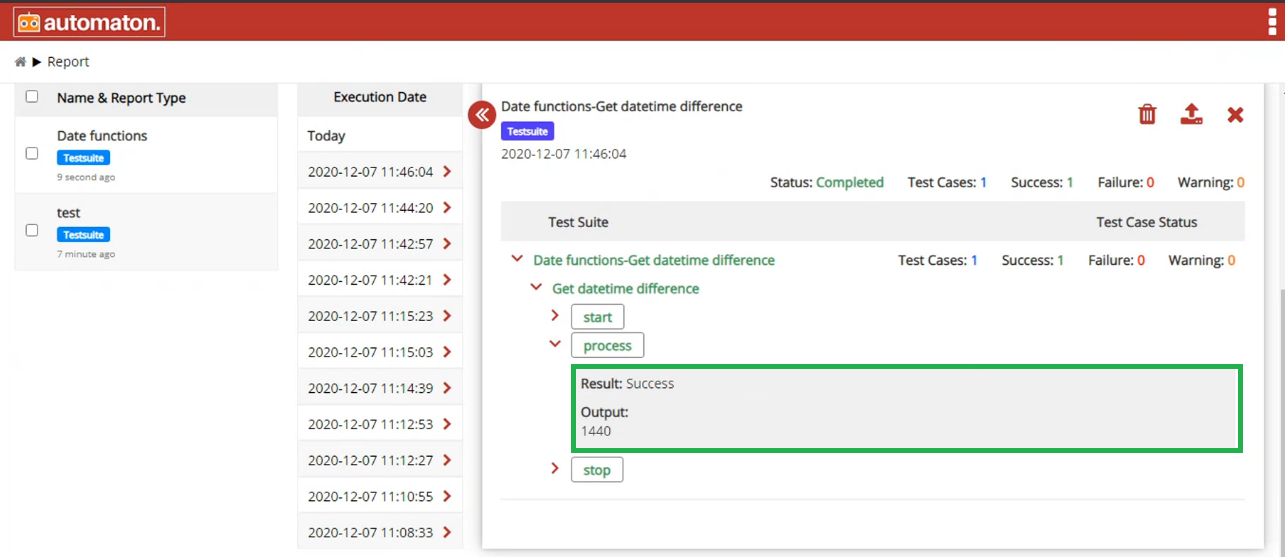
Fig. 5.34 Report Page of Date Time Difference
Note
The comparison result will be always a positive number.
Date: It has only one option Get Current DateTime.
Date: Get Current DateTime: Select Get Current DateTime to fetch the current date and time as shown below:
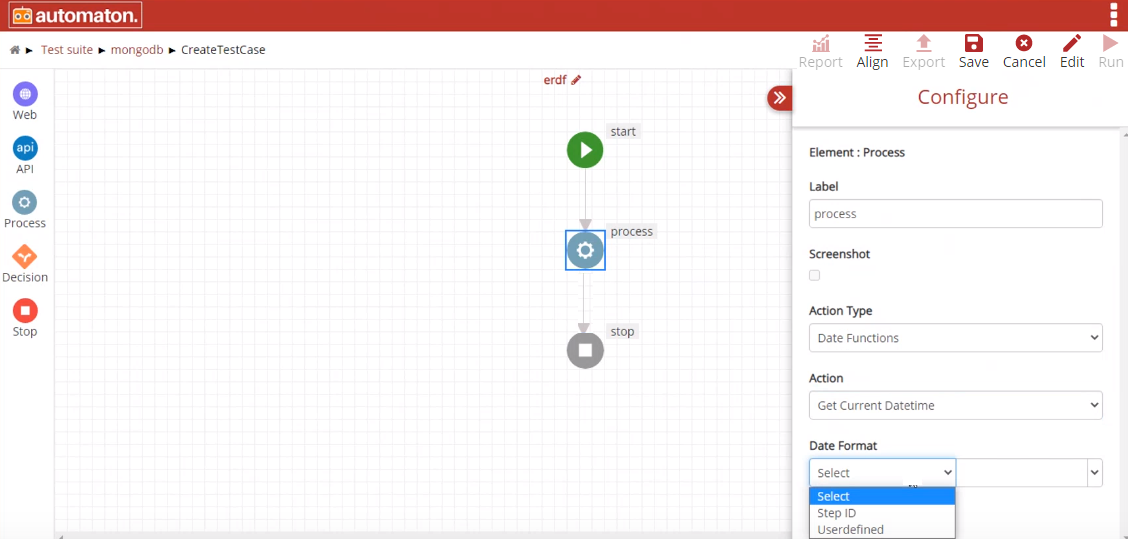
Fig. 5.35 Current Date Time
In the Date Format field, users can select Step-ID or user defined.
If Step-ID is chosen, then users have to select any previous step id from the current element.
If Userdefined is chosen, then users have to provide the format for the date and time.
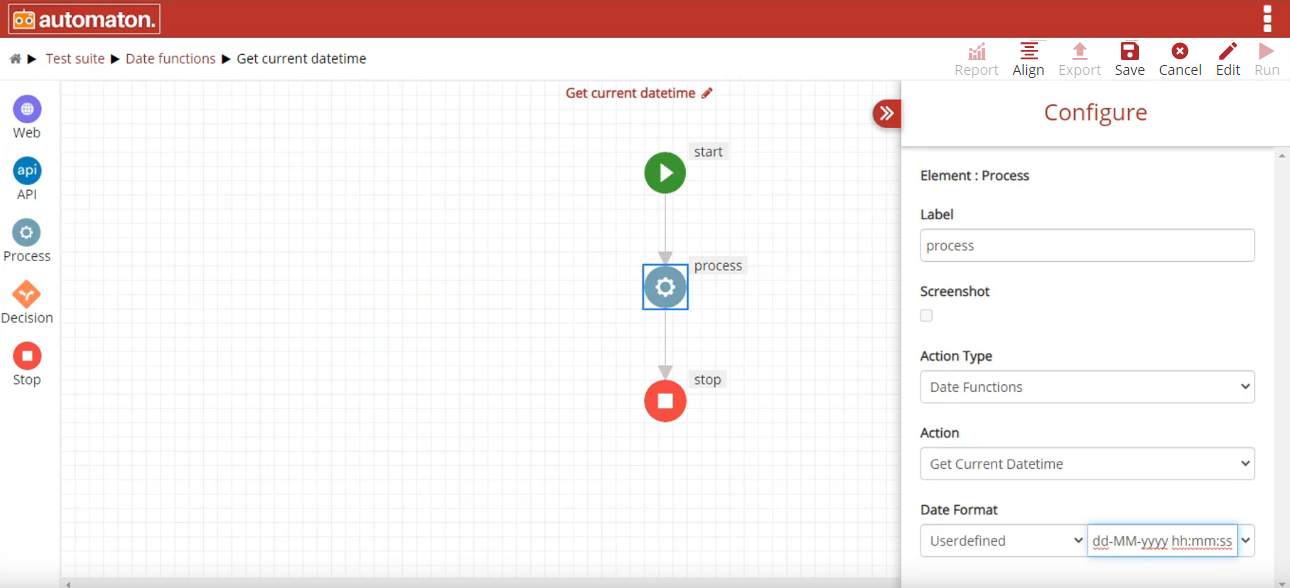
Fig. 5.36 Userdefined Current Date Time
Note
Users can provide any format for date and time.
Click Save and Run button to execute the test case. Click the report icon on the test suite page for a quick view of the report.
Users can also view the detailed report with execution details by clicking the report icon from the homepage as shown below:
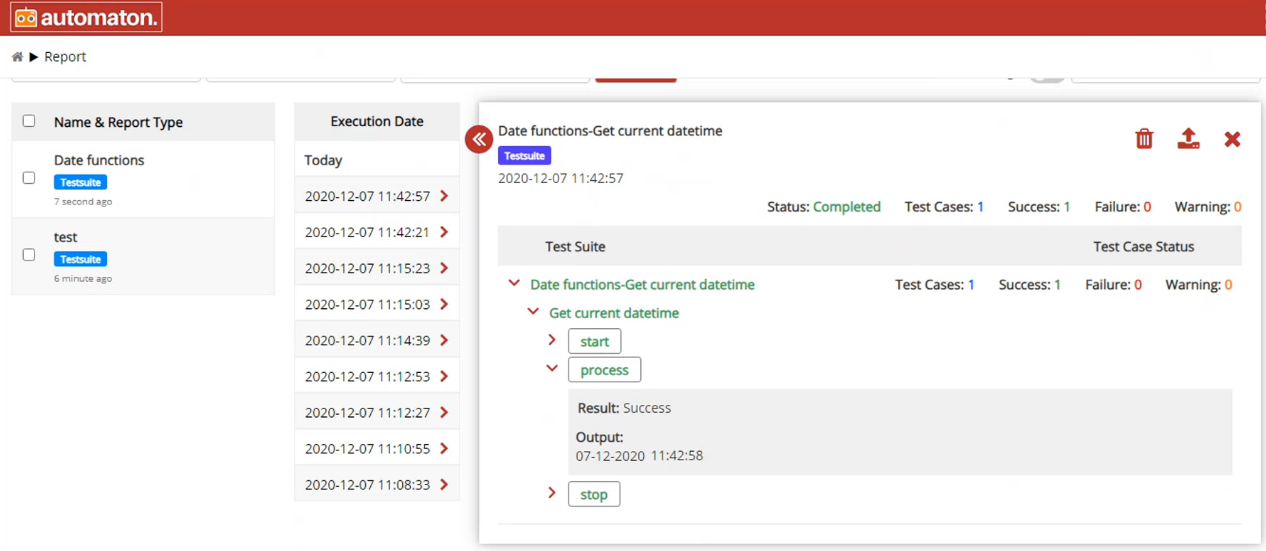
Fig. 5.37 Report page of Current Date Time
- Log Operations: This allows users to search for a phrase or a key value. The Action combinationd of Log Operations are:
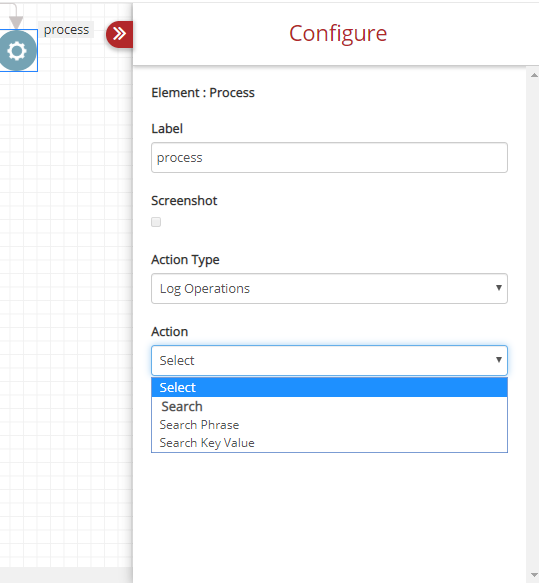
Fig. 5.38 Process Element of Log Operations
- Search: Search Phrase: To search a phrase as shown below:
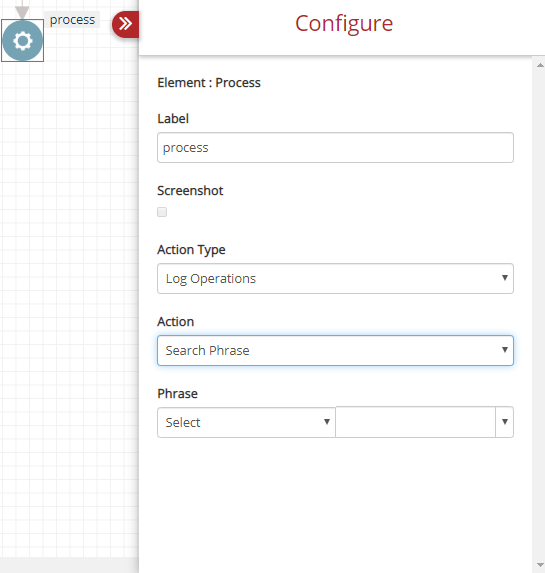
Fig. 5.39 Search Phrase
You can enter the term under Phrase.
- Search: Search Key Value: To search for a key value.as shown below:
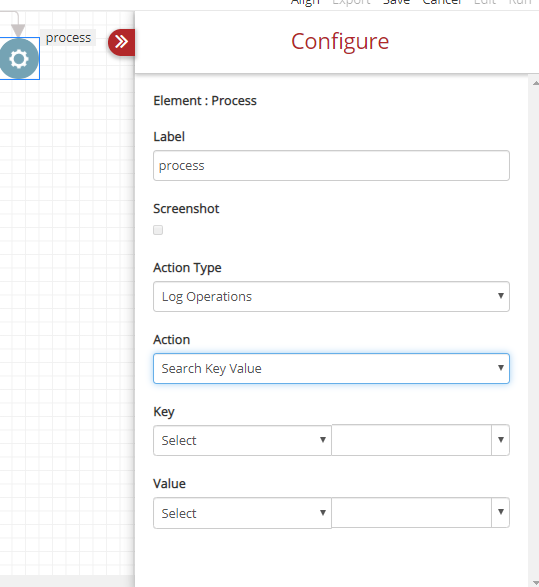
Fig. 5.40 Search Key Value
Enter the Key and Value in the respective columns to perform the search.
- Loop Operations: To perform various loop functions. You have two options to choose under Action.
- Loop: Iterate Over Set Values Using Loop.
- Loop: Iterate Over List Using Loop.
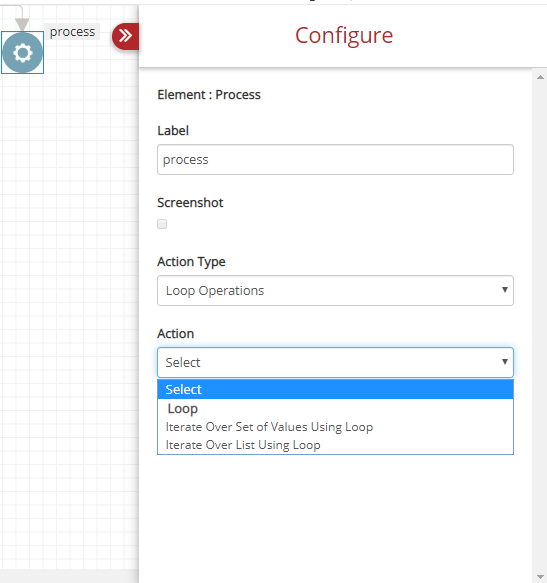
Fig. 5.41 Process Element Loop Operations
- Other: Other refers to a couple of action-combinations displayed .
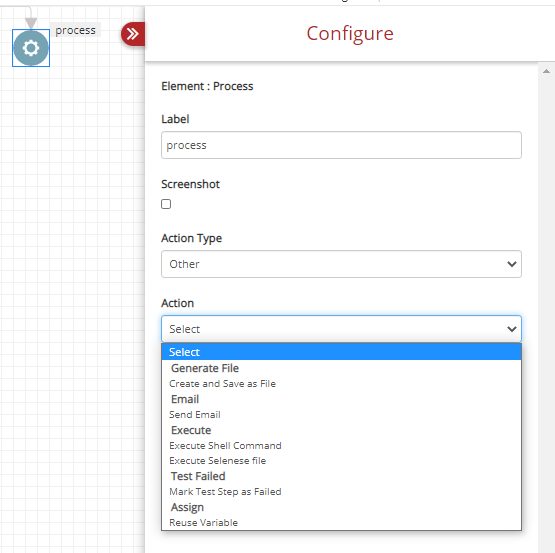
Fig. 5.42 Process Element Other
The options under Other are listed below:
- Generate File: Create and Save as File: This option is selected to generate a file and save it.
- Email: Send Email: Select the Send Email option to send mail through an action. To perform this action users must provide the values for each field as shown below:
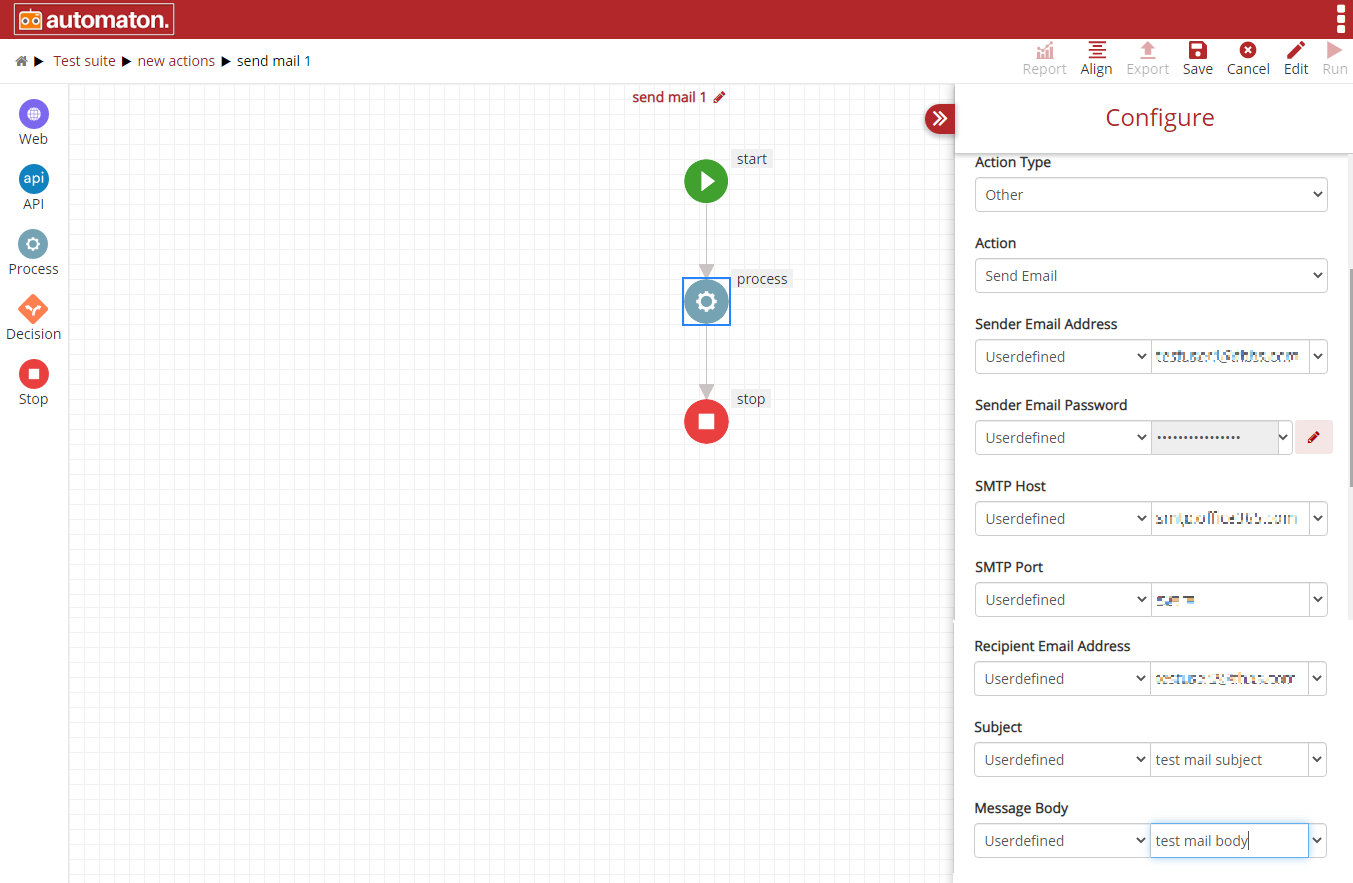
Fig. 5.43 Send Mail
Note
The Email-id and Password will be encrypted and stored in the database to ensure the confidentiality of information.
Once the user provides all the information click the Save and Run button to execute the test case. Click the report icon
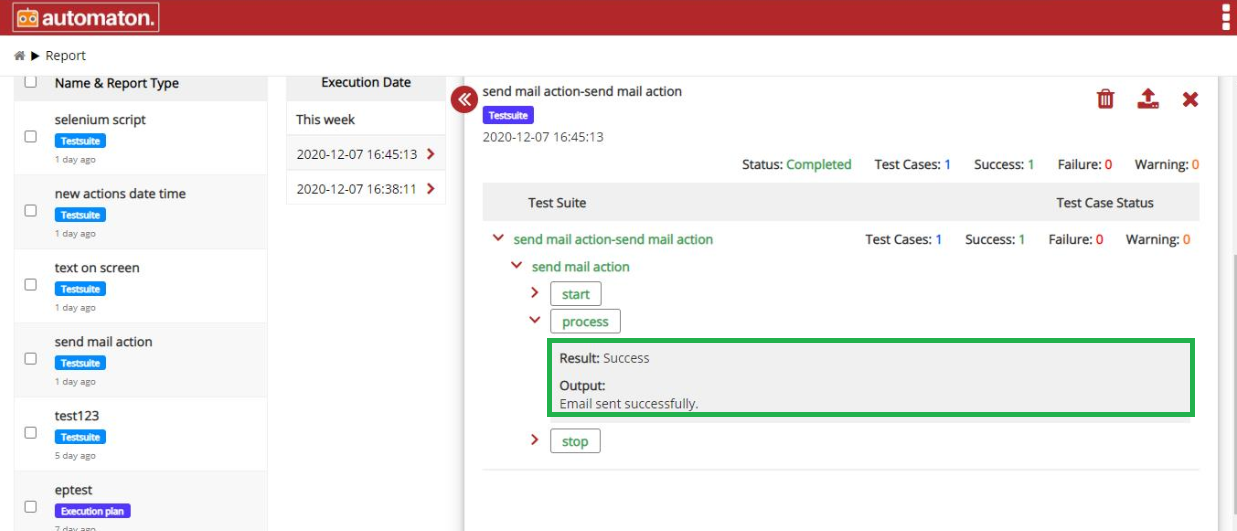
Fig. 5.44 Report Page of Send Mail
- Execute: Execute Shell Command: Users can select this option to execute a shell command.
- Execute: Execute Selense file: Users can select this option to perform web testing of recorded interactions. Using this users will be able to record the user interactions with websites using certain browser plugins like selenium ide,katalon recorder etc. This will be saved as side/selenese files. The steps to perform the same with selenium ide is as shown below:
Step1: Click the https://chrome.google.com/webstore/detail/selenium-ide/mooikfkahbdckldjjndioackbalphokd?hl=en link to download Selenium IDE extension.
Step 2: Click the extension, Welcome to Selenium IDE dialog will be displayed as shown below:
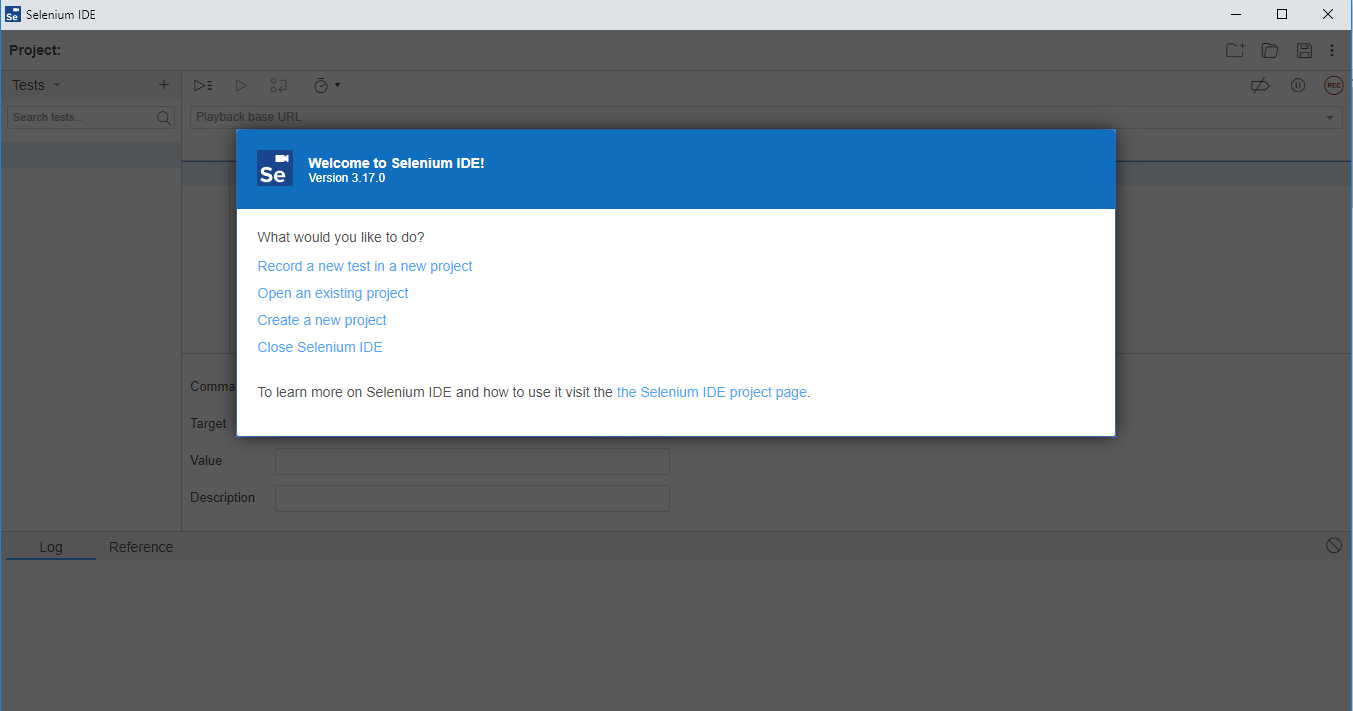
Fig. 5.45 Selenim IDE
Step3: Select an option from the above-listed options under ‘What would you like to do?’. Here we have selected Record a new test in a new project.
Step 4: Enter the Project name as shown below:
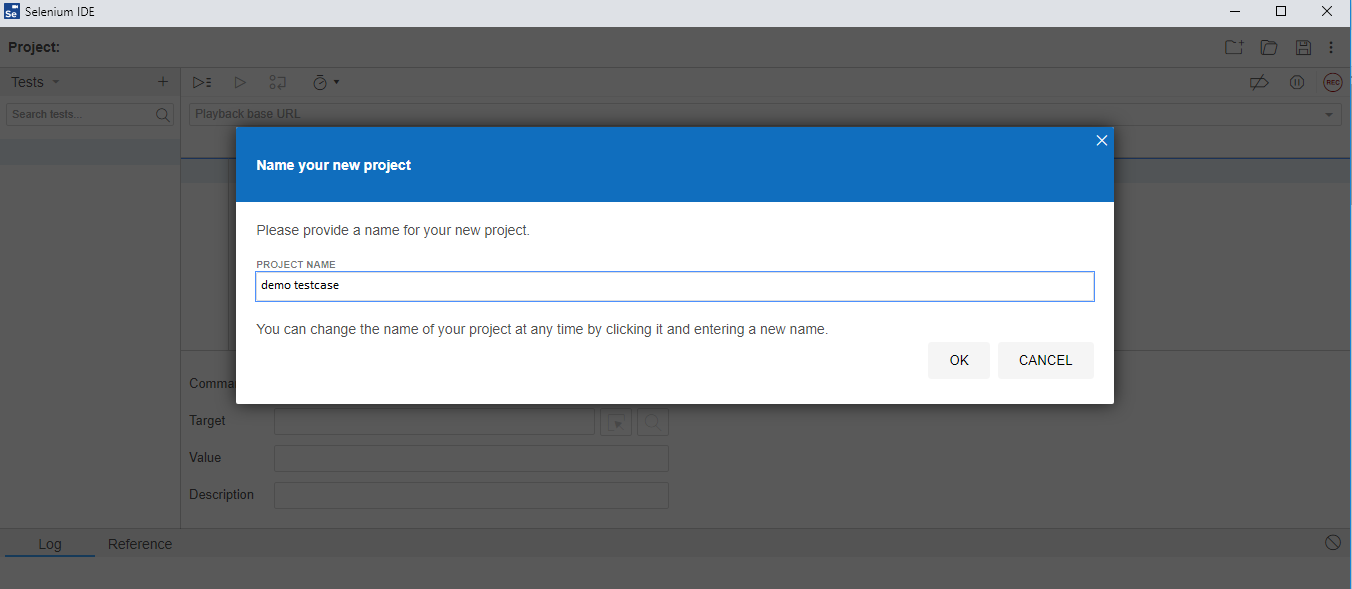
Fig. 5.46 Project Name
Step 5: Enter the URL of the website for which the recording needs to be done as shown below: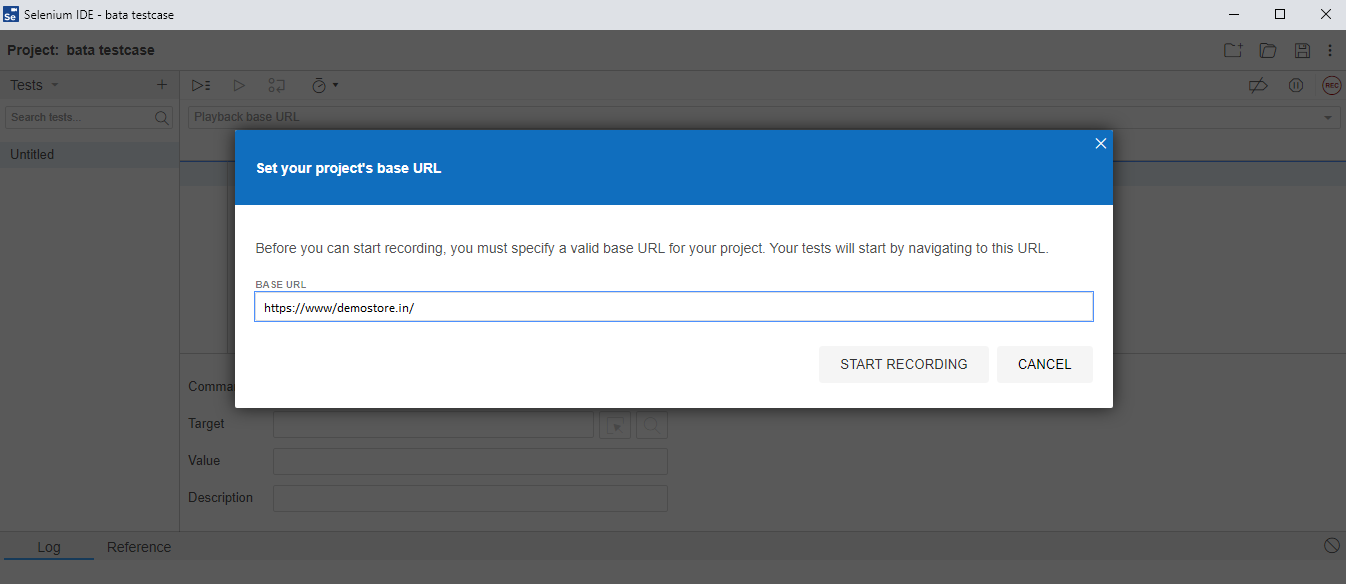
Fig. 5.47 Base URL
Click the Start Recording button to record the action or Cancel to exit. Once the user clicks the Start Recording button, it will navigate to the URL specified in the BASE URL in the Set your project’s base URL dialog as shown on the above figure. Users can perform the required action and click stop recording.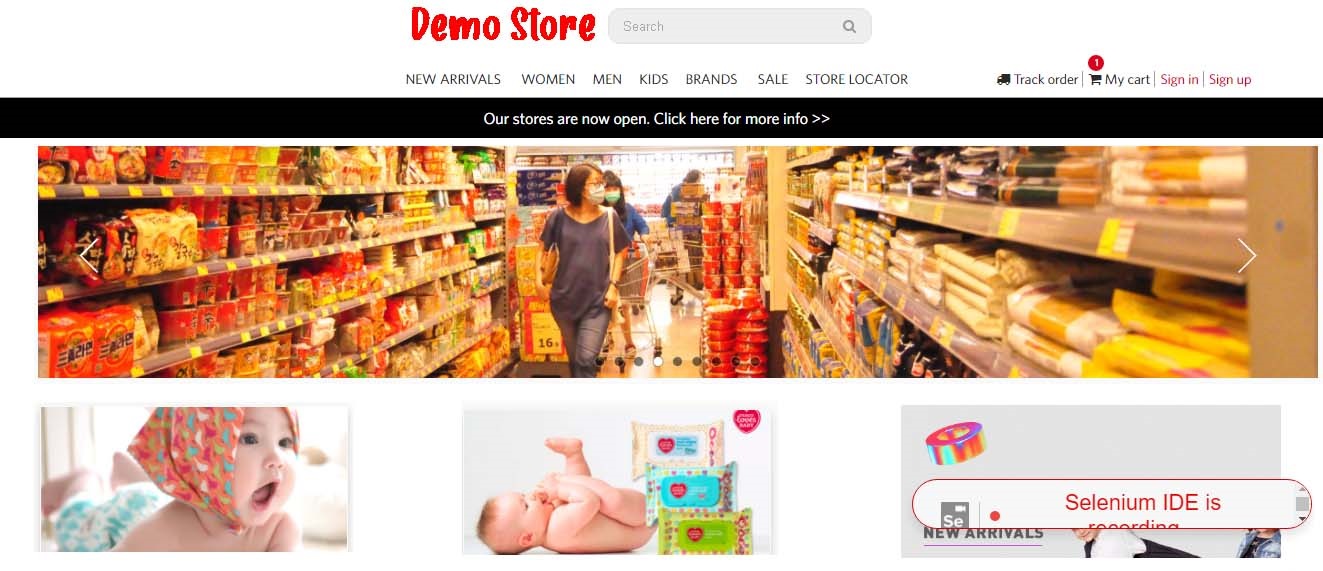
Fig. 5.48 URL for Recording
Once the recording is stopped it will display all possible IDs of the clicked events and it will be saved in Selenium IDE.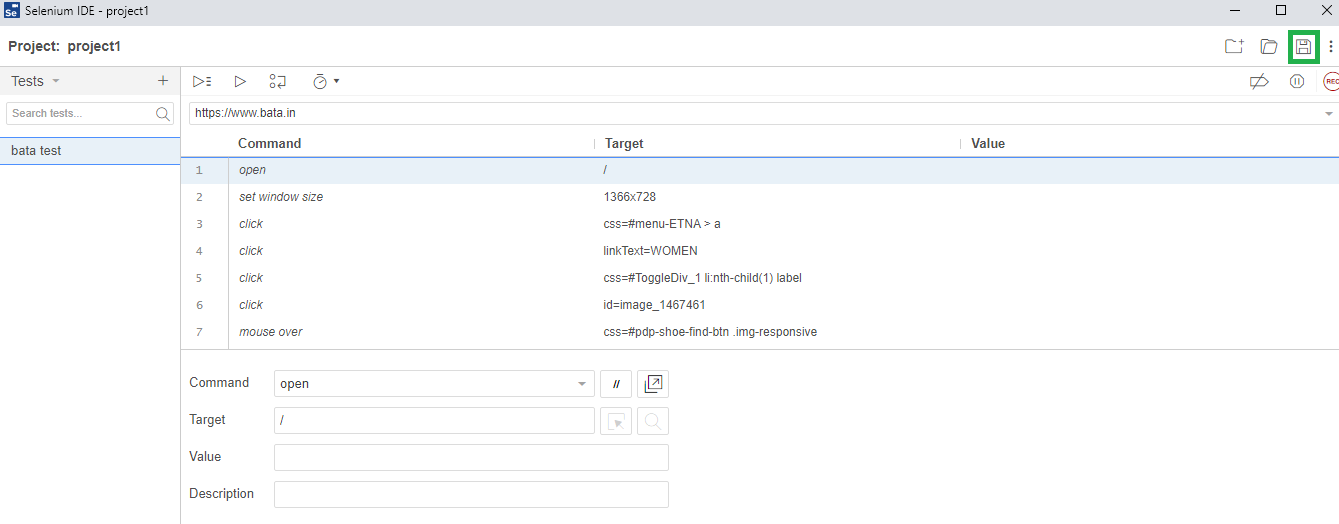
Fig. 5.49 Xpath & IDs
Step 6: Click the Save button to save the file. Users have to specify the location (D>New folder). The file will be saved with a side extension(.side).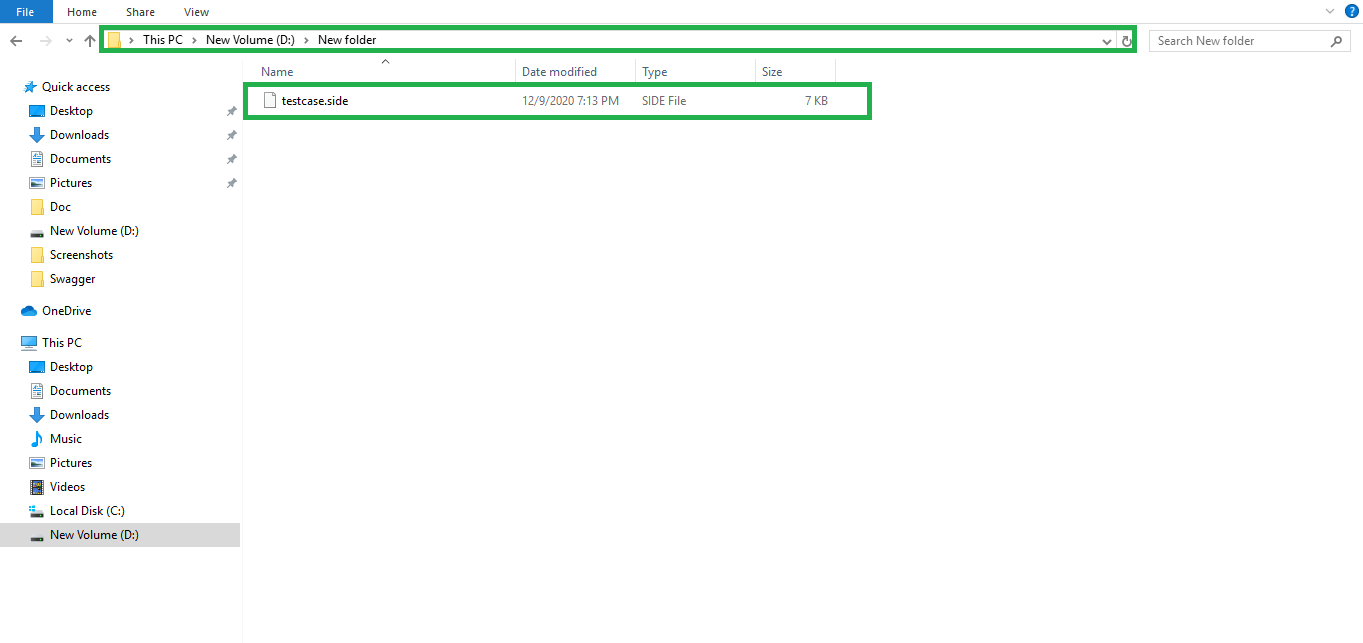
Fig. 5.50 Saved Selenium IDE
In Automaton, navigate to the respective test case and provide the values for each field as shown below:
- Action Type: Other.
- Action: Execute Selense file.
- File Path: The location where the side is saved (on the above example D>New folder) as shown below:
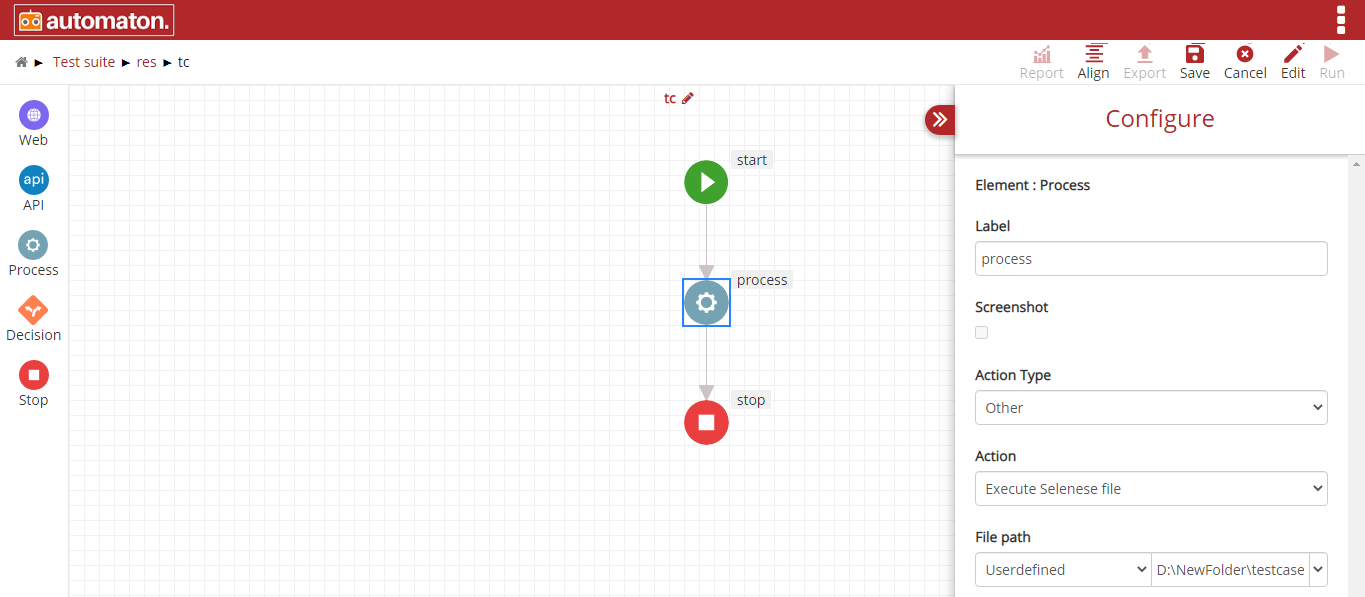
Fig. 5.51 Selenium IDE Test Case
Click Save and Run button to save and execute the test case. Click the report icon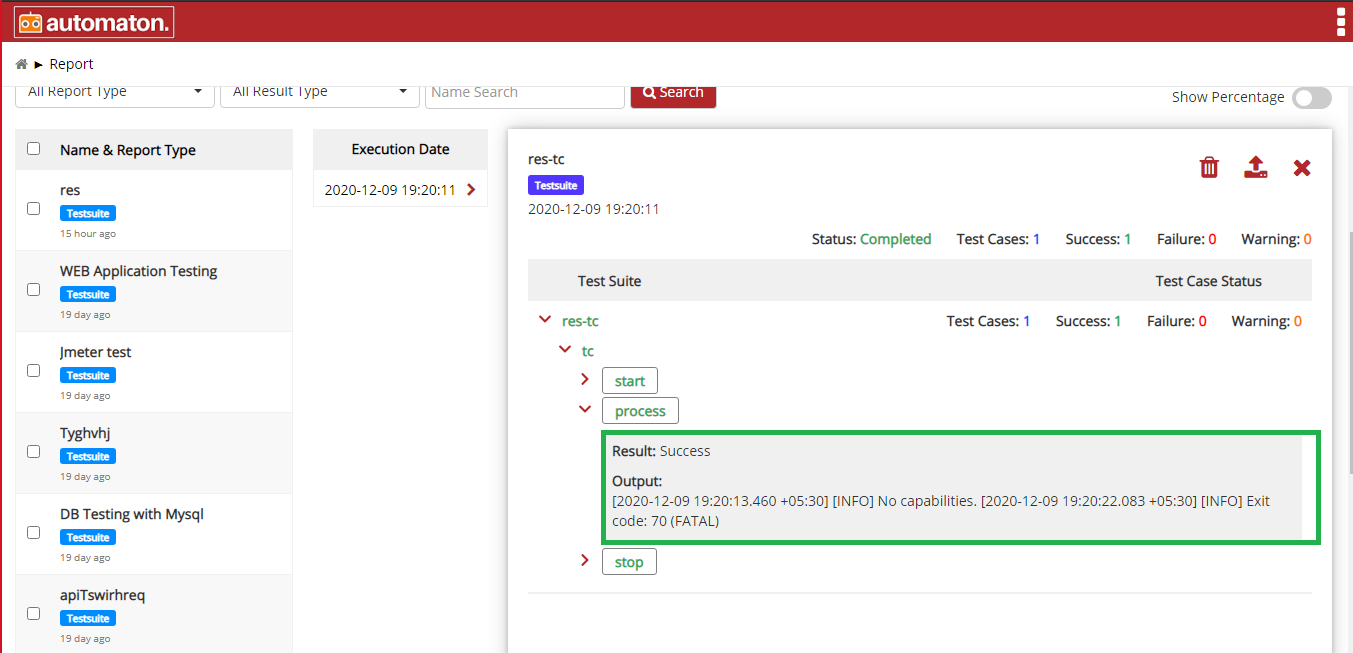
Fig. 5.52 Report page of Selenese
- Test Failed: Mark TestStep as Failed: Depending on your testing requirements, you can mark a test step as ‘failed’ if needed.
- Assign: Resuse Variable: Assign is selected to reuse variables.
- String Operations: String Operations allows you to perform different types of string operations.
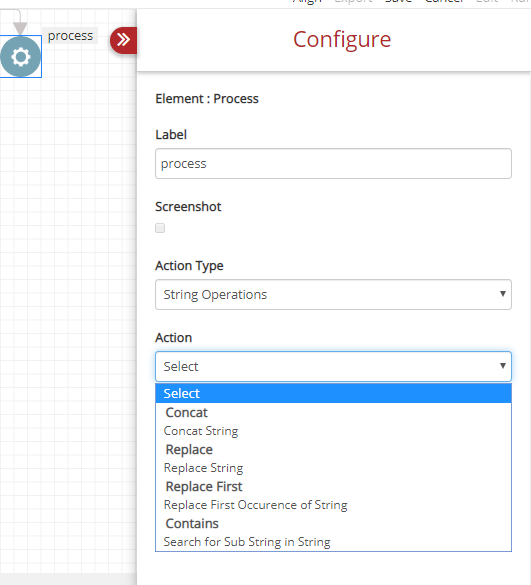
Fig. 5.53 Process String Operations
- UI Operations
UI Operations has a comprehensive range of action-combinations that are categorized under Open Driver, Window, Alert Options, Open URL, Take Screenshot, Switch To, Close, Image, Open Browser and Wait as shown in the below figures.
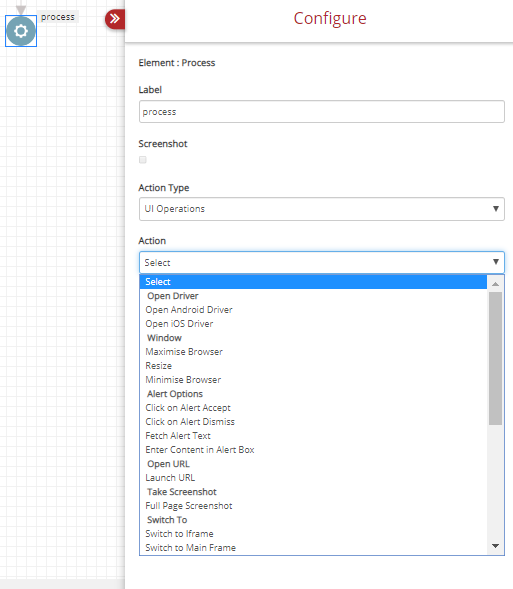
Fig. 5.54 UI Operations 1
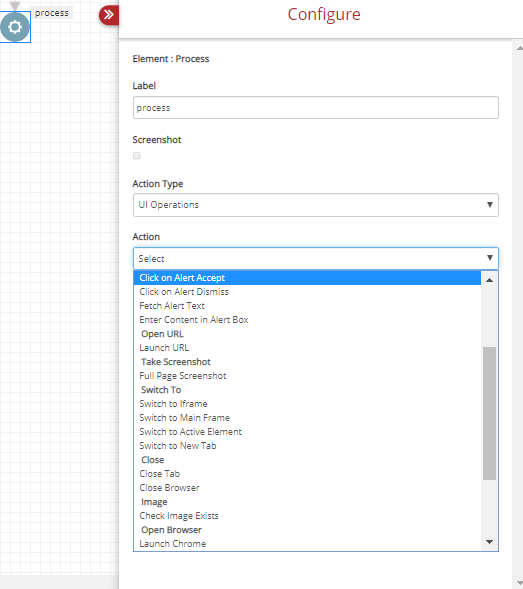
Fig. 5.55 UI Operations 2
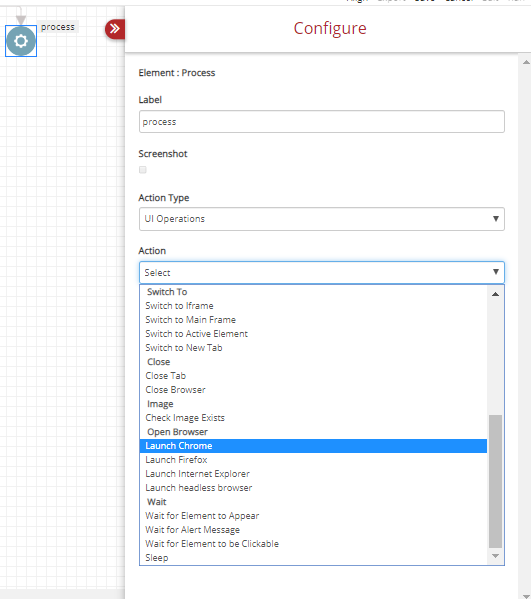
Fig. 5.56 UI Operations 3
Various Action-combinations of UI Operations can be seen in figures UI Operations 1, UI Operations 2 and UI Operations 3.
- Open Driver: Open Driver is used for mobile testing.It has two options.
Open Driver: Open Android Driver. Once the user select this option the Configure dialog is as shown below: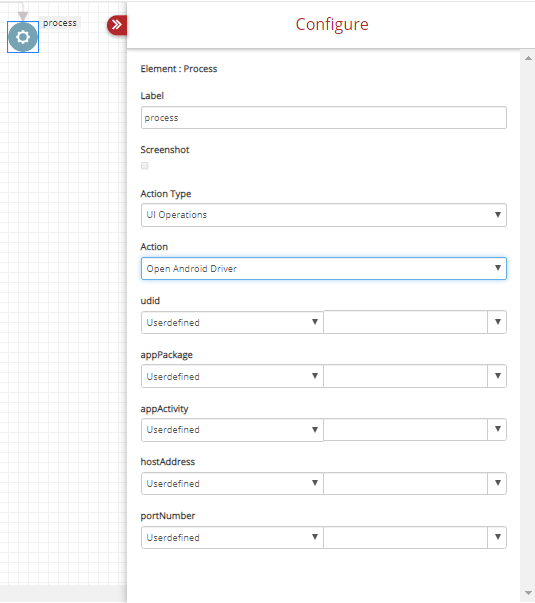
Fig. 5.57 UI Ops Open Android Driver
You need to fill the information such as udid (Unique device ID), appPackage details, appActivity, host address and port number. This is discussed in detail in the Mobile Testing section.
Open Driver: Open iOS Driver. Once the user select this option the Configure dialog is as shown below: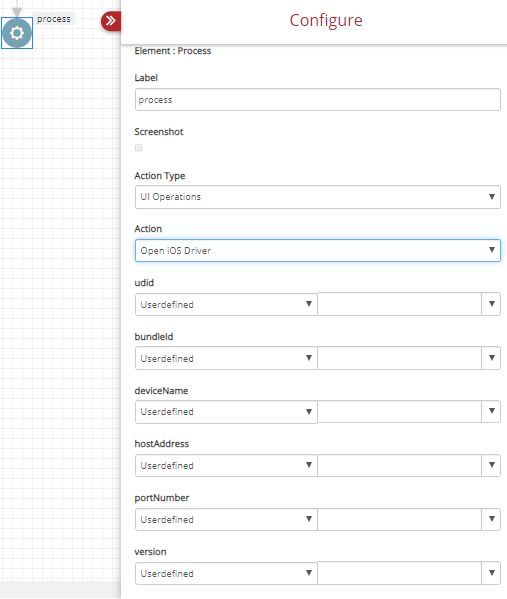
Fig. 5.58 UI Ops Open iOS Driver
For iOS testing, you need to enter the udid, bundle ID, device name, host address, port number and the version of the iOS you are using.
Window: Maximise Browser: Allows the user to maximize the browser.
Window: Maximise Resize: Allows the user to resize the browser.
Window: Minimise Browser: Allows the user to minimize the browser.
The resize option is as shown below:
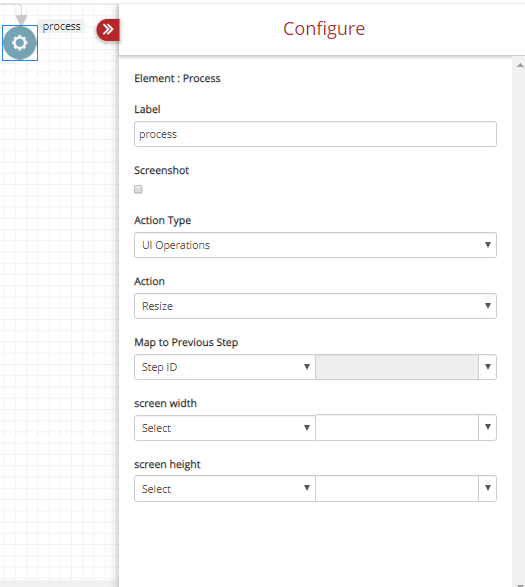
Fig. 5.59 Resize Browser
Alert Options: Alert Options in UI Operations allow you to perform different following alert related actions:
Alert Options: Click on Alert Accept: To accept an alert.
Alert Options: Click on Alert Dismiss: To dismiss an alert.
Alert Options: Fetch Alert Text: To copy the test from an alert pop up.
Alert Options: Enter Content in Alert Box: To add custom content to an alert box.
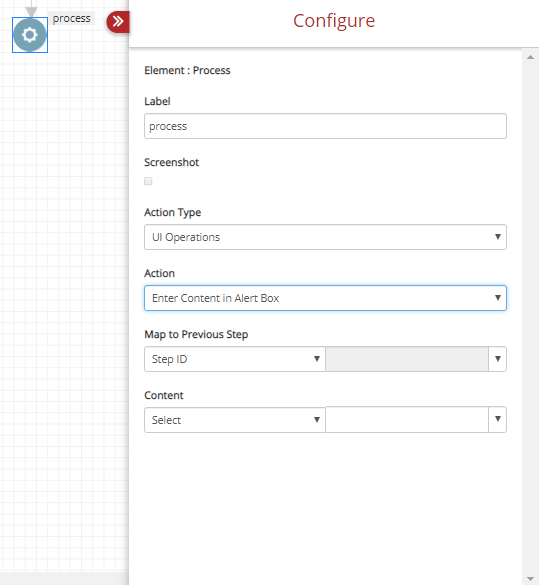
Fig. 5.60 Enter Content In Alert Box
You have a Content box after mapping to the Previous Step to enter the text.
Open URL: It has only one option, Launch URL.
Open URL: Launch URL: Once you select the Launch URL, you need to enter the Step ID and the URL details .
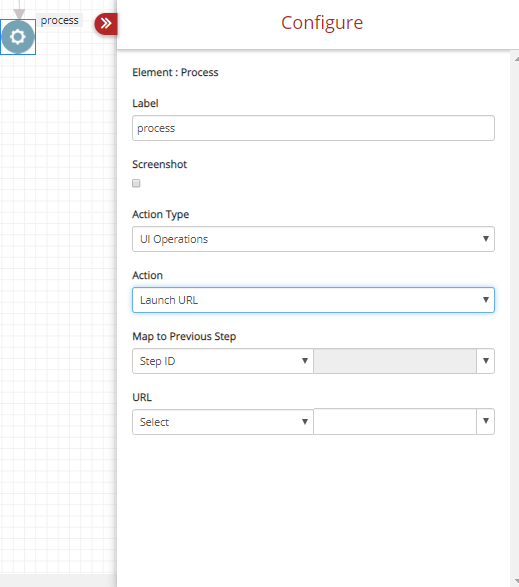
Fig. 5.61 Launch URL
Take Screenshot: Full Page Screenshot: This option is used for taking screenshots. This supports taking full page screenshots.
Switch To: Switch To has – Switch to Iframe, Switch to Main Frame, Switch to Active Element and Switch to New Tab.
Switch To: Switch to MainFrame: Switching to the mainframe or switching to the active element can be done with Step ID.
Switch To: Switch to iframe: Switching to Iframe is done with Locate By Switch To iframe.
Switch to new tab has an additional column to enter the tab number so that you can locate a tab specifically Switch To New Tab_.
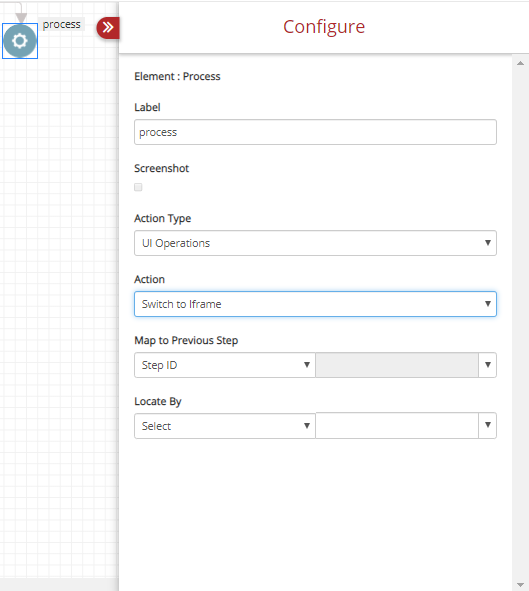
Fig. 5.62 Switch To iframe
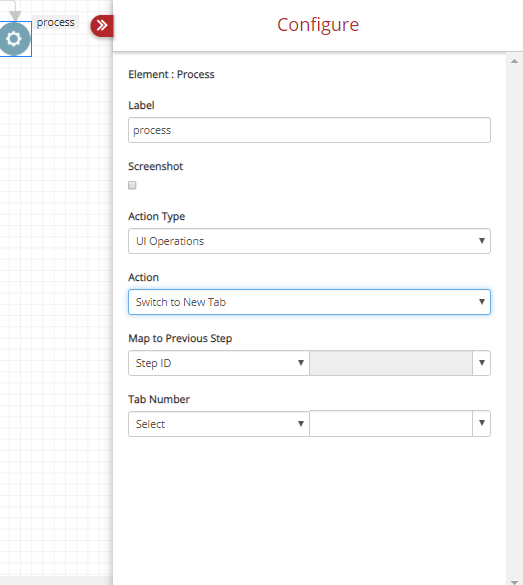
Fig. 5.63 Switch To New Tab
Close: Close actions are used to close a tab or browser. You can do this by selecting the appropriate one from the drop-down.
Close: Close Tab.
Close: Close Browser.
Open Browser: Open Browser opens the browser of your choice. Currently, it supports Chrome, Firefox, Internet Explorer and a headless browser.
Open Browser: Lauch Chrome.
Open Browser: Launch Firefox.
Open Browser: Launch Internet Explorer.
Open Browser: Launch headless browser.
Wait: The wait element will suspend the execution of the test case for a given time and resumes after that. The different options for Wait are:
Wait: Wait for Element to Appear.
Wait: Wait for Alert message.
Wait: Wait for Element to be Clickable.
For any of the above options, users must select the Locate By option to locate the element using xpath, class name, id, Step ID, cssSelector, querySelector, or Text. The time entered for the above options will be calculated in seconds.
Wait: sleep: For this option user has to provide a time in the time field. The time entered for Sleep will be calculated in milliseconds.
- XML and JSON Operations
XML and JSON Operations are used to fetch the value of a JSON or XML key. If it is the JSON key, you need to enter the key’s path into the Key Path drop-down. If it’s XML, you need to enter the key value in the Key-Value drop-down.
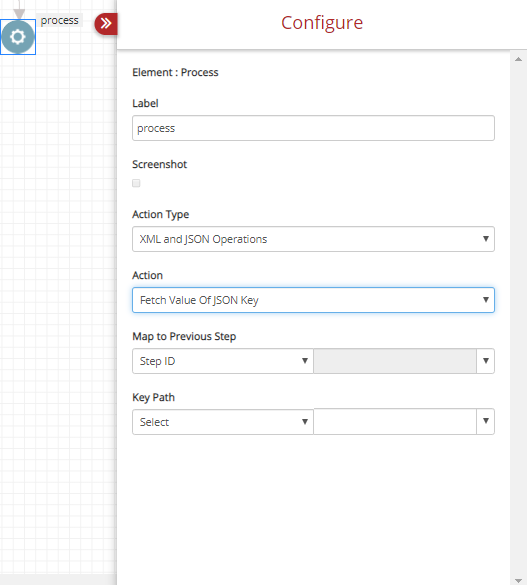
Fig. 5.64 Fetch Value Of json Key
- SSH Operations: This action allows users to establish ssh connections with remote machines and execute the shell commands.
- Connect and Execute Commands: This allows users to automate the establishment of ssh connections with remote machines and execute the shell commands.
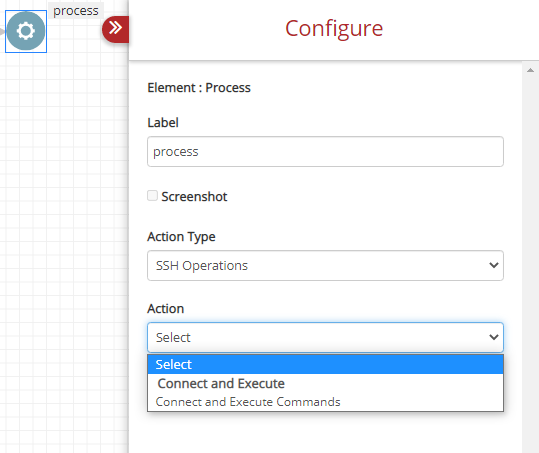
Fig. 5.65 Process Element SSH Operation
Host: The user must provide the domain name or IP address of the remote machine.
Port: The user must specify the place for being physically connected to some other device. Here port will be 22 since it is an SSH connection.
Username: Type-in the address of the remote machine.
Pem File Path: The user must provide the file location of pem files.
Commands: General unix and linux commands.
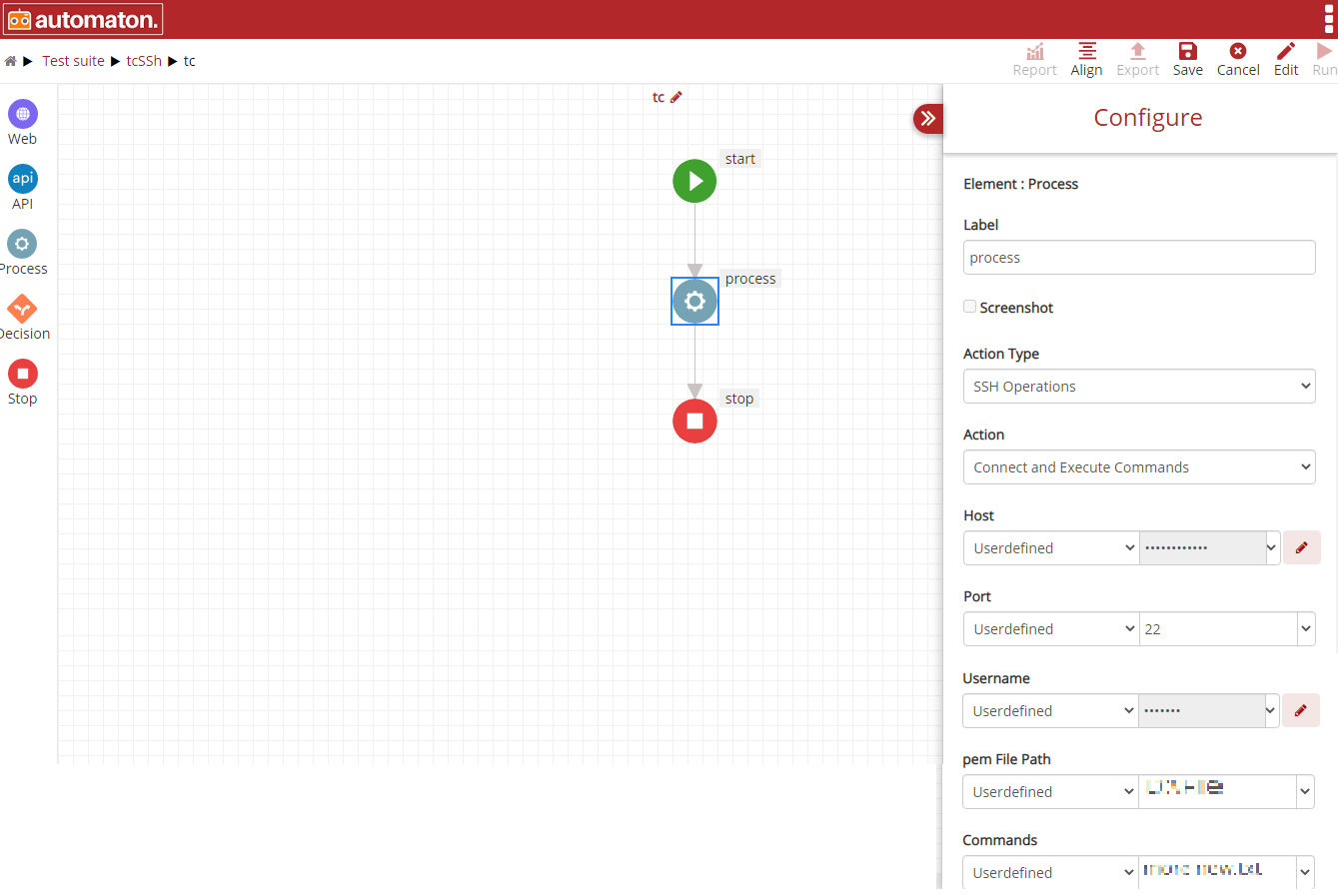
Fig. 5.66 SSH Properties to establish remote machines Connections
Click Save and Run button to execute the test case. Click the report icon
Fig. 5.67 Report Page
- Decision Element
Decision is used for comparing two values which can be String, Numbers, Datetime etc. You can perform many action-combinations with this element.
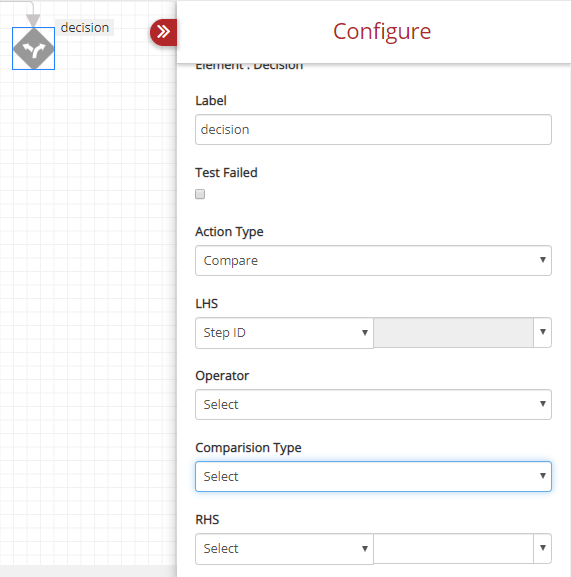
Fig. 5.68 Decision Element
The fields of the DECISION elements are:
- Label: This allows the users to name the test step as per their choice.
- Test Failed: Check the check box if the user wants to fail the test.
- Action Type: This has only the Compare option.
- LHS: Enter the LHS value.
- Operator drop-down has =,<, >, <=, >=, JSON, XML, KEYS and IMAGE. Users have to select the operator accordingly.
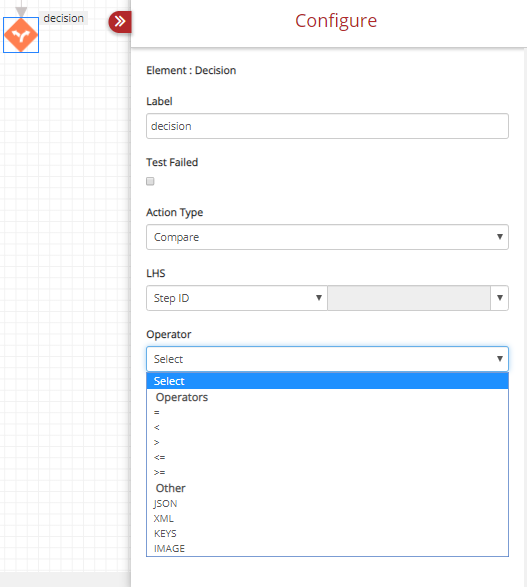
Fig. 5.69 Decision Element Operator
- RHS: Enter the RHS value.
- Comparison Type: It is a drop-down having String, Number, Boolean, Datetime and Other options.
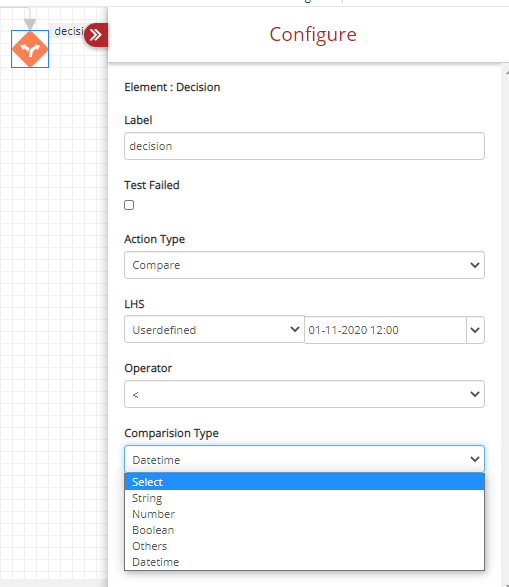
Fig. 5.70 Decision Element Comparison Type
Decision element allows users to compare the date and time of LHS with RHS. Users can perform this action by selecting the respective fields as shown below:
- Action Type: Compare.
- LHS: Users can select Step ID or Userdefined. If Userdefined is selected then users must provide date and time.
- Operator: To compare date and time users can select only the arithmetic operators like: =, <, >, <=, >=.
- Comparison Type: In this field, users can select String or Datetime.
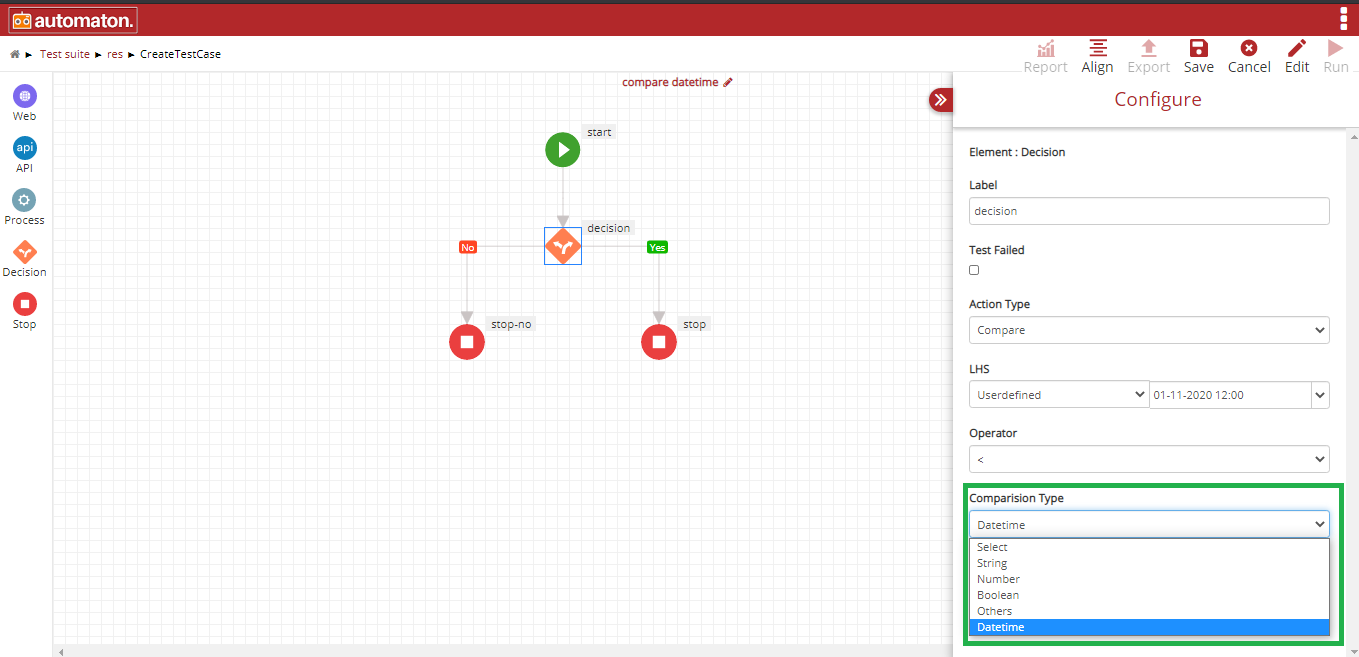
Fig. 5.71 Comparison Type
- RHS: Users can select Step ID or Userdefined. If Userdefined is selected then users must provide date and time.
Note
Users must give the same date and time format in the LHS and RHS.
Click Save and Run button to save and execute the test case. Click the report icon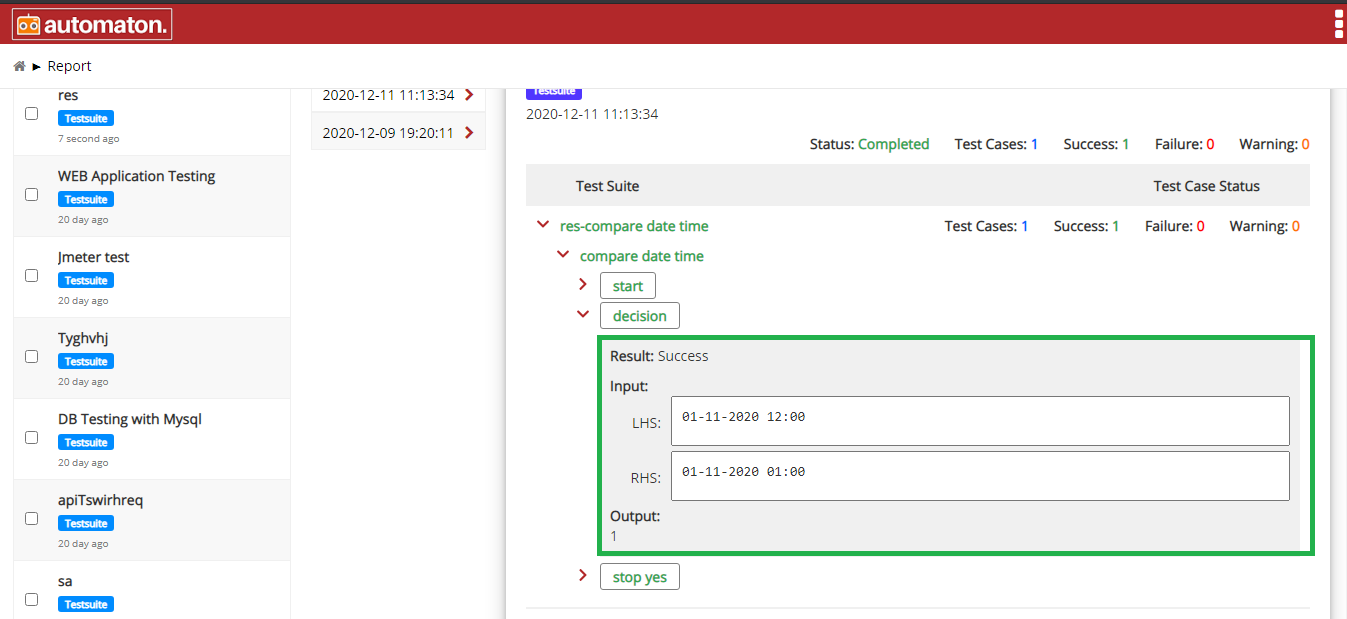
Fig. 5.72 Report Page of Date and Time
- Stop Element
The Stop is a mandatory element in a test case, just like START. STOP is used to end a test case. Select Stop from Action Type drop-down and End Task from Action.
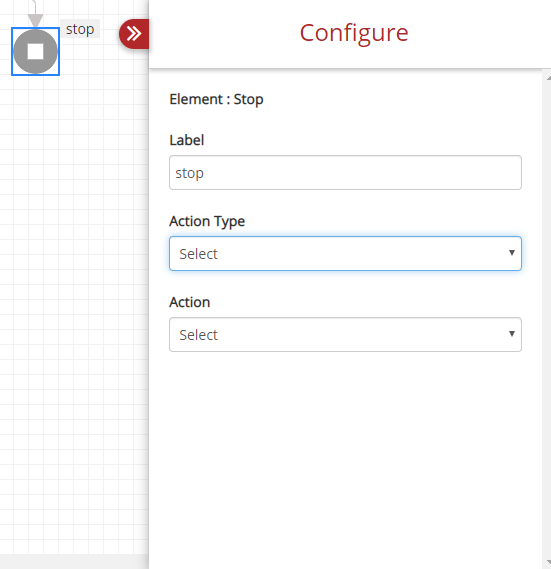
Fig. 5.73 Stop Element